Send a diagnostic report
When something doesn’t work and you ask WRC support for help, send the diagnostic report of the station. It is one report of the state of the station, made when you ask for it, and it tells WRC support what they need to find the fault. You read it before you send it.
What the report holds
The report holds:
- the station: the versions of Web Radio Control, the web interface and Hamlib, the station control computer, its free disk and memory, and whether its clock is synchronized;
- the license and the setup: the state of the license, setup mode and the steps of the guided setup;
- each device: its type, model and connection, its last events and the state of its audio;
- the audio and the hardware the station finds: the sound cards, USB devices, serial ports and control lines;
- the network: the ports, the firewall, IPv6, the certificate, how browsers reach the station, and the last test from the internet and the last update;
- the host service and the server: their state, and the last crash;
- the last 200 warnings and errors of the log of Web Radio Control, each repeat counted.
It never holds passwords, keys or tokens, the license ID or key, the users, the logbook and spots, the names of the station or its public IP addresses.
Send it from Web Radio Control
As the administrator:
Create the report
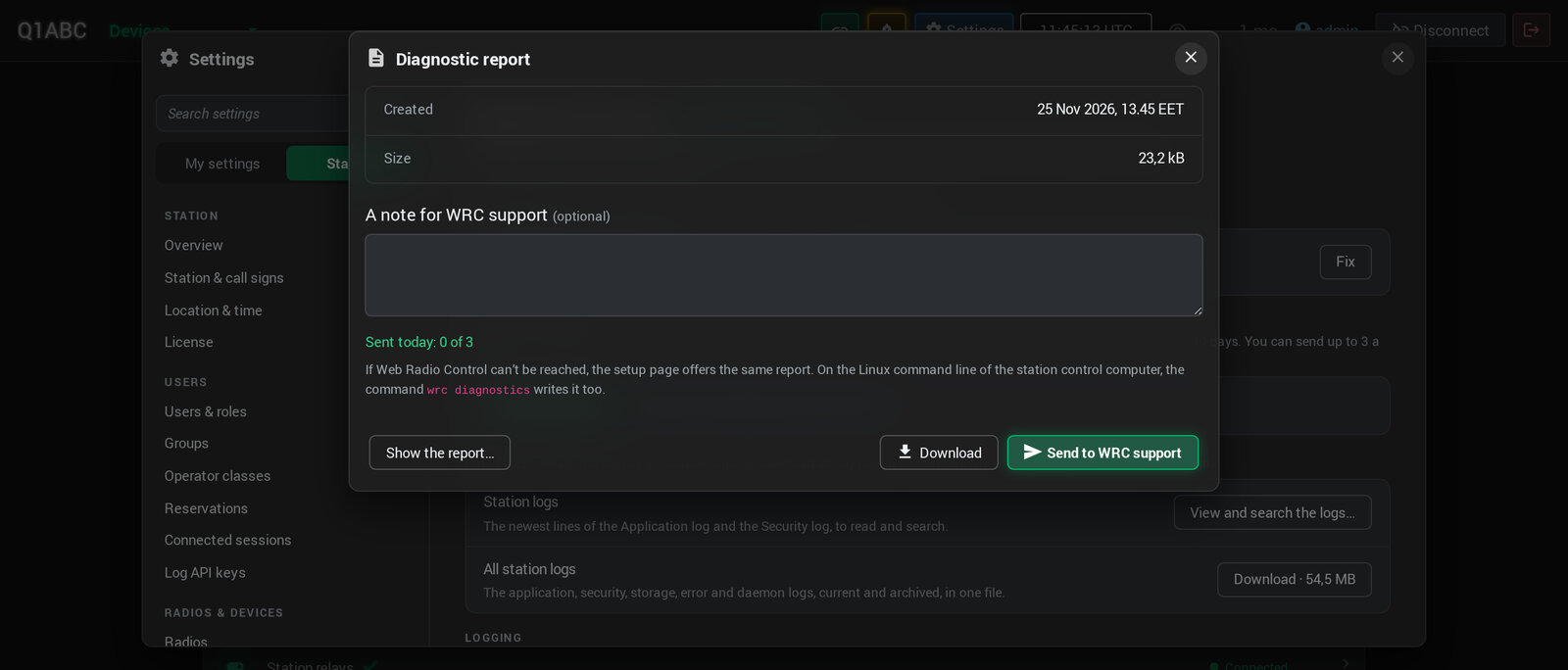
Open Settings › Station › Diagnostics & logs. Under Diagnostic report, What does the diagnostic report contain? opens a list of what The report contains and what The report never contains. Choose Create a report. Creating it takes a few seconds. The dialog Diagnostic report then opens, with when the report was Created and its Size. Each time you choose Create a report, the station creates a new one.
Read it
Choose Show the report…. The dialog The report, as it will be sent opens on its Summary tab, with the versions, the license, the devices, the last crash, the warnings and errors, and What is missing. The Full report tab shows the whole report, as WRC support gets it. Close takes you back to the dialog Diagnostic report.
Add a note
In the dialog Diagnostic report, in A note for WRC support (optional), write in a few words what went wrong and when.
Send it
Choose Send to WRC support. The dialog says Sent today: 1 of 3 · the last at ‹time›, reference ‹reference›. Give that reference when you email WRC support or ask in the discussion group.
WRC support keeps the report for 30 days. A station sends at most 3 a day.
Download saves the report as a file instead, to attach to an email. Send it only to WRC support, never to the discussion group.
From the setup page
When Web Radio Control can’t be reached, the setup page of the station has the same report. Open the setup page on the local network of the station (see The setup page after the first run). Under Show details › Diagnostics, Diagnostic report:
- View opens the report in a large dialog, its summary above it, with Copy.
- Download saves it as a file, to attach to an email to WRC support.
On the first run, before the administrator exists, the setup page shows the report without a login. In recovery, the station makes the report from its own files, with what keeps it in recovery.
From WRC Link
WRC Link makes a report of its own, about how it runs on your computer. On its Activity page, choose Get help…. The dialog Get help with WRC Link shows the report to read first. Add a note in What went wrong? (optional), then choose a station in Send through and Send to WRC support, or Save as ZIP….
WRC Link sends the report through a station you are connected to, whatever your roles there. The administrators of that station see that a report was sent, not what it says. See When WRC Link misbehaves for what it holds, and for saving it when the window of WRC Link doesn’t open.
The browser log
Your own browser keeps a log of its own: the notifications, and what the audio engine checks. It is in Settings › My settings › Browser log, for every user.
This browser’s log shows its last 200 messages, newest first. Search them, or choose a level. Copy all copies the log, and Download as a file saves it. The log is kept in this browser alone, so you can read it even while the page is disconnected from the station.
Send the browser log to WRC support with the diagnostic report when the problem is in your browser, such as the audio.
All the logs of the station
When the report is not enough, WRC support may ask for the logs themselves. As the administrator, open Settings › Station › Diagnostics & logs. Under Log files, All station logs downloads them as one archive.
From the command line of the station
When neither Web Radio Control nor the setup page answers, write the report on the station control computer itself.
Log in with SSH as the Linux user wrchost, find the container of Web Radio Control, and run its wrc diagnostics:
sudo docker ps --filter name=wrc-server
sudo docker exec -u wrc <container> /opt/wrc/wrc diagnostics > wrc-diagnostics.json
When Web Radio Control doesn’t answer within half a minute, the command writes the report from the files of the station instead, and says why.
If something went wrong
- The dialog says Not sent: ‹reason›. The reason says why. The station needs the internet and an activated license to send it. Choose Send to WRC support to try again, or choose Download and attach the file to an email to support@webradiocontrol.tech.
- Create a report is marked Not created. The bar at the foot of the page says why. Choose Retry there.
- Send to WRC support can’t be chosen. The station has sent 3 reports today. Download the report instead, or send it tomorrow.