Operator classes
An operator class holds its operators to the frequencies their license allows, and to the highest power on each. Make a class for each license class of your operators, such as a novice class, and give it to the users who hold that license. You manage the classes in Settings › Station › Operator classes, as the administrator.
A class works besides the limits of the station devices, such as the frequencies and power of an antenna (see Transmit limits):
- A class limits tuning too. Its holders can’t tune a radio outside its frequencies at all. The limits of the devices never stop tuning: anyone may listen where no antenna is rated.
- A class has frequencies and powers, no modes. Each range has its own power limit, or none. A CW-only segment can’t be written into a class.
- A user without a class is held to the limits of the devices alone. Neither the classes nor the limits of the station apply to a radio keyed from its front panel.
Make a class
Open Operator classes
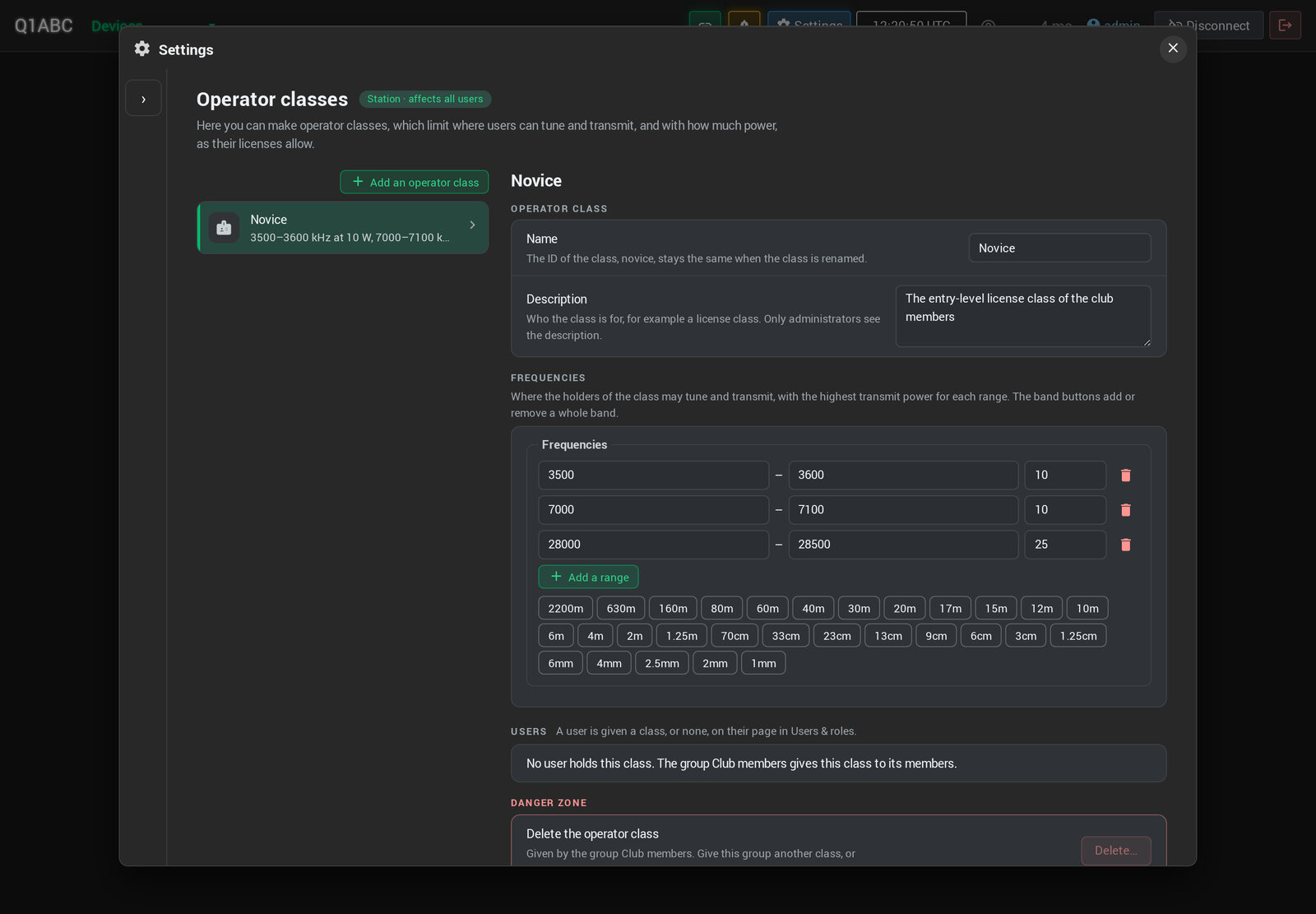
Open Settings › Station › Operator classes and choose Add an operator class. A page for the New operator class opens beside the list.
Name the class
Type a Name, such as Novice. Two classes can’t have the same name, whatever its capitals. The class gets an ID made from the name, which stays the same when you rename it. Optional: a Description, such as the license class it is for, which only administrators see.
Add the frequencies
Under Frequencies, add a range for each part of a band the holders may use: type From (kHz) and To (kHz), both included, and the highest power in watts beside them. Leave the power empty for no limit. Add a range adds another, and the bin removes one.
The buttons under Bands add a whole band of the station in one tap, without a power, or remove it again. A band already in the class shows pressed.
A range with a problem says why beside it, such as Overlaps range 1. or A power in W, above 0 and up to 100000, or none for no limit. The class can’t be saved until it is corrected.
Add the class
Choose Add operator class in the bar at the bottom of the page.
A class without frequencies allows nothing. Its page says None yet. The holders of this class can’t tune or transmit anywhere.
Give a user a class
- Open Settings › Station › Users & roles and choose the user.
- Under Operator class, choose the class, or None: limited by the station’s devices alone.
- Choose Save. Saving may ask for your password again.
The list of users tags each user who holds a class with its name. The user sees their class and its frequencies in My settings › Profile & password. A change reaches them at once: the limits of their radios and their band menus follow.
A group can give a class to its members instead (see Groups and device access). A user who holds a class of their own is held to it. A user without one is held to the classes of their groups, joined: they may tune and transmit wherever any of the classes allows, at the highest power any of them gives there. The Access tab of the user names the class and its groups, such as Novice: from their group Club, or the joined class, such as Novice + General: from their groups Novices and Club.
What a holder sees
- Tuning outside the class is refused: a frequency typed or tuned, the split frequency, a spot, a saved state or a memory channel. The radio stays where it was, and the operator is told why, such as IC-7610 is not tuned to 14,200 kHz. That frequency is outside the frequencies of your operator class Novice.
- A band the class reaches only in part is tuned into the class. Band ▲ and ▼ step over the bands the class doesn’t reach. The band menu marks those bands not your class, and doesn’t offer them.
- The keys and dial of the radio, such as its band keys, run first. Where they land outside the class, the station sets the radio back and tells every user of the radio why. The events of the radio list it too.
- Transmitting outside the class is refused: PTT, CW, the tuner, the tests that transmit and the links of WRC Link.
- The RF power is lowered to the power of the class before the radio transmits. The RF section of the Controls drawer says so, such as RF power limited to 5 W: the most your operator class Novice allows on this frequency. While an amplifier related to the radio is in Operate, the drive limit of the amplifier holds the radio instead.
While the radio transmits for a holder, no other user moves it outside the class, administrators included.
Delete a class
Under Danger zone on the page of the class, choose Delete…. The page asks Delete ‹name› for good? Choose Delete ‹name›.
A class that users hold, or that a group gives, can’t be deleted. Its page names them, such as Held by anna, q1zzz. Give these users another class, or none, in Users & roles first. Give those users or groups another class first.