Groups and device access
Device access holds a user to less than their roles allow, on one device, on every device of a kind or on every device. Hide a radio from visitors, or let the members of a club listen to a radio without transmitting on it. You give the access to one user, or to a group of users. A group can also give its members an operator class. You manage the groups in Settings › Station › Groups, as the administrator.
The levels
| Level | The user may |
|---|---|
| Hidden | Not use the device at all. It is left out of their lists, and nothing of it reaches them, not even that it exists. |
| View | See the device and listen to it, without controlling it. |
| Operate | Control the device, such as tune a radio, turn a rotator or switch an antenna, without transmitting. |
| Transmit | Everything their roles allow, transmitting included. |
A level never goes beyond the roles of the user. A user with the Receive role is never given Transmit by an entry. Their Access tab then says so, such as The entry asks for Transmit, but the roles allow only Operate.
A user without an entry, and in no group with one, uses every device as their roles allow. A user whose roles only let them log, post spots or reserve, without View only, Receive or a role above them, sees no device at all.
Entries
An entry gives a level for one of these:
- one device, by its name;
- every device of a kind: Every radio, Every rotator, Every amplifier, Every antenna switch or Every external device;
- Every device.
The most specific entry counts: an entry for the device comes before an entry for its kind, and one for its kind before one for every device. So Every device at Hidden with the IC-7610 at Transmit lets the user transmit on the IC-7610 and hides everything else.
Which level counts
- The entry of the user, for the device, its kind or every device, the most specific first.
- Otherwise the entries of their groups, the most specific of each group. Of several groups, the one that allows the most counts. A member of Visitors (every device Hidden) and Club (every radio View) may view the radios and nothing else.
- Otherwise their roles.
Whichever counts, the user never gets more than their roles allow. A group without an entry for a device adds nothing for it.
Add a group
Open Groups
Open Settings › Station › Groups and choose Add a group. A page for the New group opens beside the list.
Name the group
Type a Name, such as Club members. Two groups can’t have the same name, whatever its capitals. Optional: a Description, who the group is for, which only administrators see.
Choose the operator class
Under Operator class, choose the class that the members get if they don’t hold one of their own, or None (see Operator classes).
Tick the members
Under Members, tick the users of the group. A user may be in several groups.
Add the group
Choose Add group in the bar at the bottom of the page. The page of the group then has its Device access section.
Give the device access
Under Device access, choose what the entry is for in Entry for, its Level, and Add entry. Each entry is a row of its own. A new level chosen on a row applies at once, and the bin removes the entry.
A change to the name, description, class or members of a group waits in the bar at the bottom of the page. Choose Save to keep it, or Discard to drop it.
The Access tab of a user
Open Settings › Station › Users & roles, choose the user, then the Access tab beside Account. It shows what the user may do now, and why:
- Operator class and groups: the class the user is held to and where it comes from, such as Novice: their own, Novice: from their group Club or Novice + General: from their groups Novices and Club, and the groups they are in.
- Devices: each device with the level of the user and where it comes from, such as Hidden. Comes from: Their own, for this device. or Transmit. Comes from: Their roles. Beside each is the entry of the user for the device. Not set (their groups and roles decide) leaves it to their groups and roles. A level chosen there applies at once.
- Every device and each kind: the entries of the user for every device and for each kind of device. An entry for one device, under Devices, comes before them.
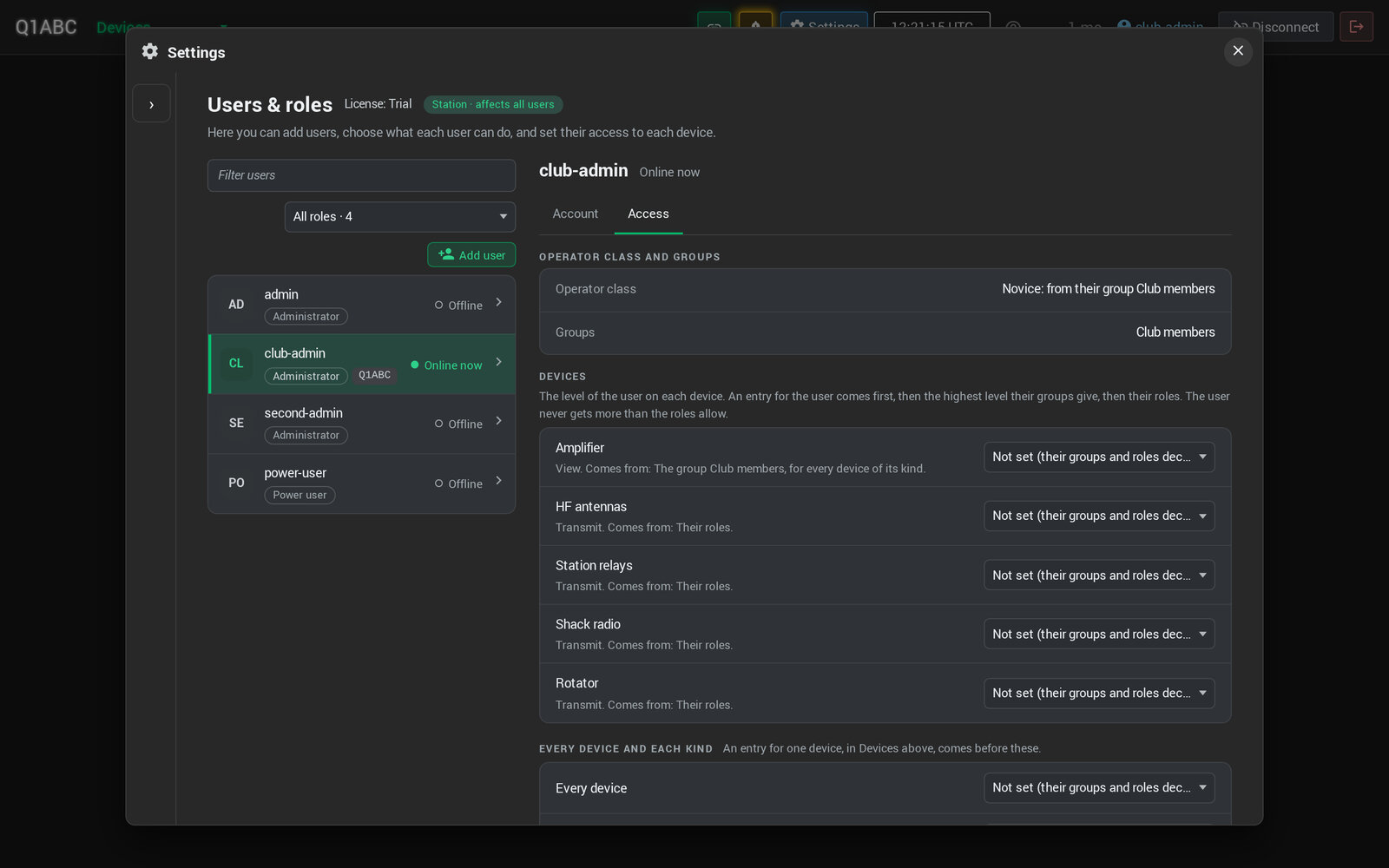
Each user sees their own access in My settings › Device access, and can’t change it there (see Device access).
What a user sees
- A hidden device is gone for them. It isn’t in their lists, its reservations and spots aren’t shown, its sound doesn’t reach them, and a link of WRC Link to it is refused. The station answers whatever they ask of it as it answers for a device it doesn’t have.
- A device they may only view or operate says so under its header, such as View only on this radio, in blue, or No transmitting on this radio, in amber. The controls their level doesn’t allow are grayed, and pointing at one says why.
- A shortcut or sequence with an action their level doesn’t allow is grayed, naming that action.
- A limit of a hidden device still applies. A radio they see is still held to the drive limit of a hidden amplifier, without naming it.
- A change applies at once. As you change their access or their roles, their lists follow, and a stream they may no longer use ends.
A user who may only view a radio can’t reserve it, unless they have the Reserve role. Listening needs View, and transmitting audio needs Transmit.
Hidden devices and managing them
Entries hold everyone when they operate the devices, administrators too. A device you hide from yourself leaves your radio pages, and you control it, transmit on it and reserve it only as your level allows. Managing a device is up to the roles alone: you still see it in Settings, change its settings, run its tests and read its events.
Delete a group
Under Danger zone on the page of the group, choose Delete…. The page asks Delete ‹name› for good? Choose Delete ‹name›. The members stay users, and the device access entries of the group are deleted with it.