Users and roles
Each operator of the station logs in with a user account of their own. Here you add the operators, choose what each may do, reset a forgotten password, and log a user out or remove them. You manage the users in Settings › Station › Users & roles, as the administrator.
The roles
A user’s roles say what they may do on the station. Give each operator the roles they need. A role includes those it needs, so Transmit also lets the user listen and log contacts.
| Role | What the user may do |
|---|---|
| View only | See the devices, without listening to or controlling them. |
| Receive | Listen to the radios, and turn rotators and switches. Includes View only. |
| Transmit | Transmit on any radio, and log contacts. Includes Receive and Log. |
| Log | Log contacts, without transmitting. |
| Spot | Post spots to DX clusters. |
| Reserve | Reserve devices for a time. |
| Power user | Configure devices, logbooks and sources, and restart the station. Includes every role but Administrator. |
| Administrator | Everything, the users and the station settings included. |
Two more settings limit what a user may do with their roles:
- The operator class limits the frequencies the user may tune and transmit on, and the power at each. A user without one is limited by the station devices alone (see Operator classes).
- Device access sets what the user may do on each device: hide it, view it, operate it or transmit on it. A level never goes beyond the user’s roles (see Groups and device access).
Add a user
You need the operator’s username, and their call sign if they have one.
Open Users & roles
Open Settings › Station › Users & roles and choose Add user. A page for the New user opens beside the list.
Fill in the details
Under Details:
- Type the Username, what the user logs in with: 3 to 32 letters, digits,
_,-or/. - Type the Call sign of the operator. It is logged as the operator’s call.
- Optional: type the First name and Last name, which others on the station see, and the Email, the Reference, such as a club membership number, and a Note, which only the administrator sees.
Give a password
Under Login password, type the Password and again in Password again: 12 to 32 characters, with a small letter, a capital, a digit and a symbol. Or choose Generate a password. The page shows the password it made, Pass it on to the user: ‹password›.
The user changes it to their own in My settings › Profile & password once logged in (see Your profile and password).
Choose the roles
Under Roles, tick each role the user needs. A role that another one includes is ticked with it.
If the station has operator classes, choose the user’s Operator class. None: limited by the station’s devices alone gives them none.
Create the user
The bar at the bottom of the page says New user. Choose Create user. Saving may ask for your password again.
Give the operator the station address, their username and their password. They log in as Log in describes.
If something went wrong
| The page says | What to do |
|---|---|
| The license allows … users besides the administrator. | The license counts the users. Remove a user you no longer need, or move to a license that allows more. |
| Without a valid license the station allows … users besides the administrator, as Basic does. | The station runs in setup mode. Activate the license, see Activate the license. |
| The username … is taken: choose another. | Another user has this username. Type another. |
| Give at least one role. | Tick at least one role under Roles. |
Change a user
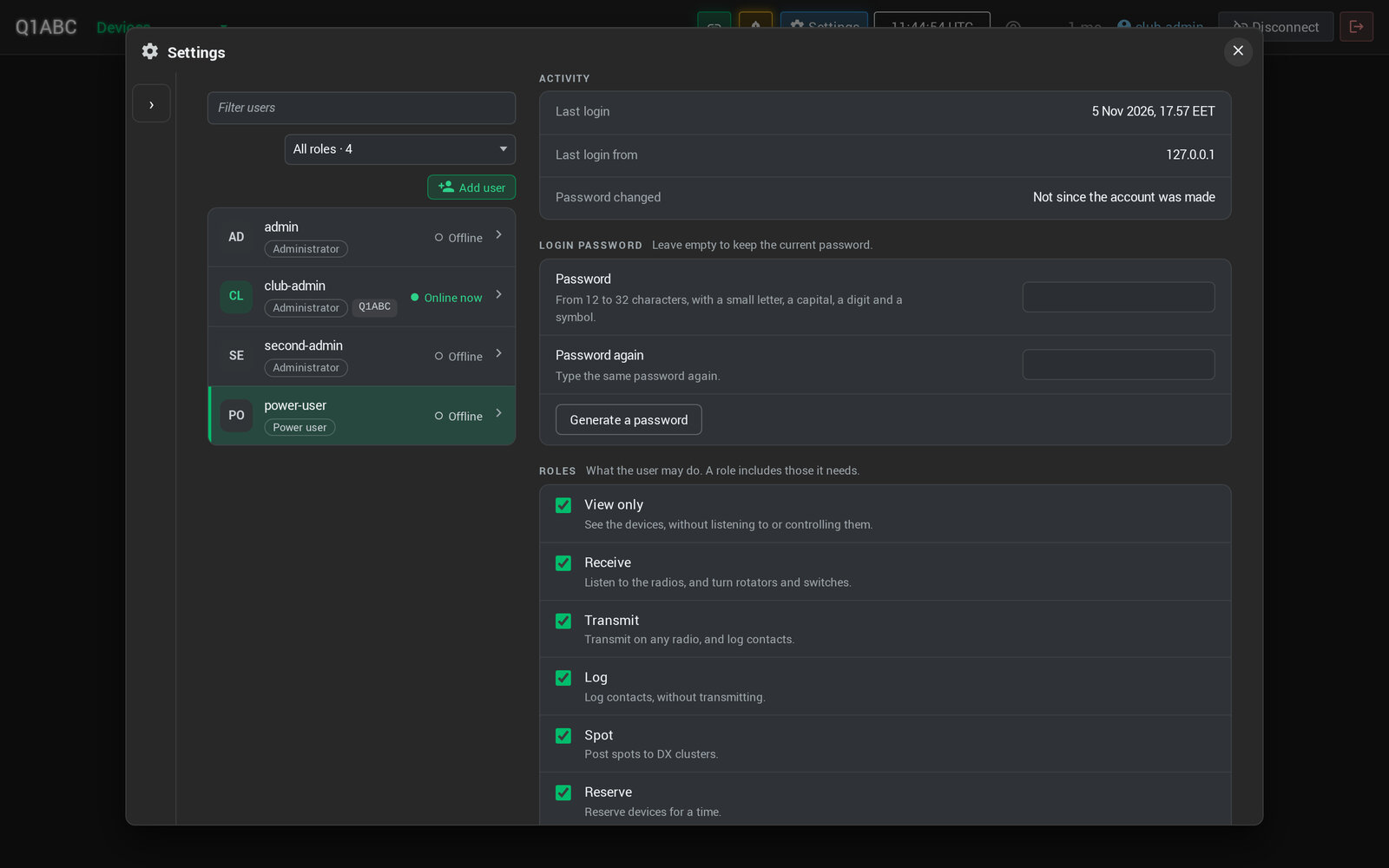
Choose the user in the list. Their page has two tabs, Account and Access.
- Account has the user’s Details, Activity, Login password, Roles, Operator class and the Danger zone.
- Access shows what the user may do on each device of the station, and where it comes from.
A change waits in the bar at the bottom of the page, Unsaved changes, which lists what changed. Choose Save to keep it, or Discard to drop it.
What the Access tab shows, and how to change it, is on Groups and device access.
A user’s activity
Activity shows when the user last logged in and from which network address, under Last login and Last login from, and when their password last changed, under Password changed. A user who has never logged in shows Never. The list of users shows each user’s Last login too, and whether they are Online now, Offline or Disabled.
Reset a forgotten password
An operator who has forgotten their password asks you for a new one.
- Open the user’s page.
- Under Login password, type a new Password and Password again, or choose Generate a password. Leave both empty to keep the current password.
- Choose Save, and give the user the new password.
The user logs in with it, then changes it in Profile & password. To reset the password of the administrator, you need the station control computer in hand (see A forgotten password).
Disable a user for a while
Switch Enabled off under Details, and choose Save. A disabled user can’t log in. Their contacts and reservations stay. Switch it on again to let them back in.
Log a user out
Under Danger zone on the user’s page, Log out everywhere ends the user’s sessions at once, in every browser. They can log in again.
- Choose Log out.
- The page asks Log ‹username› out of every session? Choose Log out ‹username›.
To keep someone out, also change their password or disable them.
To see who is connected now, choose how long a login lasts or log everyone out, see Sessions and paired clients.
Remove a user
Under Danger zone, Remove ‹username› removes the user for good. Their logged contacts stay in the logbooks.
- Choose Remove….
- The page asks Remove ‹username› for good? Choose Remove ‹username›.
You can’t remove yourself. The station always needs an administrator: before you remove the last one, give another user the Administrator role.