Change how the station is reached
After the guided setup, you change how browsers find the station and trust it in Settings › Station › Ways to
reach, under Network & security. Here you can choose another way, see every address of the station, rename it
on your network, and change or release its addresses under wrcs.tech. Only the administrator sees this page.
Every way keeps the connection encrypted. The ways differ in where you can use the station from, and in who makes the certificate that browsers trust. The ⓘ beside each row says more about it.
The three ways
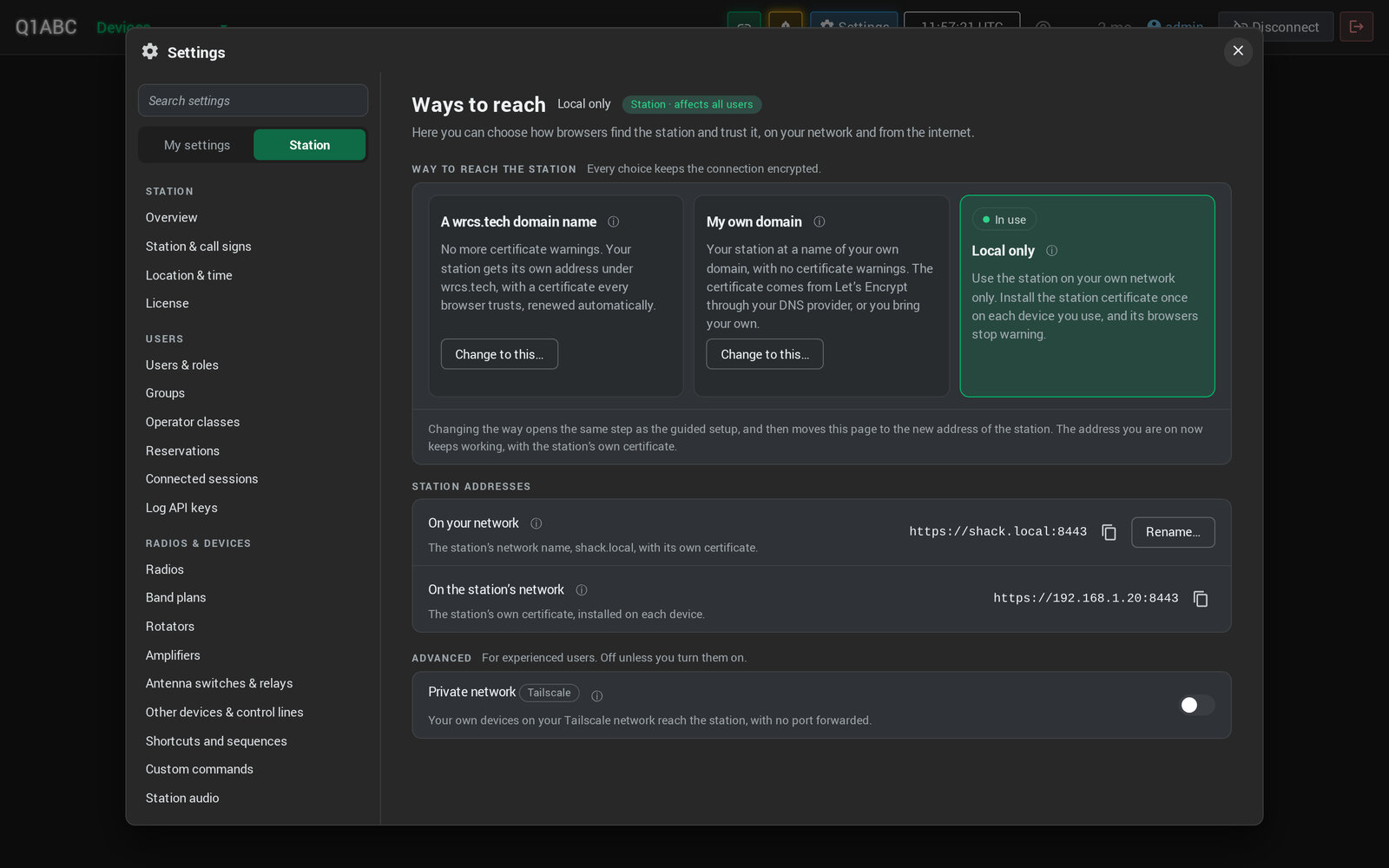
The page opens with Way to reach the station, three cards side by side:
| Way | Where it works | Its certificate |
|---|---|---|
| A wrcs.tech domain name | On your network and from the internet, at the station address under wrcs.tech | Trusted by every browser, made and renewed by the WRC Cloud Service |
| My own domain | On your network and from the internet, at a name of your own domain | From Let’s Encrypt through your DNS provider, or one you bring |
| Local only | On your local network only | The station certificate, installed once on each device you use |
The way in use is marked In use. Each of the other two has Change to this…. What each way needs, and which to choose, is in Choose how to reach your station.
Change the way
Choose the new way
In Settings › Station › Ways to reach, choose Change to this… on the way you want.
Set it up
The page opens the same step as the guided setup for that way, and you set it up as on the first run: the station address and its certificate, your own domain and its certificate, or the station certificate for local only. The steps are in Set up secure access. Choose Continue when you are done.
Go to the new address
The page says Moving to the new address and moves your browser to the address of the new way. You stay
logged in. For a wrcs.tech domain name, it says Waiting for the certificate to be installed until the
certificate is in place, and then moves.
The address you were on keeps working, with the station certificate. A change of the way can’t lock you out.
Station addresses
Station addresses lists where the station can be reached, each with a button that copies it. The rows depend on the way in use:
| Row | What it is |
|---|---|
| On your network | The network name of the station on your local network, such as shack.local, with the station certificate. Every way has it. |
| wrcs.tech address inside your network | With a wrcs.tech domain name: lan.‹name›.wrcs.tech. It leads to the address of the station on your network, with the same trusted certificate as from the internet. |
| From the internet | The public name, such as ‹name›.wrcs.tech or your own domain, once remote use works. |
| Over IPv6 | With IPv6 on: whether the IPv6 address of the station is under its public name (see IPv6 under the public name). |
| Alias address | With a Complete or Club license: the alias of the station under wrcs.tech, such as q1abc.wrcs.tech. |
| Station address | The random name of the station under wrcs.tech, such as k7q3m9x2v4p8w.wrcs.tech. It keeps working whatever the alias. |
| On the station’s network | With local only: the IP address of the station on its network, with the station certificate. |
With My own domain in use, the form of your domain is here too (see Use your own domain).
Rename the station on your network
The network name is the name the station has on your local network, as the setup page shows it under Network name. A station from the Raspberry Pi image can be renamed here, as on the setup page.
- Beside On your network, choose Rename….
- In the dialog Change the network name of the station, type the New network name, such as
shack. It is 1 to 63 lowercase letters, digits and hyphens, without a hyphen at either end. It can’t bewebradiocontrol, the name every new station starts with. - Choose Rename the station, and give your password again.
The station first asks your network whether another device has the name, and refuses it if one does. The notification then says Your station is now at ‹name›.local on your network. The station makes its own certificate again for the new name. The old name stops working, so open the station at the new one and bookmark it.
If another device takes the name later, the station adds a number, such as shack-2.local.
Change or release the wrcs.tech addresses
With A wrcs.tech domain name in use, the last two rows change the addresses under wrcs.tech. Each button asks
first, in a dialog that says what follows. Changing or releasing an address also asks for your password again.
- Alias address: type a name and choose Get this alias…, or Change… once the station has one. Release address… releases it. A released alias is kept for your license for 90 days, and a license can change its alias at most three times in 30 days.
- Station address: Make a new one… replaces the random name with a new one, if the name has spread further than you want. The old names keep working until the new certificate is in place. Release address… stops its names at once, and releases the alias with it. The station then goes back to the station certificate, on its network only, until another way is set up.
An alias is the call sign of your license, or a free name such as shack-north, with 3 to 32 letters, digits and
single hyphens. A name with a reserved word is refused with This alias holds a reserved word. Choose another. A
call sign that isn’t the call sign of your license can’t be an alias. WRC support corrects the call sign of a license
and decides disputes over a call sign (support@webradiocontrol.tech).
The certificate after a change. A change of the addresses orders a new certificate two minutes later, so that changes made together share one. The page counts down, Ordering the certificate in ‹time›, with Order now to order it at once. The certificate in place serves meanwhile. A station can request two certificates a day (UTC days), and each change uses one of them.
The addresses under wrcs.tech belong to the license, and follow it to a new station (see
Move your license).
IPv6 under the public name
Browsers try IPv6 first when a name has an IPv6 address, and wait for it to fail before they try IPv4. So with IPv6 on (see IPv6), the station puts its IPv6 address under its public name only once the test from the internet has reached it over IPv6. Over IPv6 says where it stands:
| The row says | What it means |
|---|---|
| ‹name› also points at ‹address›, because the test from the internet reached the station over IPv6. | Browsers reach the station over IPv6 as well as IPv4. |
| Added to ‹name› once the test from the internet reaches the station over IPv6 at ‹address›. | Not tested yet at this address. |
| Not added to ‹name›, because the test from the internet did not reach the station over IPv6 at ‹address›. | Let the public port in to the station, TCP and UDP, in the IPv6 firewall of your router, or let UPnP do it. Then choose Test under Remote use. |
| Testing ‹address› from the internet… | A test is running. |
| The station has no global IPv6 address to put under ‹name›. | Your network gives the station no IPv6 address that the internet reaches. |
While remote use is on, the station tests by itself: at once for a new address or port, every six hours while the
address is published, and once a day while it is held back. The address lan.‹name›.wrcs.tech keeps its IPv6 address
either way.
On your network
With a wrcs.tech domain name, the station checks that your network finds lan.‹name›.wrcs.tech. The section On
your network says Your network finds the wrcs.tech address of the station, or Your network hides the wrcs.tech
address of the station. Many routers hide public names that point into the home network, as protection against DNS
rebinding. Add the name to the exceptions of your router, as
Let the station address through your router
describes. How to do this on your router › opens those steps, and Check again checks at once. Until then, the
station keeps its own certificate on its network.
Opened at lan.‹name›.wrcs.tech while remote use is on, the section also tries the public name from inside your
network. The public name works on the station’s network too means one bookmark is enough everywhere. Otherwise,
use lan.‹name›.wrcs.tech at home.
Remote use
Remote use holds Use the station from the internet, the public port, what your router forwards, and the test from the internet. It is the same setting as on the Secure access step of the guided setup. The steps are in Use the station from the internet. Local only has no remote use.
Advanced
Advanced holds two options for experienced users. Both are off unless you turn them on:
- Private network: your own devices on your Tailscale network reach the station with no port forwarded (see Use a private network).
- Ask the router to forward the port (UPnP): the station asks your router to forward its port, in place of a rule you make by hand. Not offered for local only (see Forward the port automatically (UPnP)).
If something went wrong
- The page says Not changed: with a reason. Correct what it names, and choose Change to this… again. A
wrcs.techdomain name needs an active license. A trial or a campaign license gets the station address, but no alias. - The page waits at Waiting for the certificate to be installed. The certificate is still being made. If the certificate step says Getting the certificate failed, the reason is under it. Both certificate requests of the day may be used. The station requests it again by itself at its daily check.
- The page says Your login could not be handed across. Open the new address and log in there.
- The rename is refused because another device has the name. Choose another name.
- The station doesn’t open at its new name after a rename. Your device may remember the old address for a moment. Use the IP address of the station meanwhile (see After the station was renamed).
- Rename… is not shown. The station was installed with the install bundle, or the station control computer isn’t answering Web Radio Control.
More help is in You can’t reach the station.