Ports, firewall and IPv6
A port is a numbered door of a computer on the network. Browsers reach Web Radio Control at one port of the station and the setup page at another. Here you choose those ports and the address where the station answers, turn IPv6 on, and see what the firewall of the station lets in. Two pages of Settings › Station hold it, under Network & security, and only the administrator sees them:
- Ports & addresses: the ports, the address the station listens on, the standard ports and IPv6.
- Firewall & SSH: the firewall of the station control computer, and who can log in to it with SSH (see Log in with SSH).
A change that could cut you off, such as a new port, is confirmed from the new address of the station, or undone by itself after three minutes. A wrong setting can’t leave you without a way in.
The ports of the station
| Port | What answers there | Who can reach it |
|---|---|---|
| 8443, TCP and UDP | Web Radio Control, its API and the audio, over HTTPS and HTTP/3. This is the remote control port. | Anyone the firewall lets in |
| 8080, TCP | The setup page over plain HTTP, and the log API over plain HTTP while that is on | Your local network only, and your devices on the private network |
| 443, TCP and UDP | The standard HTTPS port, leading to 8443 | While the standard ports are on |
| 80, TCP | The standard HTTP port, leading to the setup page | While the standard ports are on, from your local network |
| The public port, TCP and UDP | A public port of its own that your router forwards, leading to 8443 | While one is set (see Use the station from the internet) |
| 41641, UDP | The Tailscale port | While the private network is on |
| 22, TCP | SSH, the login to the station control computer | As Answer SSH from says |
Nothing else answers. The radios’ control programs and the audio of the station answer only inside the station control computer. Every port and the limits the station puts on each client are in Ports.
Ports & addresses
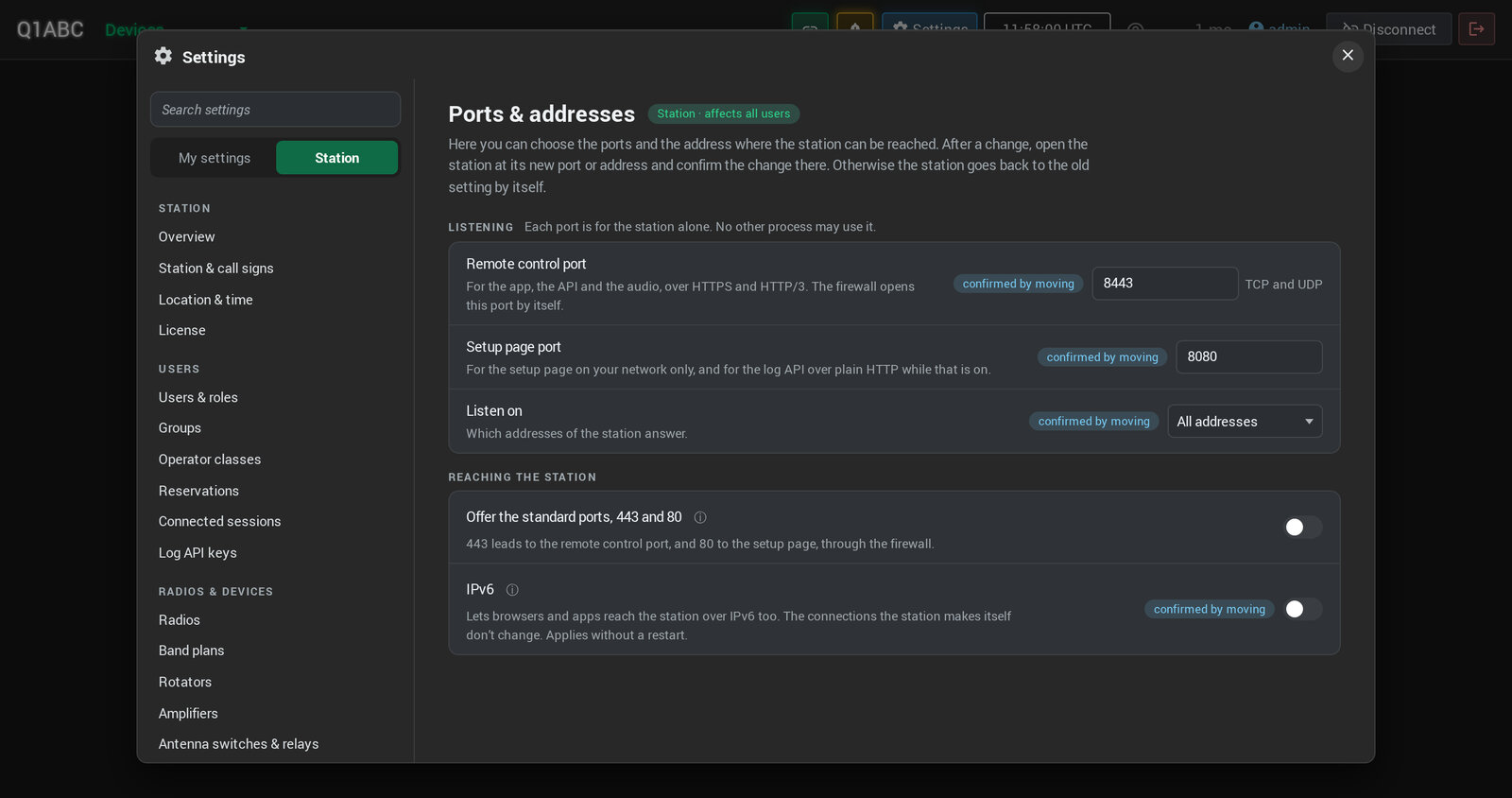
Settings › Station › Ports & addresses holds:
- Remote control port: for Web Radio Control, its API and the audio. 8443 unless you change it.
- Setup page port: for the setup page on your network, and the log API over plain HTTP while that is on. 8080 unless you change it.
- Listen on: All addresses of the station, or one of them.
- Offer the standard ports, 443 and 80: see The standard ports.
- IPv6: see IPv6.
Each port is from 1024 to 65535, and each is for the station alone. A port that another program on the station control computer uses is refused, as Port ‹port› is in use by another process on the station control computer. Choose another port.
Change a port or the address
The ports, Listen on and IPv6 are marked confirmed by moving. A change opens the new port first, beside the old one, so nothing stops. You confirm it from the new port, and then the old one closes. Nothing is restarted.
Make the change
Change the port, the address or IPv6. The bar at the bottom of the page counts the changes. Choose Apply…, and give your password again.
Open the station at its new address
A band at the top of the page asks, such as Keep the remote control port 9443?, and counts down Reverting in ‹time› from three minutes. From the old port, you can’t keep the change. Choose Open the station at its new address. You stay logged in there.
Keep the change
At the new address, the band says This page reached the station through the new port, so the new port works from here. Choose Keep. The old port then closes.
Unless you keep the change within three minutes, the new port closes and the station goes on as before. Revert now does it at once. If the new port doesn’t open, because your router doesn’t forward it for example, the change undoes itself. The station control computer undoes a change that isn’t kept even if Web Radio Control has stopped.
A port can’t take the place of another in one change, such as the remote control port moved to the port of the setup page. Move one, keep it, then move the other.
A change waiting to be kept is shown on the Overview too, with Keep and Revert now.
https://shack.local:9443/. Update your bookmarks and the forwarding rule on your router if it named the old port.The standard ports
With Offer the standard ports, 443 and 80 on, browsers reach the station without a port in its address:
https://shack.local for Web Radio Control and http://shack.local for the setup page. 443 leads to the remote
control port, and 80 to the setup page, through the firewall. The ports of the station keep answering too, for a
network that doesn’t reach 443 or 80.
The switch applies at once, with no keeping. The Raspberry Pi image has the standard ports on from the start.
IPv6
The station answers over IPv4 unless you turn IPv6 on. IPv6 that works only part of the way, such as a router that gives out addresses but doesn’t route them, causes more trouble than it solves: browsers try IPv6 first and wait for it to fail. So IPv6 is off unless you turn it on.
With IPv6 on, the ports of the station answer over IPv6 as well as IPv4. Under the switch, the page says Lets browsers and apps reach the station over IPv6 too. The connections the station makes itself don’t change. Applies without a restart. The station reaches the WRC Cloud Service, time servers and the other services it uses over whatever your network offers, IPv6 included, with the switch on or off. The switch matters most on an internet connection whose IPv4 address is shared with other customers (carrier-grade NAT or DS-Lite), where the internet can’t reach the station over IPv4 at all.
- On Ports & addresses, switch IPv6 on or off, choose Apply…, and give your password again.
- The band asks Keep IPv6 on? or Keep IPv6 off? Choose Keep from a connection that works with the change. Turning IPv6 off from a browser connected over IPv6, open the station over IPv4 first, and keep the change there.
For the station to be reached over IPv6 from the internet, your internet provider and your router must route IPv6 to
it, and the IPv6 firewall of your router must let the public port in, by hand or by
UPnP. With a wrcs.tech domain name, the
station puts its IPv6 address under its public name only once the test from the internet has reached it over IPv6
(see IPv6 under the public name).
To listen on one IPv6 address of the station only, turn IPv6 on, then choose it in Listen on.
The firewall
The station control computer runs its own firewall, the Web Radio Control firewall. It is on from the start, and lets in only the services that the settings of the station use. Settings › Station › Firewall & SSH shows it:
- Web Radio Control firewall, its switch, on.
- Open ports: each Port, its Protocol, From whom (Any address or The station’s network), and For what, such as Remote control: the app, the API and the audio, The setup page or SSH, below.
- A line saying what the station control computer has in force, such as In force on the station control computer: opens …. If it differs from the settings, the page says What is in force on the station control computer differs from these settings.
Under the list, the page says The standard ports 443 and 80, the log API port, the private network and the UPnP replies open when you turn them on. A port change in Ports & addresses opens the new port first, and closes the old one once you keep the change.
Turn the firewall off
Turn the firewall off only to find a fault. Every service on the station control computer then answers anyone who reaches it.
- Under Turn the firewall off, choose Turn off…, or switch off Web Radio Control firewall.
- The page asks Turn the firewall off? Choose Turn off, or Keep it on, and give your password again.
- The band asks Keep the new firewall setting? Choose Keep within three minutes. Unless you keep it, the firewall is switched back on, even if Web Radio Control restarts or stops meanwhile.
While the firewall is off, the page says so. Switch Web Radio Control firewall on to turn it on again. The setup page can turn it on again too.
If the firewall stays off after you turn it on, a file keeps it off: wrc-firewall-off.txt on the boot partition of
the SD card. The page then names it. Remove the file to turn the firewall on (see
When the firewall keeps you out).
If something went wrong
- Not changed: … with a port in use. Another program on the station control computer uses that port. Choose another port.
- The new port doesn’t open. Your router or your network may not let it through. Wait for the change to be undone, three minutes at most, and open the station at the old port.
- Keep is not offered. The page is open at the old port or address. Choose Open the station at its new address.
- The firewall page says the station control computer has not reported its firewall yet. Web Radio Control is not connected to the WRC host service on the computer. The page shows the firewall as Web Radio Control asked for it. Restart Web Radio Control from Settings › Station › Restart & shutdown, or reboot the station.
- A change of the firewall locks you out. Wait three minutes for it to be undone. If it stays, turn the firewall off with the file on the SD card (see When the firewall keeps you out).
- The setup page puts the ports back. Its Ports and firewall, under Show details, has Back to the defaults, for 8443 and 8080 on every address (see Recover a station).