Certificates
A certificate proves to browsers that they reached your station, and keeps the connection encrypted. In Settings › Station › Certificates, under Network & security, you see the certificate in use, how it stays valid, and the station certificate that serves the local names of the station. Only the administrator sees this page.
The station uses one of these certificates, as the way to reach it says (see Change how the station is reached):
- A wrcs.tech domain name: a certificate from the WRC Cloud Service, which every browser trusts.
- My own domain: a certificate from Let’s Encrypt through your DNS provider, or one you bring.
- Local only: the station certificate, which the station makes itself. Each device you use installs it once.
The station certificate also serves the local names and addresses of the station beside the other two, such as
shack.local.
The certificate in use
Certificate in use shows:
- Source: where the certificate comes from, such as The station certificate, or A certificate for the ‹name› domain name, from the WRC Cloud Service (Let’s Encrypt). When Let’s Encrypt is limited or down, the WRC Cloud Service gets it from Google Trust Services.
- Names: the names and addresses the certificate holds.
- Valid until: its last day, and the days left.
- Renewal: By the station, 30 days before it ends, with no restart, or for a certificate you bring, By you. The station warns 30 days before it ends.
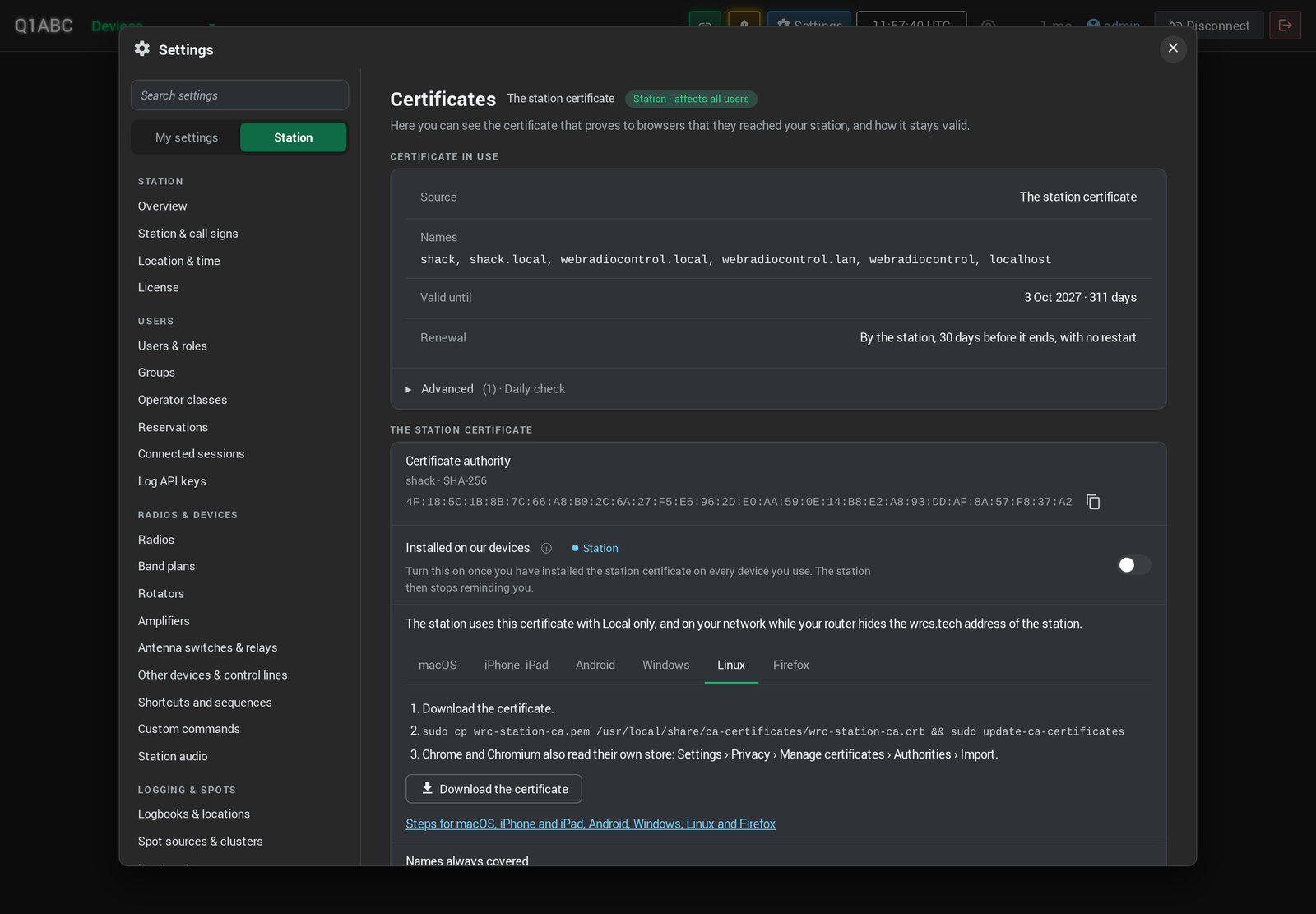
Under Advanced, Daily check is the time of day the station checks its certificate, and renews it when it is due. It is 04:00 in the time zone of the station unless you change it, typed as HH:MM.
How the certificate is renewed
The station renews its certificates itself, without a restart, so connections stay open. While it renews a certificate from the WRC Cloud Service or Let’s Encrypt, the page lists the steps as they happen, each with its time: asking for a certificate, Ordered, Waiting for the certificate authority, then Issued and in use or Failed. A notification tells you how it ended.
A renewal that fails says Renewal failing since ‹day›, with the reason, when the station tries again, and how many more days the certificate is valid. Try again tries at once.
A station can request two certificates from the WRC Cloud Service a day (UTC days). Once both are used, the page says
so, and the station tries again after midnight UTC. After the addresses under wrcs.tech change, the page says The
certificate for ‹name› is ordered in ‹time›., with Order now to order it at once.
When the certificate can’t serve
If the certificate of the wrcs.tech domain name or your own domain is missing, damaged, expired or not valid yet,
the page says The station uses its own certificate until the renewal succeeds., and why, such as The
certificate for ‹name› is not valid yet. The station clock may be behind. Check it in Time servers. The station
certificate then serves every name, so the station always answers. Browsers warn at the wrcs.tech name or your own
domain until the renewal succeeds, and you can continue past the warning. The local names and addresses work as
usual.
A clock that is behind is put right in Time servers.
The station certificate
The station certificate is made by the station itself. The station has its own certificate authority, which signs it. A device that installs the certificate authority once trusts the station from then on, also after the certificate is renewed or gets other names. The certificate authority is valid for ten years, and the certificate for 397 days.
- Certificate authority: its name and its whole SHA-256 fingerprint. Copy the fingerprint copies it, to compare with the fingerprint a device shows as you install it.
- Installed on our devices: turn this on once you have installed the station certificate on every device you use. The station then stops reminding you.
- The steps for each system, macOS, iPhone, iPad, Android, Windows, Linux and Firefox, with Download the certificate. The full steps are in Install the station certificate.
- Names always covered: the names the certificate always holds, its
.localnames,localhostand the private addresses of the station.
Add other names
Other names adds names and addresses to the station certificate, such as a name that the name server (DNS) of your router gives the station, a fixed address, or an address of a private network.
- Type the name or address in the field, such as
radio.lanor192.0.2.40. - Choose Add, and give your password again.
- The page asks Keep the new certificate? Check that the station still opens, such as in another tab, and choose Keep within 60 seconds. Unless you keep it, the previous certificate is put back.
The × beside a name removes it, the same way.
The certificate authority of the station may sign only local names and addresses: names under .local, .lan and
.home.arpa, localhost, private addresses, the 100.x.y.z addresses of Tailscale and NetBird, and the other names
given when it was made. A name outside them, such as a public address or a name under your own domain, can’t be
added to it. The page then asks first, with Don’t add, or Replace the CA, which makes a new certificate
authority that includes the name.
Replace the certificate authority
Replace the certificate authority makes a new certificate authority and a new certificate. Every device you use then installs the new station certificate again. Use it after a lost SD card or a shared backup that held its key, or when the certificate authority nears its end.
- Choose Replace the CA…. The page asks Replace the certificate authority? Choose Replace the CA, or Keep this CA.
- Give your password again.
- The page says Keep the new certificate authority? This page already reaches the station through it. Choose Keep, then install the new station certificate on your other devices. Unless you keep it, the station goes back to the old one.
The certificate of a wrcs.tech domain name or your own domain keeps serving those names meanwhile.
Bring your own certificate
For My own domain, you can bring a certificate you get elsewhere in place of Let’s Encrypt. Under Your own certificate, Bring your own certificate:
- Choose Choose files…, and pick the certificate with its chain and its private key, as PEM files or one ZIP
file, such as
fullchain.pemandprivkey.pemfrom Let’s Encrypt. - Give your password again. The station serves the certificate at once.
- Choose Keep in the band at the top of the page within 60 seconds, once the station opens at your domain. Unless you keep it, the previous certificate is put back.
You renew the certificate yourself, and bring the new one the same way. The station warns you 30 days before it ends.
A ZIP file that holds the certificate authority of a station, as the certificate export of an earlier version did, is refused. The certificate authority of a station moves to another station only with its data (see Back up and restore the station).
Back to the station certificate
If another certificate stops Web Radio Control from opening, go back to the station certificate. Under Recovery, Back to the station certificate:
- Choose Use the station certificate…. The page asks Use the station certificate? Browsers warn until it is installed on their device. Choose Use the station certificate, or Keep this one.
- Give your password again.
- Keep the change from the new connection within 60 seconds, or it is undone by itself.
When Web Radio Control doesn’t open at all, the setup page of the station offers Use the station certificate under Certificate (see Recover a station).
If something went wrong
- Renewal failing since … with both requests of the day used. Wait until after midnight UTC. The station tries again by itself.
- The certificate is not valid yet. The station clock is behind. Check Settings › Station › Time servers (see Time servers).
- A browser warns at a local name after a change of the certificate. The device doesn’t have the station certificate, or has the one before a new certificate authority. Install it again (see Install the station certificate).
- An other name is not added. The certificate authority of the station may not sign it. Choose Replace the CA in the question only if every device can install the new station certificate.
- A certificate you bring is refused. The files need the certificate, its chain and its private key, as PEM files or one ZIP file. A ZIP file with the certificate authority of a station is refused.
More help is in The browser warns that the connection isn’t private.