Restart, logs and diagnostics
When something on the station doesn’t work, here you put it right without a trip to the station: fix the control of the devices, restart Web Radio Control, or reboot the station control computer. Then read what the logs and the events of a device say about it. It is in Settings › Station, under Maintenance:
- Restart & shutdown: restart Web Radio Control, reboot the station or shut it down. Power users see it too.
- Diagnostics & logs: fix device control and audio, the diagnostic report, and the logs of Web Radio Control. Power users see only Troubleshooting there. The diagnostic report and the logs are for the administrator alone, as the logs hold the logins of every user and what each did.
Fix device control and audio
Start here when a device or the audio stopped working. Open Settings › Station › Diagnostics & logs, and under Troubleshooting, choose Fix beside Fix device control and audio. It restarts the control of every device and looks for the audio devices again, without restarting anything else. It is safe at any time.
To restart one device alone, open it under Radios & devices and its Diagnostics tab. Reconnect connects it again, and each of its Services, such as Radio control or Audio input from the radio, has Restart (see Device events).
Restart and power
In Settings › Station › Restart & shutdown, under Restart and power, from the lightest to the heaviest:
| Action | What it does | Everyone is disconnected for |
|---|---|---|
| Restart… beside Restart Web Radio Control | Restarts Web Radio Control only, not the station control computer. New settings take effect, and stuck connections recover. | About 30–60 seconds |
| Reboot… beside Reboot the station | Restarts the station control computer. Rarely needed: for a USB sound card or radio interface that has stopped answering, or a network that is stuck. | About 1–2 minutes |
| Shut down… beside Shut down the station | Switches the station control computer off. Web Radio Control stays out of reach until someone switches it on again by hand. | Until someone at the station starts it |
Each asks first, such as Restart Web Radio Control now? Everyone is disconnected for about 30–60 seconds. Choose Restart Web Radio Control, Reboot the station or Shut down the station, or Keep it running.
Power users and the administrator may restart, reboot and shut down. Tell the operators first: whoever is transmitting or listening is cut off.
When Web Radio Control can’t be reached, the setup page of the station restarts it and reboots the station too (see Recover a station).
The diagnostic report
In Settings › Station › Diagnostics & logs, under Diagnostic report, the administrator makes a report of the state of the station, reads it, downloads it or sends it to WRC support, up to 3 a day. See Send a diagnostic report.
Station logs
Open Settings › Station › Diagnostics & logs, and under Log files, choose View and search the logs… beside Station logs. The dialog Station logs shows the newest lines of two logs, newest first, in a tab each:
- Application log: what Web Radio Control does with devices, audio and connections.
- Security log: the logins, sessions and permission checks.
On a phone, choose the log in Show. Close takes you back to the page.
Each line shows its time in UTC, its level, Error, Warning, Info, Debug or Other, and its message, with its other details under it. To find a line:
- type words in Search the log, or choose a Level;
- Refresh reads the log again, and Follow keeps the newest lines in view, reading the log every few seconds until you switch it off;
- Copy all copies the log as the station wrote it, for a message to WRC support.
A wrong password or a refused request is the input of a user, logged as Info or Warning. An Error is a failure of the station itself, such as its storage, its network, or a device it depends on.
All the logs as one file
When the diagnostic report is not enough, WRC support may ask for the logs themselves. Under Log files, All station logs downloads the application, security, storage, error and daemon logs, current and archived, as one file: choose Download.
What the logs keep
Under Logging:
- Log level: how much Web Radio Control writes to its log. Info unless you choose Debug, for the details of finding a fault, or only Warnings or Errors. It applies at once. Put it back to Info once done, as Debug writes every message the station receives.
- Device events kept: how many recent events each device keeps, for its events and the diagnostic report. 200 per device unless you change it.
Under Log file sizes, when a log file reaches its size, it is compressed into an archive and a new file is started:
| Setting | Unless you change it |
|---|---|
| Server log file size, the size each server log grows to before it is archived | 25 MB |
| Server log archives kept, for each server log | 20 |
| Daemon log file size, for the log of each program the station runs, such as Hamlib for a radio | 5 MB |
| Daemon log archives kept, for each daemon log | 5 |
Archives older than 14 days are removed, whatever these say. A change applies at once.
The logs on the station control computer
The logs are files in /opt/wrc/logs on the station control computer: wrc.log, the application log,
wrc-security.log, wrc-storage.log, and the logs of each Hamlib program and audio pipeline in daemons/, such as
rigctld-radio-689.log. Log in with SSH as the Linux user wrchost to read them:
sudo tail -f /opt/wrc/logs/wrc.logPasswords, session identifiers, tokens and license IDs are never written to the logs. A reset of everything removes the logs. Every log file is listed in The log files.
Device events
Each device has its Diagnostics tab in Settings › Station, under Radios & devices. The dialog of a device that doesn’t work opens it too, with Recent events of the device ›. Power users and the administrator see it:
- Status: how the device is reached, as the station last found it: the Connector, the Hamlib program that serves the device, the Connection to it, and the Last update. Reconnect connects this device alone again, and says how it went.
- Capabilities: what the device reported it can do, but did not do.
- Services: the services the station runs for the device, for its control and its audio, each Running or Stopped, with Restart.
- Events, for the administrator: what happened to the device lately, newest first.
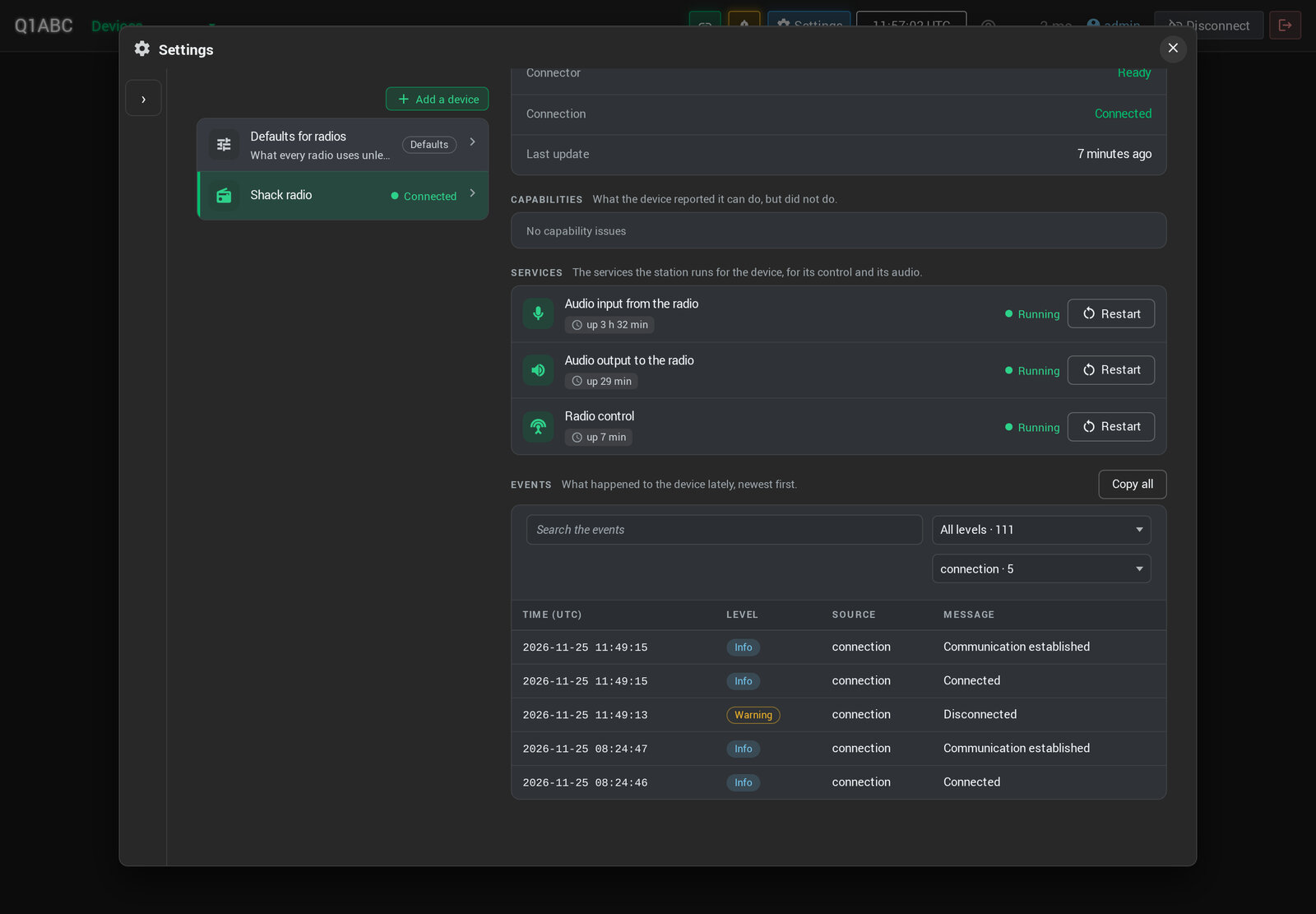
Each event has its time in UTC, its Level, its Source and its message. Search the events, or choose a level or a source:
| Source | What it records |
|---|---|
| connector | The Hamlib program of the device started, is ready, exited with its error, or stopped. |
| hamlib | An error or a warning that Hamlib printed. |
| command | A command the device answered with an error. A setting the device doesn’t have is a warning. |
| connection | Connected and disconnected, the device answering or not, switched off and on. |
The same message repeated is one line, with its count, such as ×12, and when it began. Copy all copies the events as text, for a message to WRC support. The station keeps the events in its memory, so a restart of Web Radio Control clears them.
For a closer look at a radio, rotator or amplifier, set its Log detail to Verbose or Everything (trace) on its Advanced control settings tab, then save and apply. Hamlib then writes every exchange with the device to its own log, and its errors and warnings become events. Put it back to Errors afterwards (see Advanced control settings).
If something went wrong
- A device still doesn’t work after Fix. Open its Diagnostics tab. The Connector and the Events say what fails, such as a Hamlib program that exited. See A device doesn’t work.
- The station doesn’t come back after a reboot. Wait two minutes, then open the setup page on the local network of the station (see Recover a station).
- Restart & shutdown or Diagnostics & logs is not in the sidebar. Each needs the Power user or Administrator role.
- Diagnostics & logs shows only Troubleshooting. The diagnostic report and the logs need the Administrator role.