Back up and restore the station
The station keeps its data safe in two ways:
- Automatic backups, copies of its database that the station makes every day and keeps on itself. They put the station right after a damaged database or a change that went wrong.
- The station data export, a file you download and keep elsewhere. It brings the station back after a broken SD card, and moves it to new hardware.
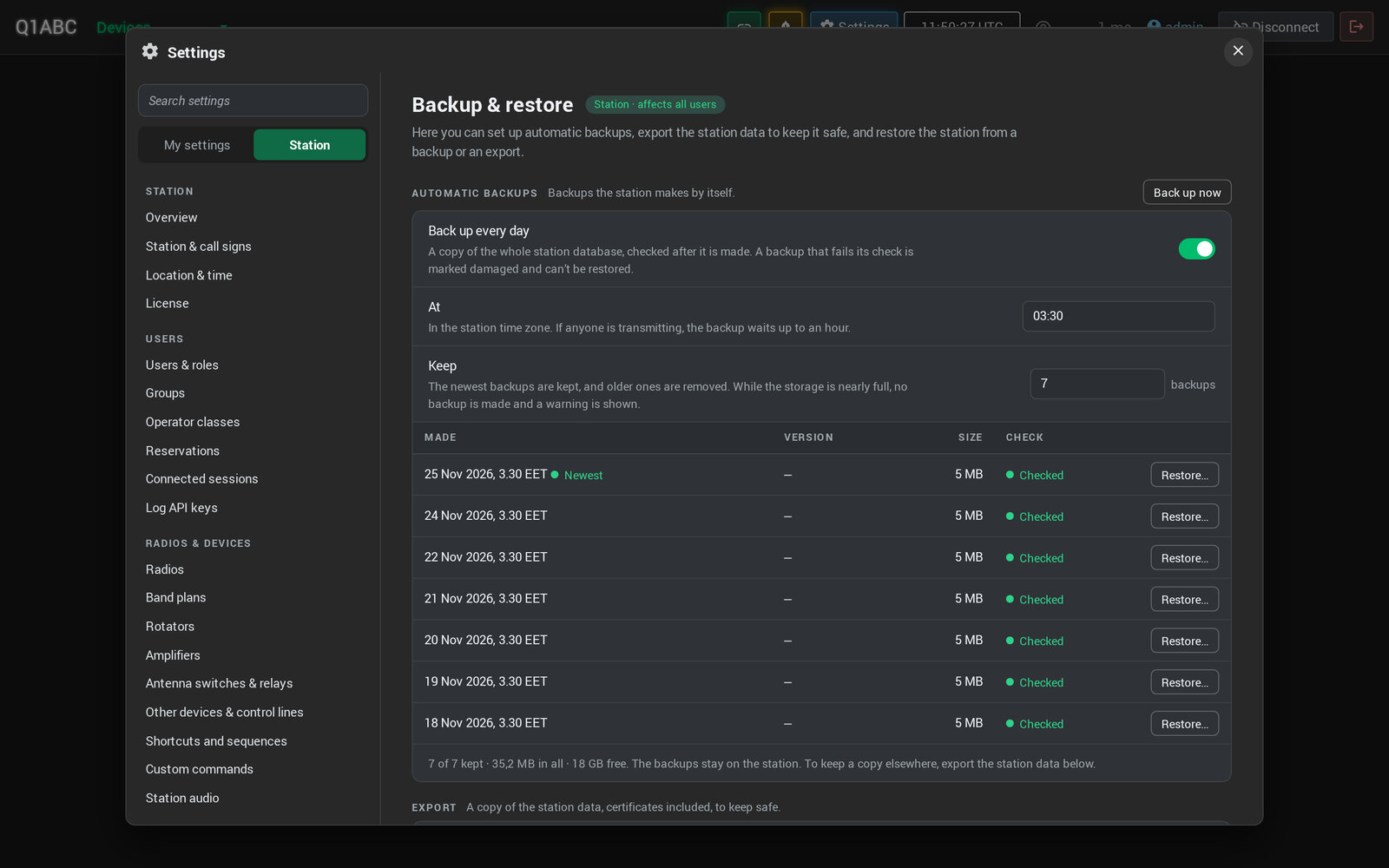
You find both in Settings › Station › Backup & restore, which only the administrator sees. The page says Here you can set up automatic backups, export the station data to keep it safe, and restore the station from a backup or an export.
Automatic backups
Every day at 03:30 in the time zone of the station, the station copies its database: the users, the devices and their settings, the station settings, the logbooks and contacts, the reservations and the spots. It makes the copy while it runs, without stopping anything, and then checks it. A copy that fails its check is marked Damaged, and can’t be restored.
Under Automatic backups:
- Back up every day turns the daily backup on or off.
- At is the time of day, as
HH:MMin the time zone of the station. If anyone is transmitting, the backup waits for up to an hour. - Keep is how many of the newest backups the station keeps, from 1 to 30. The default is 7. Each new backup removes the oldest.
- Back up now makes a backup at once.
The list shows when each backup was Made, the Newest marked, the Version of Web Radio Control that made it, its Size, and its Check, Checked or Damaged. Under the list, the page says how many backups are kept, their size and the free space left.
The station makes a backup only when the storage has room for it. While the storage is nearly full, no backup is made, and the Overview lists the problem with how much space is needed.
Restore a backup
- Beside a backup marked Checked, choose Restore….
- The page reads what restoring it would lose, and asks Restore the backup of ‹time›?, with Lost since then: the contacts logged since, the older contacts changed, and the users and settings changed since.
- Choose Restore and restart, and give your password again if the page asks for it.
Web Radio Control restarts with the backup. The database it replaces is kept on the station as a copy.
When Web Radio Control doesn’t start, or can’t be reached, restore a backup from the setup page instead (see Restore a backup).
Export the station data
The export is one file with everything the station keeps, except the license: the users, devices, logbooks and settings, the secrets of the station with their key, the certificates, and the name, network with its Wi-Fi passwords, firewall and SSH settings of the station control computer.
- Under Export, type a Passphrase of at least 12 characters, and type it again in Passphrase again.
- Choose Export the station data, and give your password again if the page asks for it.
The page says Exporting…, then Exported once your browser has the file, wrc-station-data-‹time›.wrcdata.
The export leaves out the license, the login sessions, the pairings with WRC Link, and the password of the Linux user
wrchost and the private network, which you set again on the new station. A station moved to new hardware is
activated there with its license (see
Move your license).
Import station data
Importing replaces everything the station keeps with the contents of the file, except the automatic backups and, unless you choose them, the network settings. Nothing is merged. You review what changes before anything does.
Choose the file
Under Restore, beside Station data, choose Choose… and the .wrcdata file. Type its passphrase in
Passphrase of the file, and choose Review….
Review the import
The station reads the file and shows what the import would change:
- What the import replaces: the users, devices and logbooks of this station against those of the file, such as Users: 3 → 2. The automatic backups are kept. A file without users keeps the users of this station.
- Settings that change: each setting that differs, This station against The file.
- The station control computer: its name on your network, its firewall, SSH and Security updates by themselves. These are always imported. The SSH keys of the file are added to those of this station.
- Certificates: the certificates of the file replace those of this station, so the devices that trust the certificate authority in the file go on trusting the station.
- Also import the network settings, not ticked: the ports and addresses, the time servers, the way to reach, remote use, the public port, UPnP, the private network, and the Ethernet and Wi-Fi of the station control computer. Leave it unticked to keep the network settings of this station, so that the station stays where you reach it.
Import and restart
Choose Import and restart, and confirm Replace the station data with ‹file› and restart? Or choose Keep current data to leave everything as it is.
Web Radio Control restarts and applies the import as a whole as it starts. Everyone is logged out. Log in with the user accounts of the file, or with those of this station if the file has none. If you know none of their passwords, reset the administrator password (see A forgotten password).
Once Web Radio Control runs, the station control computer takes its settings from the file, and tells the administrators as each is done. Wi-Fi networks from the file are saved but not joined. If you imported the network settings, the Ethernet address changes last: open the station at its new address and keep the change within ten minutes, or the station control computer undoes it.
A file exported by an earlier version of Web Radio Control may hold devices in a form this version no longer reads. The review says so, as Not imported, in a form this version no longer reads: 3 devices. Add those devices again once the file is imported.
If something went wrong
| The page says | What to do |
|---|---|
| The backup was not made. Reason: … | The reason says why. If the storage is nearly full, move the station to a larger SD card: export the station data, and import it on the new card. Or ask WRC support for help, with the diagnostic report. |
| This backup did not pass its check, so it cannot be restored or downloaded. Choose another backup. | Restore an older backup marked Checked. |
| Not read, beside the file | The passphrase doesn’t open the file, the file is damaged or cut short, or a newer version of Web Radio Control made it. The bar at the bottom of the page says which. Choose another file, or type the passphrase again. |
| The passphrases differ. Type the same one twice. | Type the same passphrase in both fields. |
| The station could not make the export because of an error (HTTP …). Try again in a moment. | Try again in a moment. If it keeps failing, send the diagnostic report to WRC support. |
| The file holds no settings of the station control computer, such as its name, network, firewall and SSH. The station has no WRC host service to read them from. | The file holds everything else. Set the name, network, firewall and SSH again on the new station. |
If an import can’t be applied, the station starts with its data as it was, and the Overview says why.
What a reset removes
Resetting everything but the license removes the automatic backups too, since they hold the users and logbooks. Resetting the settings and devices keeps them (see Reset the station).
To copy the data folder of the station from the command line, see Copy the data folder from the command line.