Spot sources
The station brings its operators spots from DX clusters and spotting services, reports of where its call signs are heard, and announced activations such as DXpeditions and POTA activations. Here you choose where they come from, and add the DX clusters the station logs in to. You do it in Settings › Station › Spot sources & clusters, as the administrator. Operators see what the sources bring in Spots, Reports and Upcoming (see Spots).
Every source starts switched off. Nothing outside the station is contacted until you switch a source on.
The sources
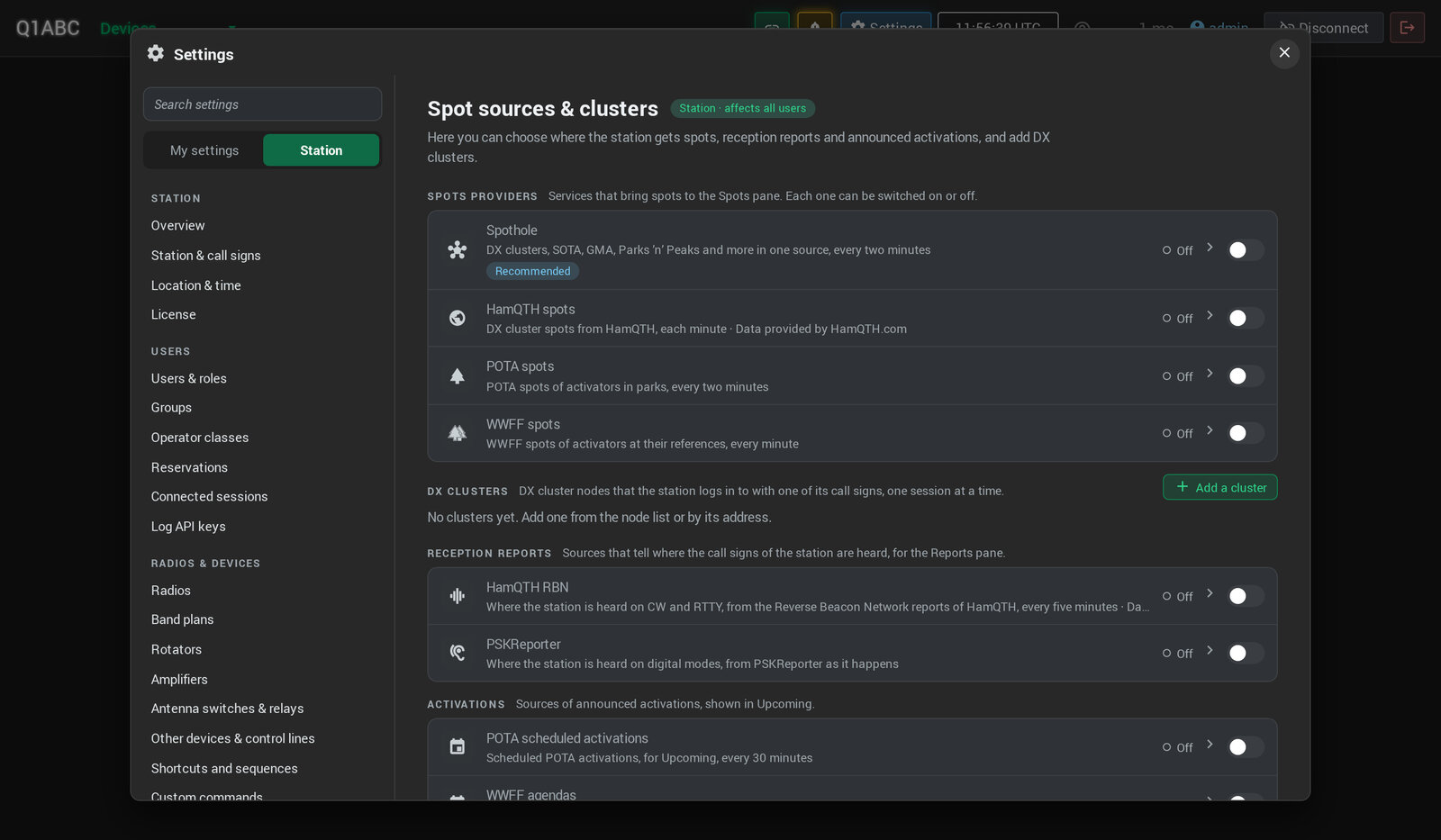
The page lists the sources in four groups:
| Group | Sources |
|---|---|
| Spots providers | Spothole, marked Recommended, then HamQTH spots, POTA spots and WWFF spots |
| DX clusters | The cluster nodes you add, each with its address, the call it logs in as, and From the node list or Own address |
| Reception reports | HamQTH RBN and PSKReporter, which tell where the call signs of the station are heard |
| Activations | POTA scheduled activations, WWFF agendas, NG3K DXpeditions, hams.at satellite activations and Club Log expeditions, shown in Upcoming |
Each row shows what the source brings and its state, On, Off, Held or Stopped, with its switch. Choose a row to open the source on its own page beside the list. The built-in sources are switched on and off, never added or removed. Only DX clusters are added and removed.
Switch a source on
Open the source
Choose its row. Its page has Running, What it brings, its Test and its Events.
Read its terms
Under What it brings, read what the source reads and the terms of the service. Most are volunteer services run by hams, free to use.
Test it
Choose Test. The station connects once, switched on or not, until the source is ready: logged in, or its first answer read. The page says whether it was ready, and how many spots it brought, or why not.
Switch it on
Switch on Enabled under Running, or the switch of its row.
Under Running, Runs chooses when the source connects: only while someone views what it brings, as the default, or Always, for a club station that wants the spots whoever is looking. Lingers is how long it stays connected after the last viewer leaves, in minutes.
Spothole
Spothole gathers in one service the spots of DX clusters, POTA, WWFF, SOTA and other programs, each with its references and place. It is free, run as a hobby by its developer, with no promise of uptime. Its servers are in Germany, in the EU. The station sends it its own public address and the options below, no call sign and nothing about its users.
Its Options apply as soon as you change them:
- Providers: whose spots Spothole brings. Every service is selected until you clear some.
- Skimmer spots: also the spots of the Reverse Beacon Network skimmers, many of them, on CW and RTTY. Off unless you turn it on.
- Spotters on: only the spots from spotters on one continent. Choose your own to see what is heard where you are. Any continent unless you choose one.
- Updates: Every two minutes, the default, the station asks Spothole what is new. With Live, a connection stays open while someone views the spots. Live loads a server its developer runs as a hobby, so choose it only if you need the spots within seconds. The page asks first.
- Server: spothole.app, unless your club runs its own copy of Spothole.
While Spothole is on and brings what another source you switched on brings too, such as a DX cluster or POTA spots, the page offers to switch the other off: Switch them off or Keep both. It never switches anything off unasked. A spot heard by both is counted once.
Add a DX cluster
A DX cluster is a node that relays the spots of its users and its skimmers. The station logs in to it with one of its call signs, one marked for cluster use in Station & call signs (see Call signs).
Open Add a cluster
Choose Add a cluster, at the right of DX clusters.
Choose the node
Choose one of two ways:
- From the node list: the nodes Web Radio Control knows, nearest first once the station has a location. With Skimmer spots on, the nodes carrying the Reverse Beacon Network come first. Under the node, its own rules show, such as AR-Cluster may refuse a call with an SSID.
- By address: a node of your own, such as the node of your club or a skimmer server on your local network. Type its
Host, the name or address of the node without
telnet://or the port, its Port, often 7300 or 8000, and its Software, or Find out at login. Optional: a Name, which is the host unless you give one.
Nodes that ask for a password are not supported.
Choose how it logs in
Under Logging in, choose the call to Log in as, its SSID, -7 unless you change it, which keeps this
session apart from your own logger on the same call, and any Extra commands, sent after logging in, one to a line.
Add it
Choose Add. The cluster is added switched off, and its page opens. Test it, then switch it on.
The station keeps one cluster connection at a time. Operators who may post spots post through it, as the call it logged in with. On the page of a cluster, its Node and Logging in are changed together and saved from the bar at the bottom of the page. Remove… under Danger zone removes it, after asking.
The state of a source
Each source shows its state, such as Connected · 42 spots, Next attempt in 4 min or Idle until someone views the spots. Events lists what happened lately: connecting, the login, each command sent, the failures.
- Held: the source policy that the WRC Cloud Service gives the station holds the source for now, such as a service that asked for a pause. The page says why under Not running:. It stays as it is set (see The WRC Cloud Service).
- Stopped: the node or the service refused the login, or asked for a password. Change the source to try again.
- A source that keeps failing waits longer each time, up to 30 minutes. Connections are at least a minute apart.
After Web Radio Control starts, the sources wait 5 minutes before their first connection, unless someone opens the spots first. The calls the report sources look for are the station call signs that operators chose for their Reports, never anyone else’s.
If something went wrong
- Add a cluster says no call sign is marked for cluster use. Mark one in Settings › Station › Station & call signs, then come back.
- A cluster logs your own logger out. The node asks for the call without an SSID, so both log in as the same call. Choose another node, or log your logger in with an SSID of its own.
- A source says Stopped. Read its Events for the reason. Change what it says, such as the call or the node, then test it again.
- No spots come. Check that the source is On, that someone has the spots open, and that the station is connected to the internet.