Logbooks and locations
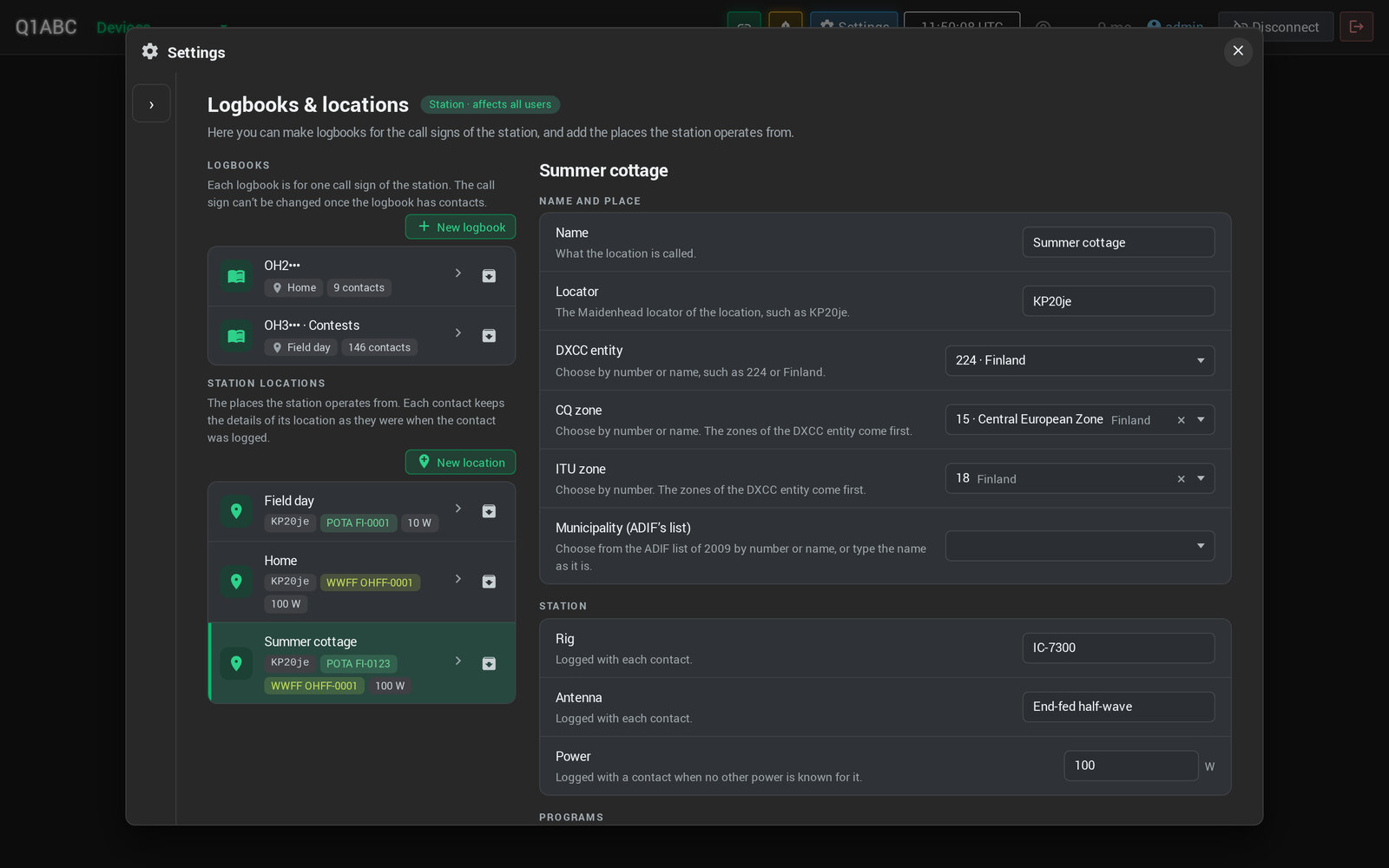
Operators log their contacts into the logbooks of the station. Here you make a logbook for each call sign the station operates with, and add the station locations, the places the station operates from. You find them in Settings › Station › Logbooks & locations, which the administrator and power users see. The page says Here you can make logbooks for the call signs of the station, and add the places the station operates from.
The page lists the logbooks and the station locations. A row opens its logbook or location on its own page beside the lists, where you change it and save it.
Logbooks
Each logbook is for one call sign of the station. Q1ABC and Q1ABC/P are two logbooks. Add the call signs first, in
Settings › Station › Station & call signs (see
Call signs).
Open a new logbook
Choose New logbook, at the right of Logbooks.
Fill in the details
- In Station call sign, choose the call sign of the logbook. It can’t be changed once the logbook has contacts.
- Optional: type a Name, shown beside the call sign. Without one, the logbook is named by its call sign.
- Optional: in Owner call sign, type the call sign of the license holder, if it is not the station call sign. Exported logbook files carry it.
- In Default location, choose the station location of new contacts, unless the operator chooses another. Or leave it at No location.
- Under Confirmations that count, tick the confirmations that make a contact confirmed: Paper QSL, LoTW and eQSL.
Create it
Choose Create.
Operators can now log into the logbook from the LOG panel (see Log a contact). Each operator chooses in My settings › Needed & worked which logbook each radio counts against (see Needed and worked).
Archive a logbook
Archive, at the end of the row of a logbook or under Danger zone on its page, hides the logbook from the log entry and the Logbook page. Its contacts are kept, and still exported. Archived logbooks are listed under Archived logbooks, where Bring back ‹name› brings one back.
Station locations
A station location is a place the station operates from: its name, its locator, its DXCC entity and zones, its rig, antenna and power, and the references of the parks, summits or islands it activates. Each contact keeps the details of its location as they were when it was logged, so a later change to a location doesn’t change the contacts logged from it.
Open a new location
Choose New location, at the right of Station locations. A new location starts in the DXCC entity and zones of the first call sign of the station.
Name and place
- Type the Name of the location, such as Home or Summer cottage.
- Type its Locator, the Maidenhead locator, such as
KP20je. The zones follow the locator until you choose a zone yourself. - Check the DXCC entity, CQ zone and ITU zone. Choose each from its list by number or name:
224orfinfinds 224 · Finland. The zones of the entity come first. - For an entity whose awards count states or counties, choose the state and the county too. Each is named as the entity calls it, such as Province in Canada or Prefecture in Japan. Choose the state first, then its county.
Station
Optional: type the Rig, the Antenna and the Power, which are logged with each contact. The Power is logged only when no other power is known for the contact, such as the power the radio reports.
Programs
Optional: give the references of the location, logged with each contact. Each program has its own row, as the ADIF format of logbook files keeps them:
| Row | What to type |
|---|---|
| POTA | One or more parks, such as FI-0123, separated by commas. |
| WWFF | One area, such as OHFF-0001. |
| SOTA | One summit, such as OH/UU-001. |
| IOTA | One island group, such as EU-101. |
| Other program | One program and its reference, such as GMA:OH/UU-001. |
Each row checks its reference as you type, and says how to write it.
Create it
Choose Create. It waits until every reference is right.
A location the station no longer uses is archived the same way as a logbook: Archive hides it from new contacts, and the contacts logged from it keep it.
If something went wrong
- The call sign you want isn’t offered. Add it to the station first, in Settings › Station › Station & call signs.
- The call sign of a logbook can’t be changed. The logbook has contacts. Make a new logbook for the other call sign.
- A state or a county isn’t in its list. In Finland, type the municipality as it is, if it was merged after 2009. Choose Use “…” as written, the last row of the list. Spain’s municipalities are typed as they are.
- Create stays gray. A reference is not written as its row says. Correct it as the message under the row says.
- The LOG panel says No logbook to log into. The station has no logbook yet, or every logbook is archived.