Station audio
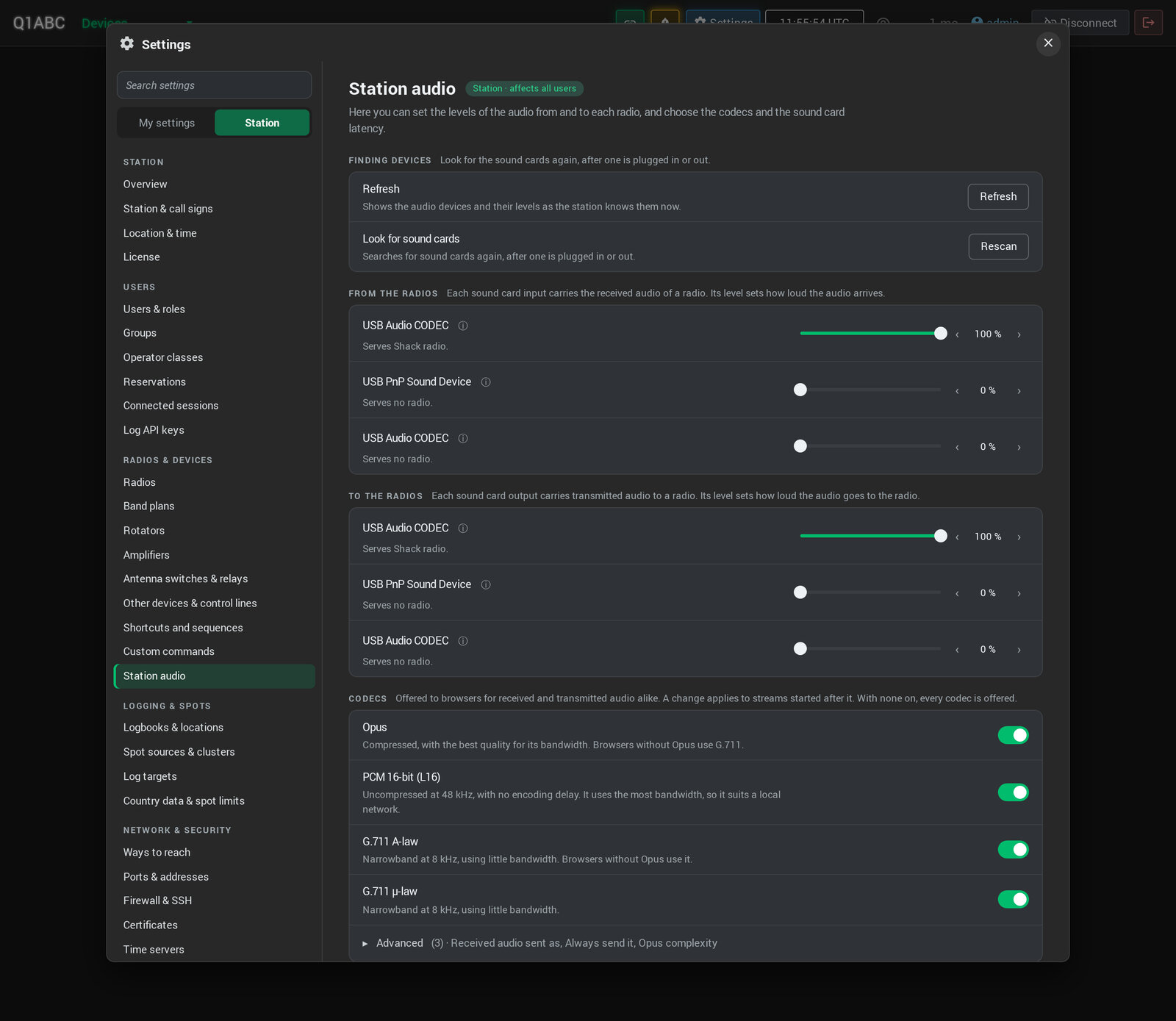
Here you set the audio of the station as a whole: how loud the audio of each radio arrives and goes, which codecs the browsers may use, and how the sound cards are opened. You set it in Settings › Station › Station audio, as the administrator. Each operator sets their own volumes and the quality of their own connection in My settings (see Listen and transmit).
The levels of each radio
From the radios lists each sound card input, which carries the received audio of a radio, and To the radios each output, which carries the transmitted audio to a radio. Each has a level, which sets how loud the audio arrives or goes, for every operator. The ⓘ beside the name of a card shows its details: the Device, Manufacturer, Model and Sample format, the radio it Serves, and what the level is Level set by:
- the sound card: the own volume of the card;
- PipeWire: the audio system of the station control computer;
- Web Radio Control (the sound card has no volume control): many USB sound cards have no capture volume of their own, so Web Radio Control sets the level of the audio itself.
At 100% the audio stays as it is. 50% is about 18 dB lower.
A level can’t undo clipping in the card itself. If the received audio reaches full scale, lower the audio level the radio sends to its USB sound card, in the radio menu (see Received audio clips).
Refresh shows the audio devices and their levels as the station knows them now. After you plug a sound card in or out, choose Rescan under Finding devices to look for the sound cards again.
Codecs
A codec is how the audio is packed for its way to the browser. The station offers these, for received and transmitted audio alike:
| Codec | What it is |
|---|---|
| Opus | Compressed, with the best quality for its bandwidth. The usual choice. Browsers without Opus use G.711. |
| PCM 16-bit (L16) | Uncompressed at 48 kHz, with no encoding delay. It uses the most bandwidth, so it suits a local network. |
| G.711 A-law | Narrowband at 8 kHz, using little bandwidth. Browsers without Opus use it. |
| G.711 µ-law | Narrowband at 8 kHz, using little bandwidth. |
All four are on unless you switch some off. With none on, every codec is offered. Keep G.711 A-law on, as the browsers without Opus, such as Firefox on Android, need it. A change applies to the streams started after it.
Among the advanced settings:
- Received audio sent as: the codec received audio is sent in when the one a browser asks for is not offered. Opus unless you choose another.
- Always send it: received audio goes in that codec whatever a browser asks for, as long as the browser can play it. Off unless you turn it on.
- Opus complexity: from 0 to 10. A higher number gives better quality but uses more processor time. 0 leaves the choice to the encoder.
Each operator chooses their own codec and bitrate in My settings › Connection & quality, among those you offer. Operators who share the same settings share one encoding. On a Raspberry Pi with several listeners, the fewest different settings use the least of its processor.
The capture rate of a radio
The station opens the sound card of a radio at its Capture sample rate, 48000 Hz unless set. You find it on the Advanced control settings tab of the radio, under Audio stream (see Advanced control settings). The sound card must capture at that rate. The USB sound cards of Icom, Yaesu and Kenwood radios capture at 48 kHz at most. Set 96000 Hz only for an audio interface that can capture at it.
Sound card latency
Sound card latency sets how the sound cards of the radios are opened, in microseconds (µs):
| Setting | What it does | Unless you change it |
|---|---|---|
| Buffer | How much audio a sound card holds. More helps when the processor is busy, but adds delay. | 20000 µs |
| Period | The time between two wakeups of a sound card. | 5000 µs |
| Drift tolerance | How far the clock of a sound card may drift before transmitted audio is resampled. | 40000 µs |
Lower is less delay and more work for the processor. Raise them if the audio breaks up on a busy station control computer. A change restarts the audio of each radio once the radio stops transmitting.
How the audio reaches the browsers
The audio goes to each browser over WebTransport when both ends can use it, and over WebSocket otherwise. The choice is automatic, and an operator can choose one in My settings › Connection & quality.
WebTransport uses the HTTPS port of the station over UDP, beside HTTPS over TCP: 8443, or 443 with the standard ports. To use it from the internet, forward the port for UDP too, not only TCP. Where WebTransport can’t be used, the audio still works over WebSocket, with more delay on a poor connection. The notifications then show Audio over WebSocket. The ports of the station are in Ports, firewall and IPv6.
If something went wrong
- A sound card is missing from the list. Choose Rescan. If the page says Audio is still starting, wait a moment.
- The audio of a radio doesn’t start after a change of the capture rate. The card can’t capture at that rate. Set it back to 48000 Hz.
- The audio breaks up for everyone. Raise Buffer and Period, or choose a lighter reading profile for the radios (see How often the radio is read).
- More is in Audio problems.