Radios and devices
Here you find the station devices in Settings: the defaults of each kind of device, the page of each device with its tabs, how a change is saved and applied, and how to disable or delete a device. You add a device as Add a device describes.
A device added, changed or deleted takes effect while the station runs. Web Radio Control doesn’t restart, and no file is edited.
The device pages
Settings › Station, under Radios & devices, has a page for each kind of device:
| Page | What it holds |
|---|---|
| Radios | The radios, with or without computer control (CAT). |
| Rotators | The controllers that turn the antennas. |
| Amplifiers | The power amplifiers that Web Radio Control reads and switches. |
| Antenna switches & relays | The antenna switches, whose antennas are selected by control lines. |
| Other devices & control lines | Named outputs and inputs, such as the power supply of the radio or the lights, and the control lines of the station. |
The group also holds Band plans, Shortcuts and sequences, Custom commands and Station audio, the settings that every radio of the station shares (see Band plans, The station’s shortcuts and commands and Station audio).
The administrator sees every page and changes everything. A user with the Power user role sees the device pages too, and sets the operating rules of each device and how often it is read. Each page lists:
- Defaults for radios (or for rotators, amplifiers, antenna switches or other devices), the rules every device of the kind follows until it has its own;
- the devices of the kind, each by its name, with its status;
- for the administrator, also the devices that don’t run, because they are disabled or can’t start, and Add a device at the right of the list.
Defaults for each kind of device
Choose Defaults for radios, first in the list of Radios, to see the rules every radio follows unless it has its own, such as the transmit time limit, the Morse keyer and the meter scales. The defaults of radios also hold Telemetry, the charts of every radio, and Band plan, the band plan of the station, which users follow until they choose their own in My settings › Bands. The other kinds have their defaults the same way.
A change of the defaults takes effect at once, without a restart, for every device that doesn’t have its own value.
A value set on one device shows the name of the device kind in blue beside it, such as This radio. Choose it to see where the value comes from, and choose Reset to … to follow the defaults again. A device keeps its own value setting by setting, so a later change of the defaults still reaches the settings it hasn’t changed.
The operating rules of each kind of device are on Radio settings and Amplifiers and rotators.
The page of a device
Choose a device in the list. Its page opens beside the list, headed with its name, its status, its manufacturer and model, and how it is connected. Its tabs show where the device has something there:
| Tab | What it holds | Who sees it |
|---|---|---|
| Overview | Device status now, with its related devices and Events and services in Diagnostics ›. For the administrator, also the tests of the device, each with its last result, and Still to set up, or Everything is set up. | Power users and the administrator |
| Connection | The settings of the device in the sections it was added in. For a radio: Radio, Connection, Audio and Keying, each with its test. Parts, as found now, the serial port, sound card and other parts the device uses, as the station found them. On the station: Description, Disabled, Move up, Move down and Delete. | The administrator |
| Related devices | The rotator, amplifier and antenna switch used with a radio, or the radios used with another device. | The administrator |
| Operating | Operating rules for this device alone, and how often the station reads the device. | Power users and the administrator |
| Advanced control settings | How the station runs the control of the device through Hamlib, its audio stream, and the Hamlib parameters of the model. The defaults suit most devices. | The administrator |
| Diagnostics | The state of the device with Reconnect, what it reported it can do, its Services with Restart, and, for the administrator, its Events. | Power users and the administrator |
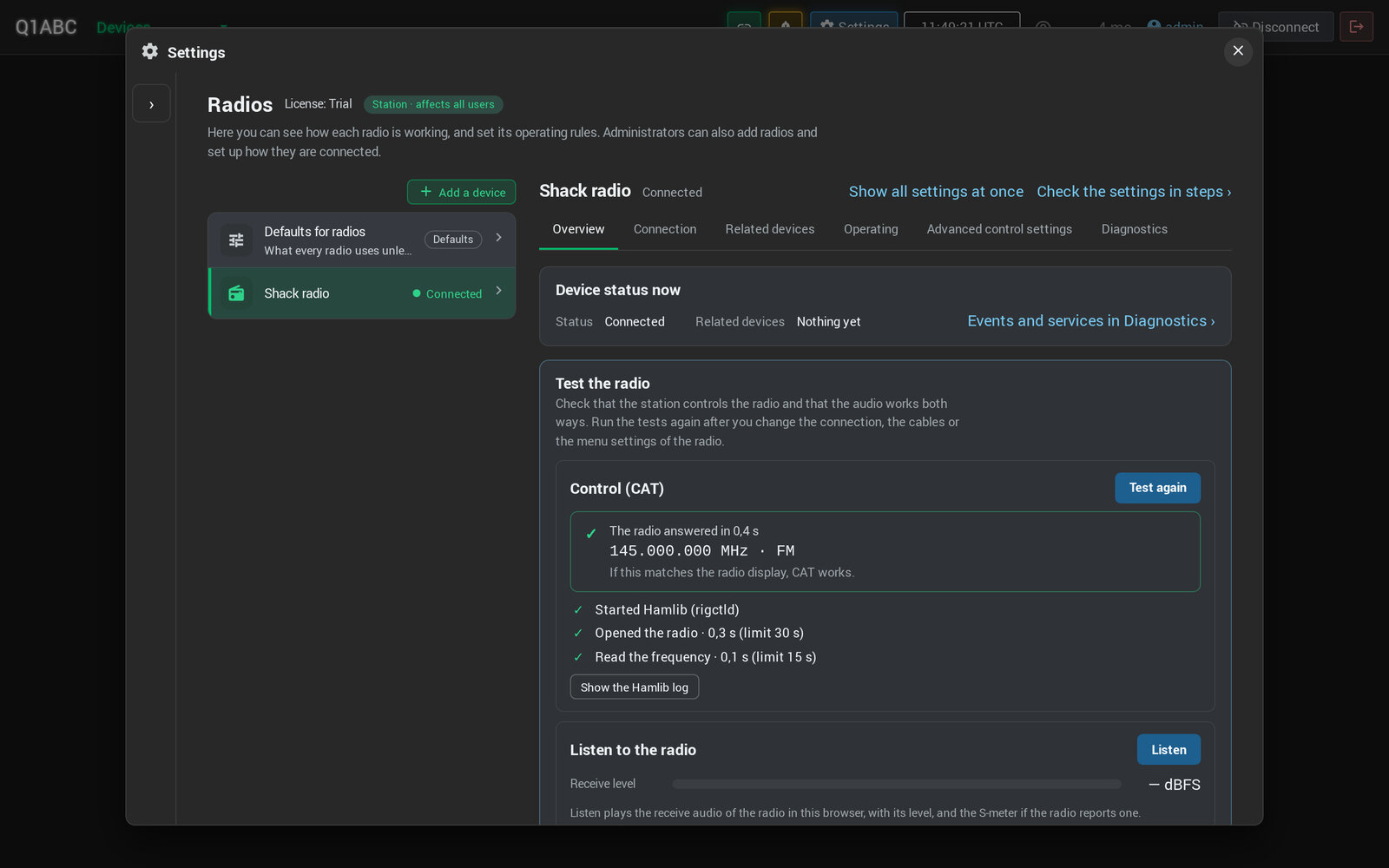
Test a device again
On the Overview tab, each test shows its last result and when it ran, Last run ‹time›. Run it again after you change the connection, the cables or the menu settings of the radio. The control test of a radio, rotator or amplifier, and the keying test of a radio without CAT, run with Test, then Test again. The control test of a device that runs asks first, as it pauses the control of the device for everyone until the test ends: The test pauses the control of this radio for everyone until the test ends. Choose Test now. The tests are the same as when you add the device (see The tests).
Check the settings in steps
Above the tabs, the administrator has Show all settings at once and Check the settings in steps ›. They go through the settings of the device as when it was added, all on one page or step by step, with the tests. Save the changes saves them, and Cancel forgets them.
Save and apply a change
A change on the Connection or Advanced control settings tab waits in the bar at the bottom of the page until you save it. Save keeps it, and Revert forgets it.
- A new name or description takes effect at once. The device runs on, and everyone sees the new name. Renaming a device keeps its reservations, related devices, shortcuts and logged contacts with it.
- A change to the connection of a radio, rotator or amplifier is saved first and applied when you choose. The page says Changes are saved first. Apply them when you choose, several at once. Once saved, it says Changes saved, not applied, with each change as it runs now and as saved, such as Speed: 9600 bit/s → 19200 bit/s. Choose Apply and restart to apply them all. It restarts the control of the device. The audio keeps playing. A radio that is transmitting is restarted once it stops. Undo puts the saved settings back as they run.
- A change to an antenna switch or another device applies as it is saved, or as soon as no radio related to it transmits.
On the Operating tab, a switch or a choice takes effect at once. A number you type waits in the bar at the bottom of the page until you choose Save.
If another administrator changed the device meanwhile, the save is refused. The page reads the device again, and you can make your change once more.
Disable or delete a device
Under On the station, on the Connection tab:
- Disabled keeps the device with its settings, but it doesn’t run. It stays in the list, marked so. Use it for a radio you take away for a while.
- Move up and Move down move the device among the devices of its kind. The devices are shown in this order everywhere.
- Delete asks first, Delete ‹name› and its settings?, and says what goes with the device: its saved state, the settings users have for it, its test results. A radio leaves its related devices in place, no longer related to it. Another device is removed from the related devices of its radios. Choose Delete to delete it, or Keep to go back.
A deleted device keeps its ID from every device added after it, so that the contacts logged with it never name another device.
If something went wrong
- The page says Changes saved, not applied. Choose Apply and restart to apply them, or Undo to keep the settings the device runs on.
- The device shows as exited after Apply and restart. Its control didn’t start with the new settings. The Diagnostics tab says why. Correct the setting on the Connection tab, save and apply again.
- The page says The changes were not saved. Reason: … The reason says what the station refused, such as a name another device of its kind has. If it names the Application log, open Settings › Station › Diagnostics & logs › View and search the logs… and read the Application log tab.
- A device doesn’t work. See A device doesn’t work.