Your settings
Your own settings decide how the station works for you. They change nothing for the other operators. Here you find where they are, how a change is saved, which settings follow you to every desktop, tablet or phone, and the pages of My settings one by one.
Open My settings
Your settings are in the Settings dialog, in its part called My settings. Open it in one of these ways:
- choose your username at the right of the top bar;
- choose Settings in the top bar, then My settings at the top of its sidebar;
- press Ctrl+,, or ⌘+, on a Mac.
On a narrow screen, such as a phone, My settings is in the menu at ☰.
The dialog opens over the page you are on. The radio stays tuned and its audio keeps playing underneath. × or Esc closes the dialog and takes you back. Back steps back through the pages you opened, then closes it.
The top of the sidebar switches between the two parts of the dialog. Each page says which part it belongs to:
- My settings carry the tag Only you. They are yours, and every user has their own.
- The settings of the station carry the tag Station · affects all users. Most of them are for the station administrator (see Station administrator guide). Every operator sees the Overview and About pages there.
You see only the pages that your roles let you use. A group with no page for you is left out.
Find a setting
The search box at the top of the sidebar, Search settings, finds pages, their sections, the settings on them and the devices of the station. Press / to search from anywhere outside a text field. Choose a result to open its page. The setting you looked for is highlighted.
Change a setting
Each setting has a row with its name and a line that says what it decides. Where there is more to say, ⓘ opens the help of the row.
How a change is saved depends on the setting:
- Switches, choices and sliders are saved at once. The row says Saved for a moment.
- Text and numbers wait. The row says Unsaved, and a bar at the bottom of the page, Unsaved changes, holds every change of the page. Choose Save to keep them, or Discard to drop them.
If the station doesn’t take a value, the row says Not saved in red. The reason is in a red bar at the bottom of the page, with Retry where trying again can help.
Where a value comes from
A setting you have changed shows where its value comes from, in blue beside its name: Your account or This browser, for example. Choose it to see Where this value comes from: each place that can hold the value, with the value in use marked. Reset to … goes back to the value below yours, such as the one of the station.
What follows your account
Most of your settings are kept with your account. They follow you to every desktop, tablet or phone you log in from.
Some settings suit one device and its network, so this browser keeps them:
- your audio settings on Listening, Transmitting, Connection & quality and Engine & diagnostics, but the volumes and mutes of each radio, which follow your account (see Your audio settings);
- Full screen from my first tap and Keep the screen on, on Screen.
A setting kept in this browser carries the tag This browser. To make your audio settings and Keep the screen on the starting point of your other browsers too, choose Keep for my account on Engine & diagnostics.
While this page is not connected to the station, the pages whose settings the station keeps show the connection card in their place. The audio pages and Screen stay usable.
Quick settings in a module
The ⋮ in the bar of a module on the radio page, and the Layout panel, hold quick settings: the same settings as My settings, for changes while you operate. A change in one shows in the other. Tags beside each group say how far it reaches:
| Tag | The setting is kept |
|---|---|
| This radio with This layout | For this radio, in the layout in use. |
| This radio with Every layout | For this radio, whatever the layout. |
| All your radios | For every radio you use. |
| This browser | In this browser only. |
The last line of the menu opens the page in My settings with every setting of the module, such as All waterfall settings ›. Where a module of a radio has settings of its own, Use my defaults in its ⋮ forgets them, and the module follows your defaults in My settings again.
The pages of My settings
My settings has these groups and pages. You see the pages that your roles let you use.
| Group | Page | What it holds |
|---|---|---|
| Account | Profile & password | Your call sign, name and email, and your password (see Log in). |
| Device access | Your operator class, your groups, and what you may do on each device (see Device access). | |
| Services & lookups | Your QRZ.com and HamQTH accounts for looking up calls, and your hams.at key for satellite passes (see Your accounts). | |
| My log API keys | The keys with which other logging applications, such as WSJT-X, log into the logbooks (see Log from other applications). | |
| Audio | Listening, Transmitting, Connection & quality | How the audio of a radio plays and is sent (see Listen and transmit). |
| Engine & diagnostics | The audio engine of the browser, the diagnostics of the audio, and Keep for my account (see The audio engine). | |
| Operating | CW | Your paddles, your weighting and your speed presets, for users who may transmit (see Your CW settings). |
| Shortcuts and sequences | What a tap or a key does on your devices (see Shortcuts and sequences). | |
| Custom commands | Raw commands for a radio (see Custom commands). | |
| Spots & alerts | Tapping & tuning, Needed marks, Rules & watches, Filter sets, Alerts & sounds, Upcoming, My reports | What a tap on a spot does, the marks, rules and alerts of the spots, and the calls your reports follow (see Spots, Needed marks, rules and alerts and Reports and activations). |
| Logging | Log entry, Needed & worked | How you log a contact (see Your log entry settings). |
| Display | Language and region, Time | How numbers, dates and times are written, and your time zone (see Language and region and Time). |
| Map | Distances in kilometers or miles, and your map defaults (see Map settings). | |
| Station control, Telemetry | Your defaults for the Station control and Telemetry modules of every radio (see Station control and Telemetry). | |
| Colors | The colors of the bands and modes in the lists of spots (see Colors). | |
| Bands | Your band plan (see Your band plan). | |
| Waterfalls | The palettes and levels of the waterfalls (see The waterfall). | |
| Layouts | Your saved layouts of the radio page (see Modules and layouts). | |
| Screen | Full screen, keeping the screen on, and how pickers list their values (see Screen). | |
| Tools | WRC Link | Pair WRC Link, and your paired clients (see Pair WRC Link with your station). |
| Browser log | The log of this browser, to send with a problem (see The browser log). |
Device access
My settings › Device access shows what the station administrator has set for you. You can’t change it here.
- Operator class and groups: the operator class that limits where you tune and transmit, and the groups you are in. None: limited by the station’s devices alone means that you have no class.
- Devices: your level on each device of the station, and where it comes from.
| Level | What you may do |
|---|---|
| View | See the device and listen to it, but not control it. |
| Operate | Control the device, such as tune, change the mode, turn the rotator or switch the antenna, but not transmit. |
| Transmit | Everything your roles allow, transmitting included. |
A device hidden from you isn’t listed, and doesn’t show anywhere else either.
Where each level comes from is written after it, such as Operate. Comes from: The group Club, for every device. An entry made for you alone decides first. Without one, the highest level your groups give counts, and then your roles. A level never goes beyond what your roles allow. Where an entry asks for more, the line says so, such as The entry asks for Transmit, but your roles allow only Operate.
See What you see depends on your access for how your access shows on the radio page. How the station administrator sets the classes and the groups is on Operator classes and Groups and device access.
Language and region
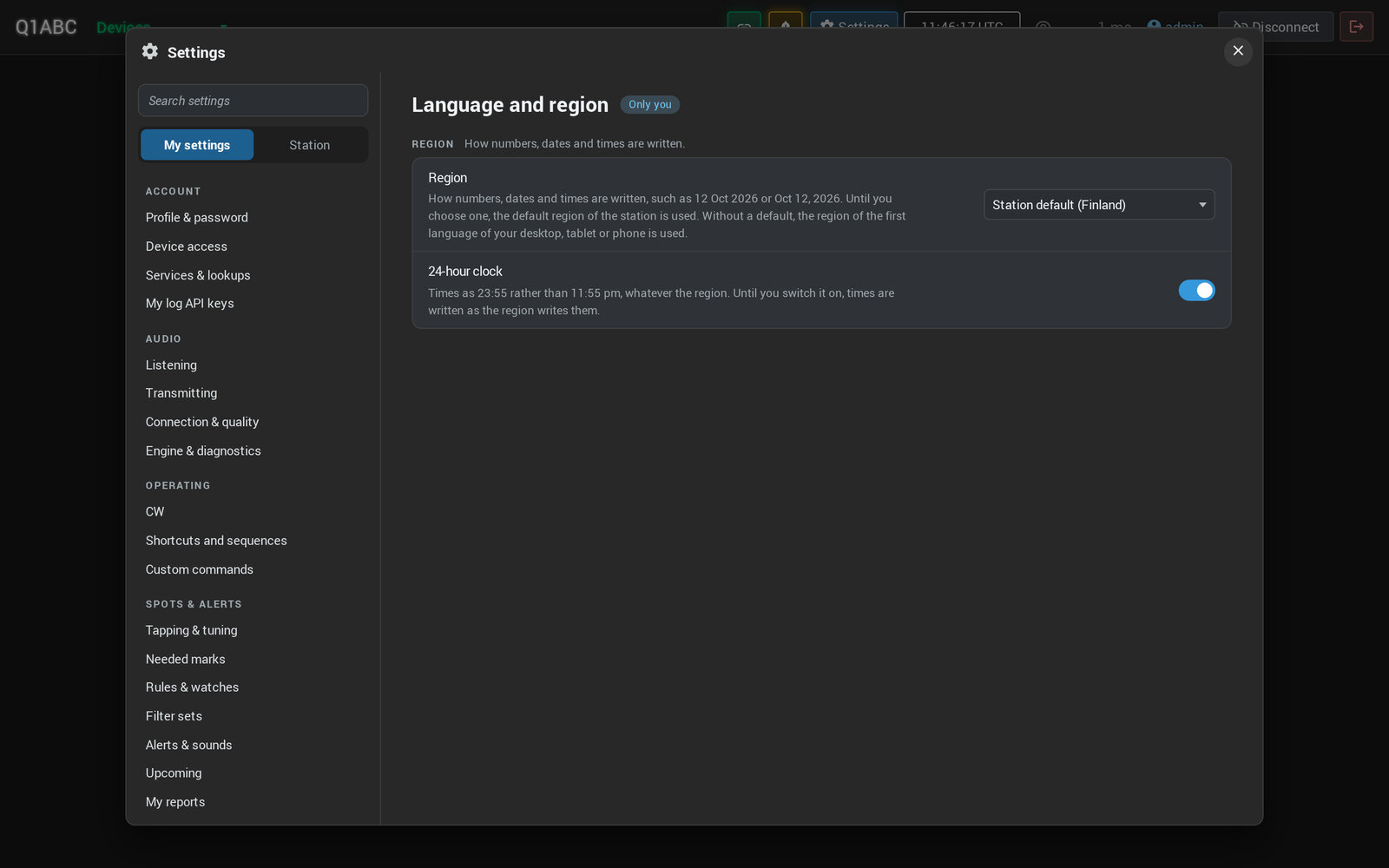
Region sets how numbers, dates and times are written, such as 12 Oct 2026 or Oct 12, 2026, and 1,234.5 or 1 234,5. Choose any country. Until you choose one, the region is the default region of the station, which the administrator sets, or else the region of the first language your desktop, tablet or phone is set to.
24-hour clock writes times as 23:55 rather than 11:55 pm, whatever the region. Until you switch it, times are written as the region writes them.
The interface is in English in every region. The radio controls, the logbook and the spots keep the conventions of amateur radio.
Time
Time zone sets the zone of the times you see, such as the times of reservations. Choose This browser’s, which follows the desktop, tablet or phone you use, The station’s, UTC, or another zone. The Reservations page names the zone its times are in.
Colors
The lists of spots color each band, and each mode if you want:
- Band colors: Pastel, as on the map, or Safe for color blindness, with the WARC bands outlined.
- Color the modes: CW, phone, digital and image modes each in a color of its own.
The map keeps its own colors.
Screen
- Full screen from my first tap makes the page fill the screen at your first tap, click or key press after the page loads. A web page can’t go full screen by itself, so it waits for you. This browser keeps the setting.
- Keep the screen on stops the screen of this device from turning off: Never, While streaming, the default, while this browser receives or transmits the audio of a radio, or Always. This browser keeps it too.
- Lists in pickers sets how a long list, such as the modes or the DXCC entities, shows its values: Recent and grouped, the default, lists the last five values you picked first, then every value under its group. Plain lists the values alone. This setting follows your account to every browser.
To use Web Radio Control in a window without the bars of the browser, install it as an app: Add to Home Screen on an iPhone or iPad, or Install in the menu of the browser elsewhere. On an iPhone, installing is the only way to fill the screen.