Pair WRC Link with your station
Pair WRC Link with your station once on each computer. From then on WRC Link connects to the station by itself whenever it runs, as you, and connects again when the connection breaks. Here you pair it from your browser or by a code, follow your stations in WRC Link, and manage your paired clients in Web Radio Control.
A WRC Link paired with the station is a paired client. It has your rights on the station: the radios, rotators and amplifiers you may use, and nothing more. Every user may pair WRC Link.
You need:
- WRC Link installed and running on this computer (see Install WRC Link);
- Web Radio Control open in a browser on the same computer, logged in as you.
Open My settings › WRC Link
In Web Radio Control, open Settings › My settings › WRC Link. Its Pair WRC Link section pairs WRC Link on your computer with the station as you.
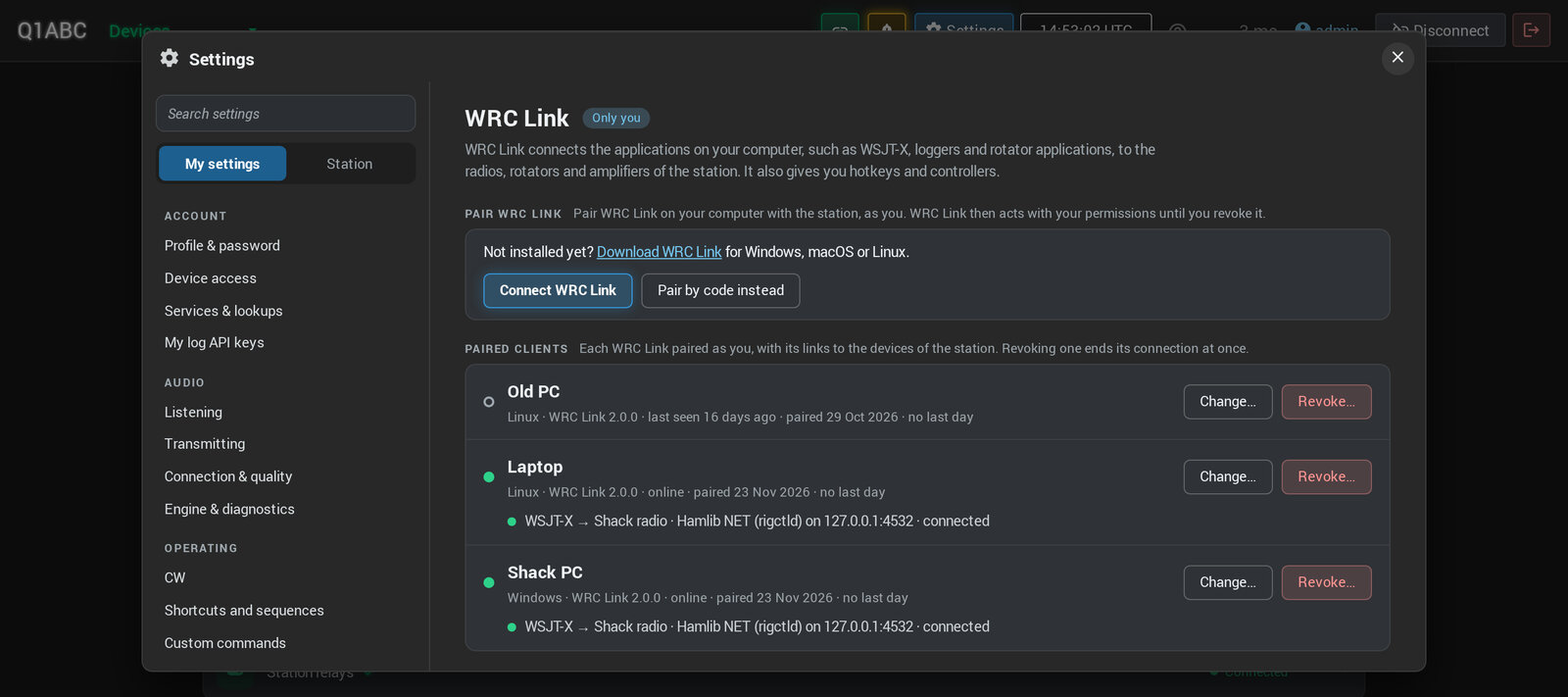
Choose Connect WRC Link
Choose Connect WRC Link. Your browser opens WRC Link with the address of the station and a one-time code. The browser may first ask whether to open WRC Link. Allow it.
If nothing opens, WRC Link isn’t installed or running on this computer, or the browser can’t hand it the link. Pair by code instead.
Confirm in WRC Link
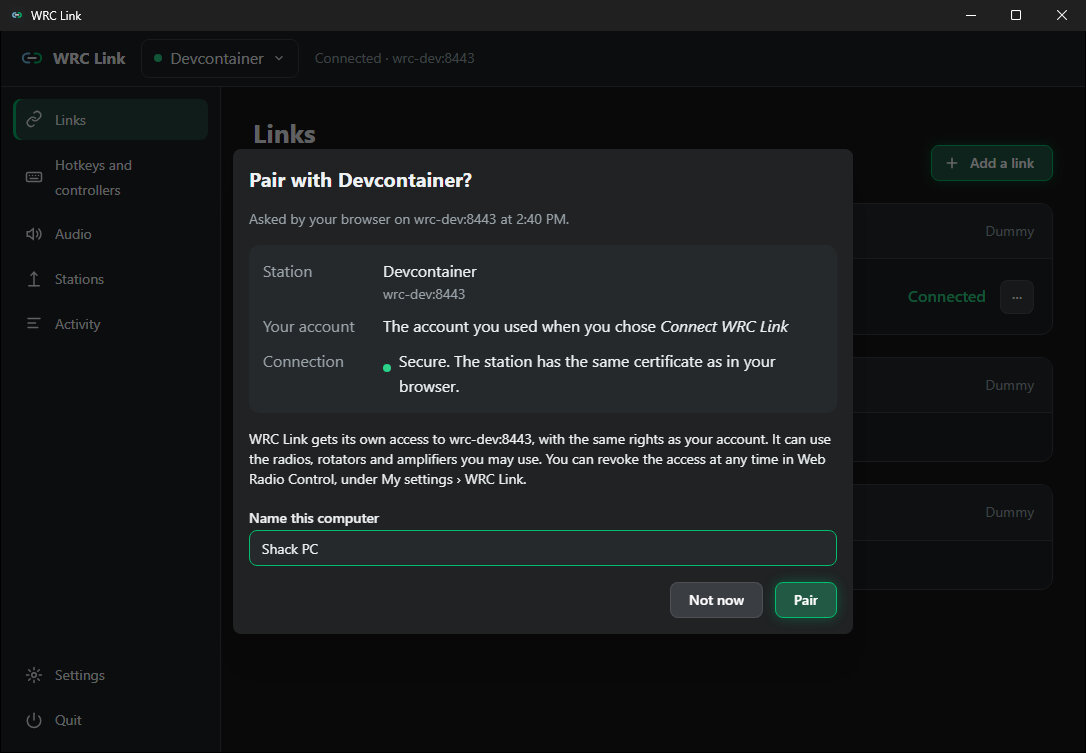
WRC Link asks Pair with your station?, with what it checked:
- Station: the name and the address of the station. If WRC Link could not check the station, its name is marked unverified.
- Your account: the account you used when you chose Connect WRC Link.
- Connection: how WRC Link checked the station. Secure. The station has the same certificate as in your
browser. means that it is the station your browser is connected to. A station with a publicly trusted
certificate, such as one at a
wrcs.techaddress, shows Secure. The station has a publicly trusted certificate, checked by this computer.
In Name this computer, keep the name of your computer, or type another. The station lists this WRC Link by that name. Then choose Pair. Not now pairs nothing.
Pair by code instead
Pair by a code when your browser doesn’t open WRC Link, when WRC Link runs on another computer than the browser, or when WRC Link asks you to compare the fingerprint of the station.
- In Web Radio Control, open Settings › My settings › WRC Link and choose Pair by code instead. The page shows
a Code of eight characters, such as
K7QM-4Z2P, and the address of the station to type with it. The code works once, for 10 minutes. New code makes another. - In WRC Link, choose Pair by code instead on the Links page, or Pair with a station on the Stations page.
- In Station address, type the address of the station as your browser shows it, such as
shack.local:8443. - In Pairing code, type the code. Capital or small letters both work, with or without the dash.
- If the station uses its own certificate, WRC Link shows its fingerprint. Compare it with the one Web Radio Control shows beside the code. If they are the same, tick They match. If they differ, don’t pair. You aren’t reaching your station.
- Choose Pair with your station.
A station with a publicly trusted certificate, such as one at a wrcs.tech address, has no fingerprint to compare.
WRC Link says The station has a publicly trusted certificate, checked by this computer.
Your stations in WRC Link
The Stations page of WRC Link lists the stations that WRC Link is paired with on this computer. WRC Link stays connected to every enabled station while it runs. Each row shows the state of the station: Connected, Connecting…, Reconnecting with the time of its next try, Disabled, or why it isn’t connected. Choose a row for its details: the version of the station, the name it was paired as, the account it logs in as, and its certificate.
- Try now connects again at once, without waiting for the next try.
- Pair again… pairs the station again, for example after its pairing was revoked.
- The switch on the row turns the station off and on. Off, WRC Link keeps its pairing but doesn’t connect, and its links stop with Station disabled. Use it for a station that is offline for a while.
- ··· › Forget… removes the station and its links from WRC Link, and revokes the pairing at the station where WRC Link can reach it.
With several stations paired, the header of the window chooses the station whose devices the Links page shows.
Your paired clients
In Web Radio Control, Settings › My settings › WRC Link lists under Paired clients each WRC Link paired as you:
- its name, its system and the version of WRC Link;
- online while it is connected, or when it was last seen;
- the day it was paired, and its last day if it has one;
- its links, by the applications and the devices they control, such as WSJT-X → IC-7610.
To change one, choose Change…:
- Name is the name the station lists it by.
- Last day is the last day it works. With none, it works until you revoke it. Clear removes the last day.
Choose Save to keep the change. A WRC Link past its last day is listed expired. Give it a later last day to let it connect again, or revoke it.
To revoke one, choose Revoke…. Web Radio Control asks first, as its connection ends at once and its links stop. To use that WRC Link again, pair it again.
An administrator can revoke the WRC Link of any user. Logging a user out everywhere revokes theirs too.
If something went wrong
| What you see | What to do |
|---|---|
| Nothing opens when you choose Connect WRC Link | Start WRC Link, then try again. On Linux, open the AppImage once, so that it opens the links. Or pair by code instead. |
| The station at … refused the pairing code | The code was used already, or is older than 10 minutes. Choose New code in Web Radio Control, and type the new one. |
| This is not the station your browser is connected to. | WRC Link reached another station than your browser. Don’t pair. Check the address of the station. |
| The station uses its own certificate, and the pairing link does not name it. | Pair by code instead, and compare the fingerprint. |
| … refused WRC Link, because its pairing was revoked or has expired. | Pair again. If it has a last day, an administrator or you can give it a later one. |
| … has a certificate that WRC Link does not trust for this station | The certificate of the station has changed since you paired. If its administrator replaced it, pair again. |
| … runs a version of Web Radio Control older than WRC Link works with. | WRC Link works with Web Radio Control 2.0 stations and later. Update the station. |
| The login key for … is missing from the keychain of your system. | Pair again. WRC Link keeps its pairing in the keychain of your system. |
| WRC Link on macOS can’t reach a station on your network | Open System Settings › Privacy & Security › Local Network, and switch on WRC Link. |
More in When WRC Link misbehaves.