Link your applications
A link lets an application on your computer control a radio or a rotator of the station. Here you add a link, set the application to use it, and follow the link in WRC Link and in Web Radio Control.
You need:
- WRC Link paired with the station (see Pair WRC Link with your station);
- a license with digital modes, which Multi-mode and the larger licenses include;
- your device access must let you operate the device, and to transmit through the link, your roles and your device access must let you transmit on the radio (see Operator guide).
How a link works
WRC Link listens on a port of your computer and passes what the application sends to the device of the station, and the answers back. Only applications on your computer reach the port. The station checks each command of the application as it checks your own in the browser: your roles, your device access, the license, the transmit limits of the radio and the reservations.
A link is one of two kinds:
- Hamlib NET, for applications that control a radio or a rotator over the network protocol of Hamlib: WSJT-X, JTDX, fldigi, Log4OM, PstRotator, Gpredict and many more. Several applications can use one Hamlib NET link at the same time.
- An emulated device (experimental), for applications that know only devices on a serial port. WRC Link acts as a Kenwood TS-2000, TS-480 or TS-590SG radio, as a WinKeyer for loggers that send CW through one, or as a Yaesu GS-232A or GS-232B rotator controller. One application at a time uses it. Another one waits its turn.
WRC Link in detail lists the link types, their ports and what the station checks.
Add a link
Open Add a link
In WRC Link, open Links and choose Add a link.
From Web Radio Control, you can also choose Add a link in WRC Link in the WRC Link section of the Controls drawer of the device, or in the WRC Link column of the Devices page. WRC Link then opens Add a link with that device chosen.
Choose the device
Which device will the application use? lists the radios, rotators and amplifiers of the station that you may use. Choose one, then Next.
Choose the application
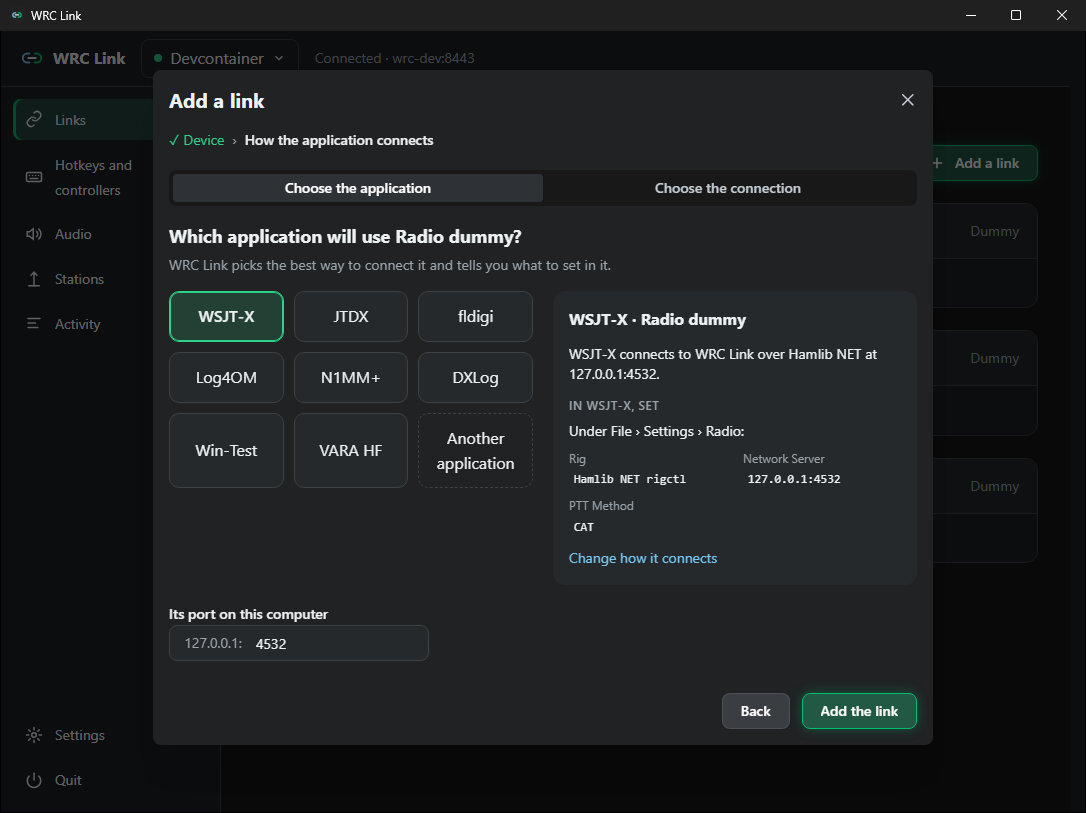
Under Choose the application, choose your application from the list. WRC Link picks the best way to connect it, and shows what to set in the application, such as:
In WSJT-X, set under File › Settings › Radio: Rig
Hamlib NET rigctl, Network Server127.0.0.1:4532, PTT MethodCAT.
For N1MM+, DXLog, Win-Test and VARA HF, WRC Link uses an emulated device, and marks it Experimental with Not yet tested with the application itself.
Settings for your applications lists them all. For an application that isn’t in the list, choose Another application, and choose the connection in the next step.
Or choose the connection
Under Choose the connection, choose how your application controls the device:
- Over the network (Hamlib NET), for applications that take an address for rigctld or rotctld.
- As a radio on a serial port, for applications that control a radio only through a serial port, such as DXLog, N1MM+ and Win-Test. In The radio, choose the radio that WRC Link acts as, and set the same radio in your application.
- As a CW keyer (WinKeyer), for loggers that send CW through a WinKeyer.
- As a rotator controller on a serial port, for rotator applications that take a Yaesu GS-232 controller. In The controller, choose Yaesu GS-232B or Yaesu GS-232A.
The last three make an emulated device. WRC Link marks them Experimental, as they are not yet tested with the applications that use them.
For FT8 and the other digital modes, choose the Kenwood TS-590SG: the TS-2000 and the TS-480 have no data modes, so the station sets the radio to USB or LSB instead. WRC Link says so if you choose another.
Choose its port
A Hamlib NET link listens on the port in Port on this computer. WRC Link proposes a free port: 4532 for a radio and 4533 for a rotator, as Hamlib does.
An emulated device needs a port too, in Where your application connects:
- A TCP port on this computer, for applications that take a network address. Choose it when your application can.
- One port of a COM pair, for applications that open only a COM port. A COM pair is two virtual serial ports joined together, which a driver of its own makes. In The COM port WRC Link opens, type one port of the pair. Your application opens the other. WRC Link marks this choice Experimental.
WRC Link doesn’t make COM pairs. Install a COM pair driver yourself first.
Add the link
Choose Add the link. The link shows under its device on the Links page, waiting for your application. Now set your application as WRC Link showed. ··· on the link, then What to set in your application, shows it again.
The state of a link
| State | What it means |
|---|---|
| Starting… | WRC Link is opening the port of the link. |
| Waiting for an application | The link is ready, and no application uses it yet. |
| Waiting for application | The link waits for the application it was added for. |
| Connected | An application uses the link. With several, the link says how many are connected. |
| Device not reached | An application connected, but WRC Link could not reach the device. The link says why. |
| Refused by the station | The station refused the link, or closed it, and says why: your device access, your roles or the license. |
| Stopped | The link stopped, and says why. WRC Link tries it again. |
| Station disabled | The station is switched off on the Stations page. The link starts again once you switch the station on. |
Remove a link
On the Links page, choose ··· on the link, then Remove the link. The application using it loses the station.
Your links in Web Radio Control
Web Radio Control shows your links, and those of the other operators, within seconds of a change.
- The Controls drawer of a radio, a rotator or an amplifier has a WRC Link section:
- Add a link in WRC Link opens WRC Link on this computer at the device. On a phone, it isn’t offered. Without WRC Link paired as you, WRC Link settings takes its place, which opens My settings › WRC Link to pair it first.
- My links lists your links to the device, with their applications, where they listen, the name of your WRC Link and their state. With none, it says None to the device yet.
- Other operators’ links lists the links of others.
- The Devices page has a WRC Link column for radios, amplifiers and rotators. It shows your link to the device, such as WSJT-X, or that another operator controls the device through WRC Link. With WRC Link paired as you, on a computer, its button is Add a link in WRC Link. Otherwise, where you have no link to the device, it is Pair WRC Link on your computer.
- The device selector in the top bar shows a second line under a device that a link reaches: the application and the operator.
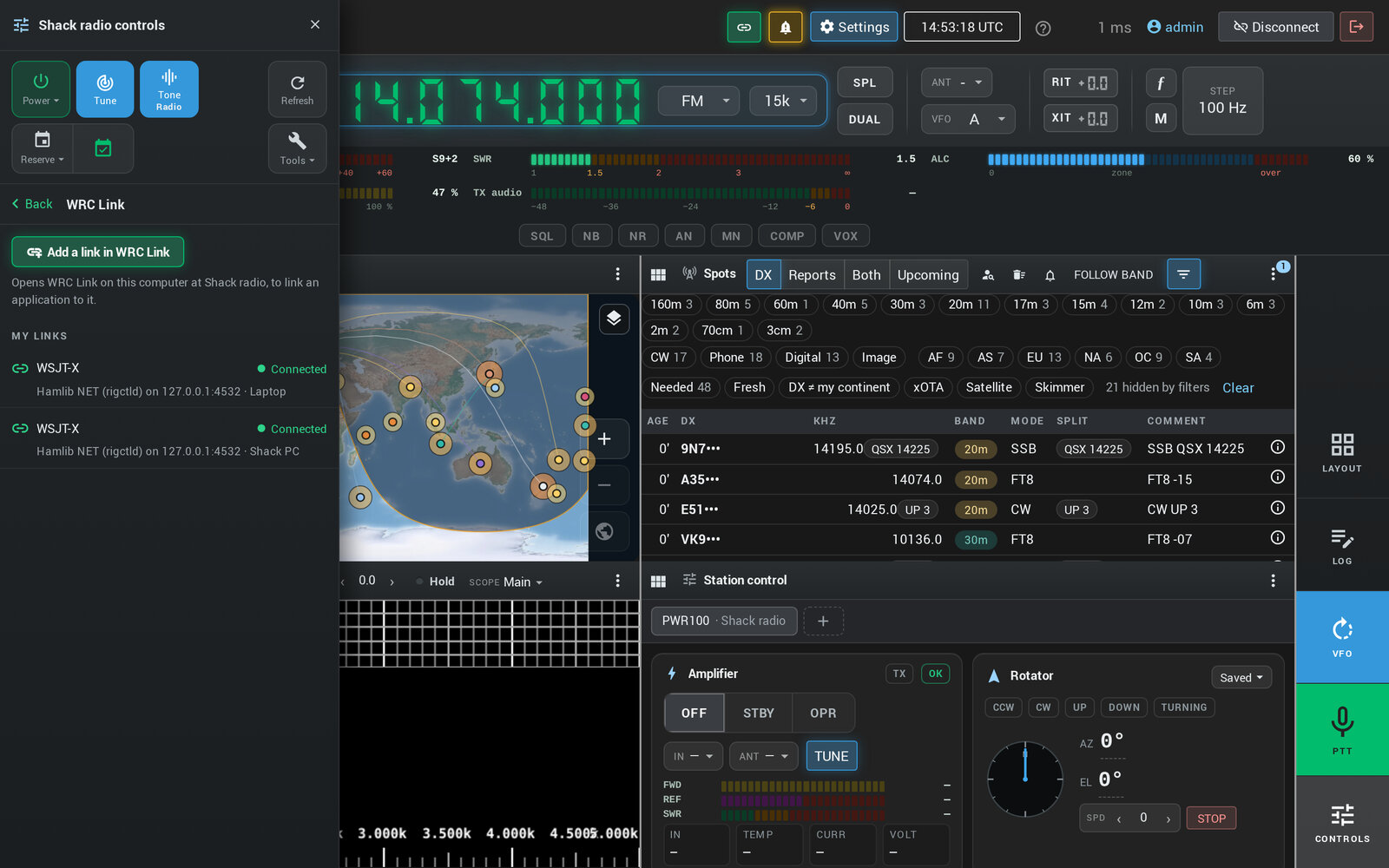
While a link controls a device, everyone on the station sees that the device is Controlled through WRC Link. Whether they also see who controls it is the choice of the station administrator. Power users and administrators always see the applications and the operator of each link. Under a license without digital modes, the WRC Link section of the Controls drawer is grayed, with This is not in your license. The Multi-mode license includes it. The Devices page then offers no link.
If something went wrong
| What you see | What to do |
|---|---|
| The link to … could not start on …, because another application uses that port. | Another application on your computer already uses that port, such as a rigctld of your own. Quit it, or remove the link and add it again on another port. |
| Refused by the station, Your device access lets you view …, but not control it. | Your device access lets you only view the device. Ask the station administrator. |
| Refused by the station with the reason of the license | The license doesn’t include the links, or the device is beyond its number of devices. |
| Device not reached | The device is switched off, or the station has lost it. Check the device in Web Radio Control. |
| The application can’t key the radio | The station refused to transmit: your roles, Transmitting disabled on the radio, no antenna selected, or the transmit limits of the radio. The application gets Hamlib’s error RPRT -19. |
| The application stops working when another operator reserves the radio | A reservation of another operator stops your link within 15 seconds. Use the radio within your own reservation. |
| Station disabled | Switch the station on, on the Stations page of WRC Link. |
See Reserve a radio for your own reservation.
More in When WRC Link misbehaves.