Install WRC Link
Install WRC Link on the computer where you run WSJT-X, your logger or your rotator application. It installs in your own user folder, so Windows asks for no administrator password. Here you download it, install it on your system, and start it.
You need:
- a computer with one of the systems that WRC Link lists;
- on Linux, the
bubblewrapandxdg-dbus-proxypackages, which most desktops have already. WRC Link says so if they are missing.
Download WRC Link
Download WRC Link for your system from the download page of Web Radio Control. In Web Radio Control, Settings › My settings › WRC Link links the same page: Not installed yet? Download WRC Link for Windows, macOS or Linux.
| System | The file to download |
|---|---|
| Windows | The installer, wrc-link-<version>-windows-amd64-installer.exe |
| macOS | The disk image, wrc-link-<version>-darwin-universal.dmg, for Intel and Apple silicon Macs |
| Linux | The AppImage, wrc-link-<version>-linux-amd64.AppImage for a 64-bit PC, or …-linux-arm64.AppImage |
The page also lists the files that WRC Link updates itself from. You don’t need them to install.
Install it
- Open the installer you downloaded.
- WRC Link 2.0 is not signed yet, so Windows may warn that it protected your PC. Choose More info, then Run anyway. Your browser may also warn about the download before it. Keep the file.
- Choose whether the installer puts a WRC Link shortcut on your desktop. WRC Link is added to the Start menu either way.
- Keep the folder the installer suggests, in your own user folder.
- If your computer lacks the Microsoft WebView2 Runtime, the installer says so. WRC Link needs it to show its window. The installer downloads it from Microsoft and installs it, under the Microsoft license terms, which it links.
- On the last page, keep Run WRC Link ticked and choose Finish. WRC Link starts. Later, start it from the Start menu or from your desktop.
Start WRC Link
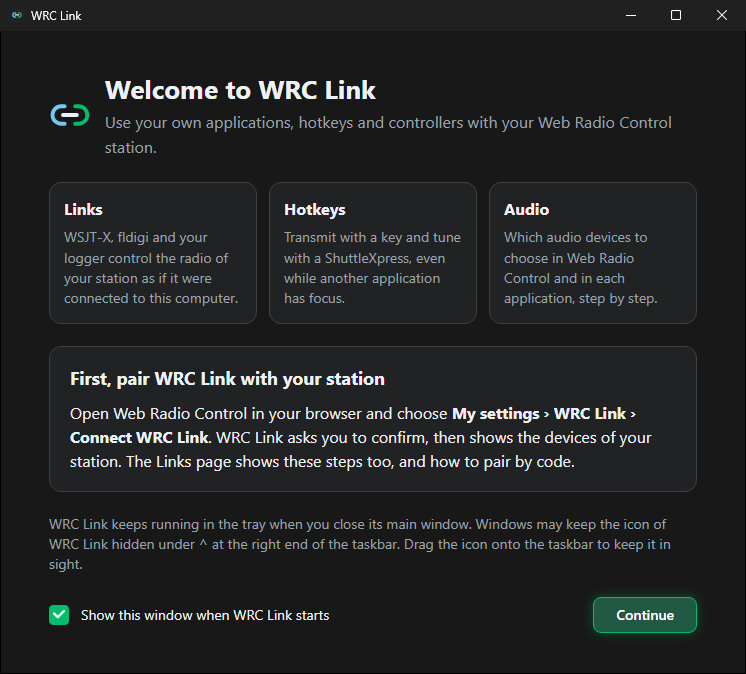
The first time WRC Link starts, it opens Welcome to WRC Link. It says what WRC Link does, and where you pair it. Choose Continue for the main window.
Until WRC Link is paired with a station, its Links page shows the steps to pair it. Continue with Pair WRC Link with your station.
Start it when you log in
This step is optional. In WRC Link, open Settings and switch on Start WRC Link when I log in. WRC Link then starts hidden in the tray each time you log in to your computer, so your links are ready when you are.
If something went wrong
- Windows says WRC Link is running, so the installer cannot replace it. Quit WRC Link from its icon in the tray. Right-click the icon and choose Quit. Then choose Retry.
- The uninstaller says WRC Link is running, so it cannot remove it. Quit WRC Link from its icon in the tray, then choose Retry.
- The Windows installer says the WebView2 Runtime could not be downloaded. Check that your computer is online, then choose Retry.
- macOS says WRC Link can’t be opened. Allow it with Open Anyway in System Settings › Privacy & Security, as in the macOS steps.
- Linux shows WRC Link cannot open its window. Install what the dialog names, as in the Linux steps, then open WRC Link again.
- The icon doesn’t show in the tray on Linux. Turn on the tray icons of your desktop. On GNOME, install the AppIndicator and KStatusNotifierItem Support extension. Until then, WRC Link runs as an ordinary window.
More in When WRC Link misbehaves.
Uninstall WRC Link
Before you uninstall WRC Link, forget your stations in it. On Stations, open the ··· menu on the row of each station and choose Forget… there. WRC Link also revokes its pairing at the station. You can revoke it later in Web Radio Control instead (see Your paired clients).
- Quit WRC Link from its icon in the tray.
- Open Settings › Apps › Installed apps on Windows 11, or Settings › Apps › Apps & features on Windows 10.
- Choose WRC Link, then Uninstall.
If WRC Link is still running, the uninstaller asks you to quit it from its icon in the tray. Then choose Retry. Cancel leaves WRC Link installed.
The uninstaller removes WRC Link, its shortcuts and the updates it downloaded. If Start WRC Link when I log in was
on, it also removes that entry, so nothing starts at your next login. The settings of WRC Link stay in
%APPDATA%\wrc-link, and its logs in %LOCALAPPDATA%\wrc-link\logs. Delete those folders too if you don’t want to
keep them.