Hotkeys, controllers and CW keys
With the hotkeys of WRC Link, you transmit, tune and change band from your keyboard or a ShuttleXpress while WSJT-X, your logger or another application has focus. The CW keys send Morse from your keyboard, or from paddles on a USB adapter. Here you turn the hotkeys on, change what each key does, set up a controller, and arm the CW keys.
You need:
- WRC Link paired with the station (see Pair WRC Link with your station);
- to transmit, your roles and your device access must let you transmit on the radio. To send CW, the license must include Morse keying, which Multi-mode and the larger licenses do.
Turn the hotkeys on
In WRC Link, open Hotkeys and controllers and switch on Hotkeys enabled. They are off until you turn them on.
The hotkeys act on one radio. Radio the hotkeys act on is The only radio connected by default. With several radios connected, choose the radio there. Until you do, the hotkeys do nothing, and WRC Link says Several radios are connected. Choose the radio the hotkeys act on, on the Hotkeys and controllers page. A binding can also name a radio of its own.
While your hotkeys are on, Web Radio Control pauses its own keys that transmit, so the radio is never keyed twice: its PTT keys, the tone burst and the Morse keys. The radio page says The transmit keys of this keyboard are paused. Keep them turns them back on, and × closes the notice. The tuning keys of Web Radio Control still work.
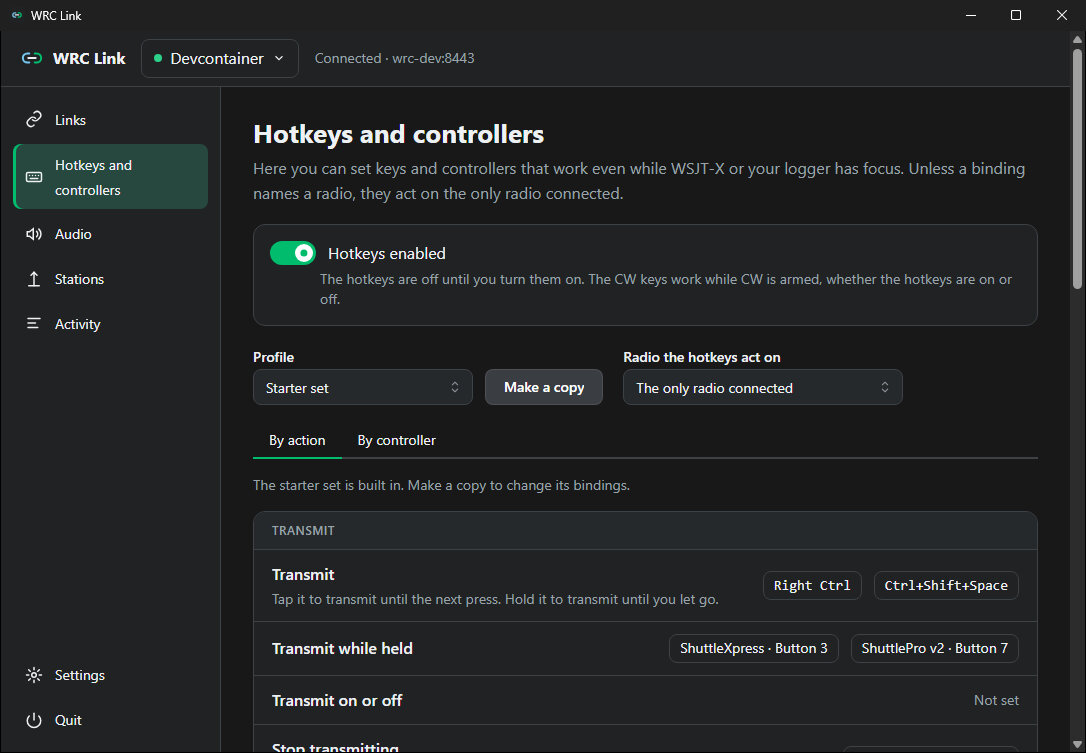
The starter set
The hotkeys start with the starter set, built into WRC Link:
| Action | Keys |
|---|---|
| Transmit | Right Ctrl, held alone; or Ctrl+Shift+Space |
| Stop transmitting | Ctrl+Shift+Backspace |
| Tune | Ctrl+Shift+U |
| VFO A/B | Ctrl+Shift+B |
| Band down and Band up | Alt+Shift+Page Down and Alt+Shift+Page Up |
| Frequency down and Frequency up | Ctrl+Shift+, and Ctrl+Shift+. |
| Show or hide WRC Link | Ctrl+Shift+H |
Transmit works as the PTT button of Web Radio Control. Tap it to transmit until the next press. Hold it to transmit until you let go. The key held alone waits a moment before it keys the radio, and any other key cancels it, so a shortcut of another application with Right Ctrl never keys the radio.
Frequency down and Frequency up tune by the tuning step of the radio, 100 Hz where the radio tells none.
The starter set uses Ctrl+Shift and Alt+Shift, which type no character and which loggers rarely use. If the station stops your transmission at its time limit, WRC Link tells you with Transmitting stopped, and lets the key go.
Change the keys
The starter set is built in. Make a copy of it to change its bindings. Your copy is a profile of your own. Choose the profile in use in Profile. Rename… and Delete… are in its menu.
On the By action tab, each action has its keys and controls:
- Choose Learn beside the action. WRC Link says Press a key or a control….
- Press the keys, or turn or press the control of your controller. Esc gives up.
- To remove a binding, open its menu and choose Remove. Acts on in the same menu names the radio it acts on.
The actions are Transmit, Transmit while held, Transmit on or off, Stop transmitting and Tune; for tuning Band up, Band down, Frequency up, Frequency down, Fast tuning, VFO A/B and Mode; Arm or disarm CW; and Show or hide WRC Link.
WRC Link refuses the keys your other applications need: a key that types, alone or with Shift; F1 to F12; and Ctrl, Alt or ⌘ with a letter alone. It says so, such as Learn does not bind Ctrl+L, as other applications use it. Hold two modifier keys with a key, such as Ctrl+Shift, or use F13 to F24.
Your shortcuts and sequences
The shortcuts and sequences of Web Radio Control run from a key or a button too, while another application has focus (see Shortcuts and sequences). Under Shortcuts and sequences on the By action tab are yours and those of the station, as each station lists them to you.
- Choose Bind a shortcut or sequence…, and choose it.
- Choose Learn beside it, and press its key or button.
A sequence set to ask first in Web Radio Control is marked Asks first. When you press its key, a small window asks Run its name? with Run and Cancel. The same key again runs it too. The window closes by itself after 15 seconds.
Stop the running sequence is an action of its own, and Stop transmitting stops a sequence too. When a run fails, or the station refuses it, WRC Link says so in a notification and in the Activity.
Controllers
WRC Link reads the Contour ShuttleXpress and ShuttlePro v2. Plug one in, then open the By controller tab: each controller has its card with its own switch. A new controller is off until you switch it on. On Linux, the Activity may first give you a command to run once in a terminal.
The starter set binds the first ShuttleXpress and ShuttlePro:
- the jog wheel tunes by frequency steps;
- the shuttle ring tunes fast, faster the further you turn it;
- five buttons: band down, 1 kHz down, transmit while held in the middle, 1 kHz up, and band up. On the ShuttlePro they are the buttons of its middle row.
Bind its other buttons on the By action tab, with Learn.
CW keys
The CW keys key the radio in CW from your keyboard, or from paddles on a USB adapter such as those of Vail and VBand, which send Left and Right Ctrl.
- On Hotkeys and controllers, under CW keys, choose how they key: Iambic A, Iambic B or Straight key, and the Speed in WPM.
- Choose the keys: the Dit paddle and the Dah paddle, Left Ctrl and Right Ctrl by default. As a straight key, either of them keys the radio.
- Choose Arm CW, here, in the tray or with a hotkey.
While CW is armed, these keys key the radio, and no other application gets them. This works whether the hotkeys are on or off. The window and the tray say so: CW armed: the Ctrl keys go to the keyer. Choose Disarm to give the keys back.
On each system
If something went wrong
| What you see | What to do |
|---|---|
| The hotkeys do nothing | Check that Hotkeys enabled is on, and that WRC Link is connected to the station. |
| No radio is connected for the hotkeys to act on. | Switch the radio on, or check that WRC Link is connected to the station. |
| Several radios are connected. Choose the radio the hotkeys act on, on the Hotkeys and controllers page. | Choose the radio in Radio the hotkeys act on. |
| The hotkeys cannot read the keyboard. | Start WRC Link again from your desktop. If the hotkeys still cannot read the keyboard, make a report with Get help… on the Activity page. |
| Right ⌘ doesn’t transmit on macOS | Give WRC Link the Input Monitoring permission, as above. |
| Right Ctrl doesn’t transmit on Linux | Your desktop runs Wayland. Use Ctrl+Shift+Space. |
| WRC Link is not allowed to read the … | Run the command the Activity gives, once, in a terminal. WRC Link reads the controller a moment later. |
| … yet. Unplug it and plug it back in. | Unplug the controller and plug it back in. |
| … connected. To use it, switch it on in Hotkeys and controllers. | Switch the controller on, on its card on the By controller tab. |
| The keys of the browser still transmit | Keep them was chosen on the radio page. Turn the hotkeys off and on again in WRC Link to pause them again. |
More in When WRC Link misbehaves.