Route audio
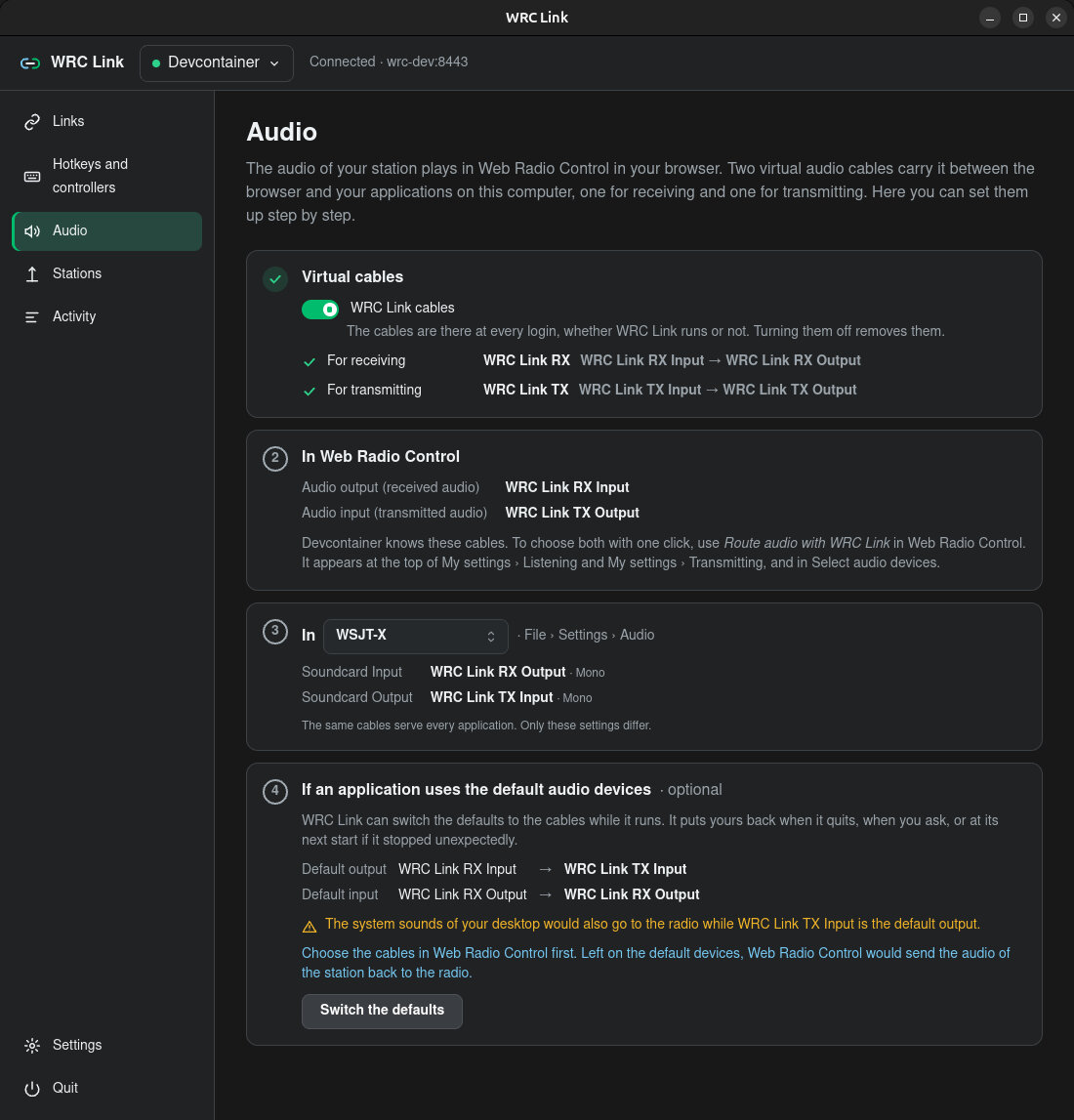
Digital mode applications such as WSJT-X need the audio of the radio, and send audio of their own to transmit. The audio of the station plays in Web Radio Control in your browser, so two virtual audio cables carry it between the browser and your application: one for receiving, one for transmitting. Here you set up the cables with the Audio page of WRC Link, step by step.
A virtual audio cable is a pair of sound devices on your computer that are joined together: what one application plays into its input comes out of its output, where another application records it.
- For receiving, the browser plays the audio of the radio into the receiving cable, and your application records it from the other end.
- For transmitting, your application plays its audio into the transmitting cable, and the browser sends it to the station from the other end.
The same cables serve every application. Only the settings in each application differ.
You need:
- WRC Link paired with the station, and a link for your application (see Link your applications);
- Web Radio Control open in a browser on the same computer, with the microphone allowed (see Listen and transmit).
In WRC Link, open Audio. Its four steps follow.
Virtual cables
The first step finds the cables, or makes them on Linux. It shows the cable For receiving and the cable For transmitting, with the devices at their ends.
With three or more cables, choose the cable for each direction.
In Web Radio Control
The second step says what to choose in Web Radio Control in your browser:
- Audio output (received audio): the input end of the cable for receiving;
- Audio input (transmitted audio): the output end of the cable for transmitting.
WRC Link tells the station these devices, and Web Radio Control offers them with one click. At the top of Settings › My settings › Listening and Transmitting, and in Select audio devices, it says that WRC Link on this computer routes the audio of the station through them. Choose Route audio with WRC Link. This browser then uses them for every radio.
The browser shows the names of its devices only once you allow the microphone. Until then, Web Radio Control can’t offer them.
In your application
The third step says what to set in your application. Choose it beside the step, such as WSJT-X, and set:
- the device it records from: the output end of the cable for receiving;
- the device it plays into: the input end of the cable for transmitting.
For an application WRC Link doesn’t know, choose Another application. The step then names the two devices. See Settings for your applications for each application.
If an application uses the default audio devices
This step is optional. Some applications use only the default sound devices of your system. Switch the defaults makes the cables the defaults while WRC Link runs: the default output becomes the cable for transmitting, and the default input the cable for receiving. The step shows what changes before you switch.
Choose the cables in Web Radio Control first. Left on the default devices, the browser would send the audio of the station back to the radio. While the cable is the default output, the sounds of your system go to the radio too, such as the sound of a new email.
WRC Link puts your own defaults back when it quits, when you choose Restore my defaults, or at its next start if it stopped unexpectedly. Restore audio defaults in the menu of the tray does the same. A default you changed by hand meanwhile is left as you chose it. If one of your own devices is unplugged, WRC Link sets it again when you plug it back in. Stop waiting gives that up.
Then start the audio in Web Radio Control with the streaming button. For digital modes, use the audio profile Digital modes (reliable feed) in Settings › My settings › Connection & quality (see Listen and transmit).
If something went wrong
| What you see | What to do |
|---|---|
| Not found beside a cable | Install the cable, as in the first step. WRC Link finds it once it is installed. |
| WRC Link cannot read the audio devices of this computer | Make a report with Get help… on the Activity page. |
| Your application hears nothing | Check that the audio runs in Web Radio Control, that its Audio output (received audio) is the cable for receiving, and that the application records from its other end. |
| The radio transmits no audio | Check that the browser transmits: its Audio input (transmitted audio) is the cable for transmitting, and the microphone is allowed. |
| Web Radio Control doesn’t offer Route audio with WRC Link | Allow the microphone in the browser first, so that it shows the names of its devices. |
| The radio transmits the sounds of your computer | The cable for transmitting is your default output. Choose Restore my defaults, and set the cables in the application instead. |
| Your default output … is not connected | Plug the device back in, or choose Stop waiting. |
More in When WRC Link misbehaves.