WRC Link
WRC Link is the desktop companion of Web Radio Control, for Windows, macOS and Linux. With it, the applications on your computer, such as WSJT-X, fldigi, your logger or your rotator application, control the radios and rotators of your station as if they were connected to your computer. Here you find what WRC Link does and needs, its window and its icon in the tray, and the pages for each part.
If you used wrc-proxy with Web Radio Control 0.13, WRC Link takes its place. It works with Web Radio Control 2.0
stations and later.
What it does
- Links: an application on your computer controls a device of the station through a link. WSJT-X tunes the radio and keys it, your logger reads the frequency and the mode, and your rotator application turns the antenna (see Link your applications).
- Hotkeys and controllers: transmit with a key you hold down, tune with a ShuttleXpress or a ShuttlePro, and send CW with your keyboard or with paddles on a USB adapter, while another application has focus (see Hotkeys, controllers and CW keys).
- Audio: the audio of the station plays in Web Radio Control in your browser. WRC Link helps you route it to your applications through virtual audio cables, and their audio back to the station (see Route audio).
You pair WRC Link with the station once on each computer. It then connects to the station by itself, as you. It has your rights on the station: what you may do there, WRC Link may do, and nothing more.
WRC Link 2.0.0-b2 comes as a beta with Web Radio Control 2.0.0-b2 (see The 2.0 beta).
What you need
- A computer with one of these systems:
- Windows 10 22H2 or Windows 11, on a 64-bit PC;
- macOS 13 or later, on an Intel or Apple silicon Mac;
- Linux with a desktop: Ubuntu 24.04 or later, Debian 13 or later, or another distribution of the same age, on a 64-bit PC or an arm64 computer.
- Your user account on a Web Radio Control 2.0 station. Every user may pair WRC Link.
- For links, a license with digital modes. Multi-mode, Complete and Club include them, and so does the free beta license. Under Basic, the WRC Link section of the Controls drawer is grayed, with This is not in your license. The Multi-mode license includes it.
- To transmit through WRC Link, the right to transmit on the radio, as in your browser.
- For audio, Web Radio Control open in a browser on the same computer, and virtual audio cables (see Route audio).
Its window
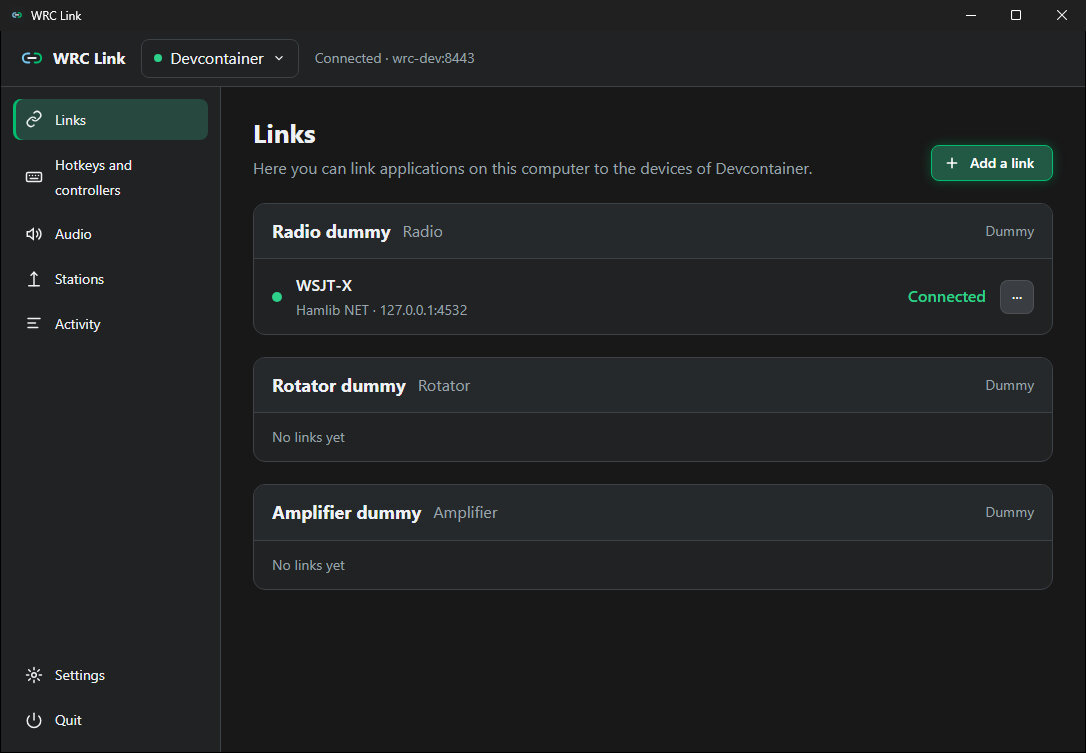
The main window of WRC Link has its sections in the sidebar:
| Section | What it has |
|---|---|
| Links | The devices of the station, each with its links. Add a link links an application to one. |
| Hotkeys and controllers | Your hotkeys, your ShuttleXpress or ShuttlePro, and the CW keys. |
| Audio | The virtual cables, and what to choose in Web Radio Control and in your application. |
| Stations | The stations WRC Link is paired with, and their state. |
| Activity | What happened, in plain words, and the Technical log. Get help… makes a report for WRC support. |
| Settings | Starting WRC Link when you log in, the welcome window, Updates, and About WRC Link. |
| Quit | What quitting stops, and Quit WRC Link. |
The header shows the station the window shows. With several stations paired, choose another there. The header also shows Update available when a newer version is ready (see Update WRC Link), and CW armed with Disarm while the CW keys key the radio.
The first time WRC Link starts, it opens Welcome to WRC Link, which says what it does and where you pair it. Continue opens the main window. Untick Show this window when WRC Link starts to skip it from then on.
In the tray
WRC Link keeps running when you close its main window, with its icon in the tray. Your links, hotkeys and controllers go on working. The first time you close the window, WRC Link says so in a notification: WRC Link is still running.
The icon shows the state of WRC Link:
- gray while it isn’t connected to a station;
- light blue and green while it is connected;
- a red tile while it transmits;
- a red outline while CW is armed;
- an amber dot when something needs you. The Activity says what.
Click the icon for a short summary:
- Transmit: Receiving with Arm CW, or Transmitting with Stop transmitting while your hotkeys key a radio;
- Links: each link of the station, and its state;
- Sequence: a shortcut or sequence that runs, with Stop;
- Audio: your default audio devices, with Restore my defaults while WRC Link has switched them;
- Open WRC Link, which opens the main window.
Right-click the icon for its menu: Open WRC Link, Arm CW, Stop transmitting, Restore audio defaults, Restart to update to … when an update is ready, and Quit.
Quit WRC Link
Quitting stops your links, so the applications that use them lose the station until WRC Link runs again. The hotkeys and controllers stop too.
- Right-click the icon in the tray and choose Quit. On macOS, you can also press ⌘Q.
- Or open Quit at the foot of the sidebar. The page says what quitting stops now. Choose Quit WRC Link.