Turn the antenna
The page of a rotator shows where your antenna points and turns it: with a tap on the compass, a bearing you type, or a place given by its locator or coordinates, on the short or the long path. Open it on Devices, or in the device selector of the top bar.
The page
- The control row, along the top: Lock, ⋯, the turn buttons, Stop, Park, and lamps the rotator lights at its limits.
- The shortcut bar, under it (see Shortcuts and sequences).
- The view, where the rotator points: the Compass, the Gauges or the Map.
- The saved directions and Telemetry, under the view.
- The action bar: Stop, Saved, Layout and Controls.
The page opens on the compass for a rotator that turns in azimuth only, and on the gauges for one that also turns in elevation, until you choose a view in the Layout panel.
The compass
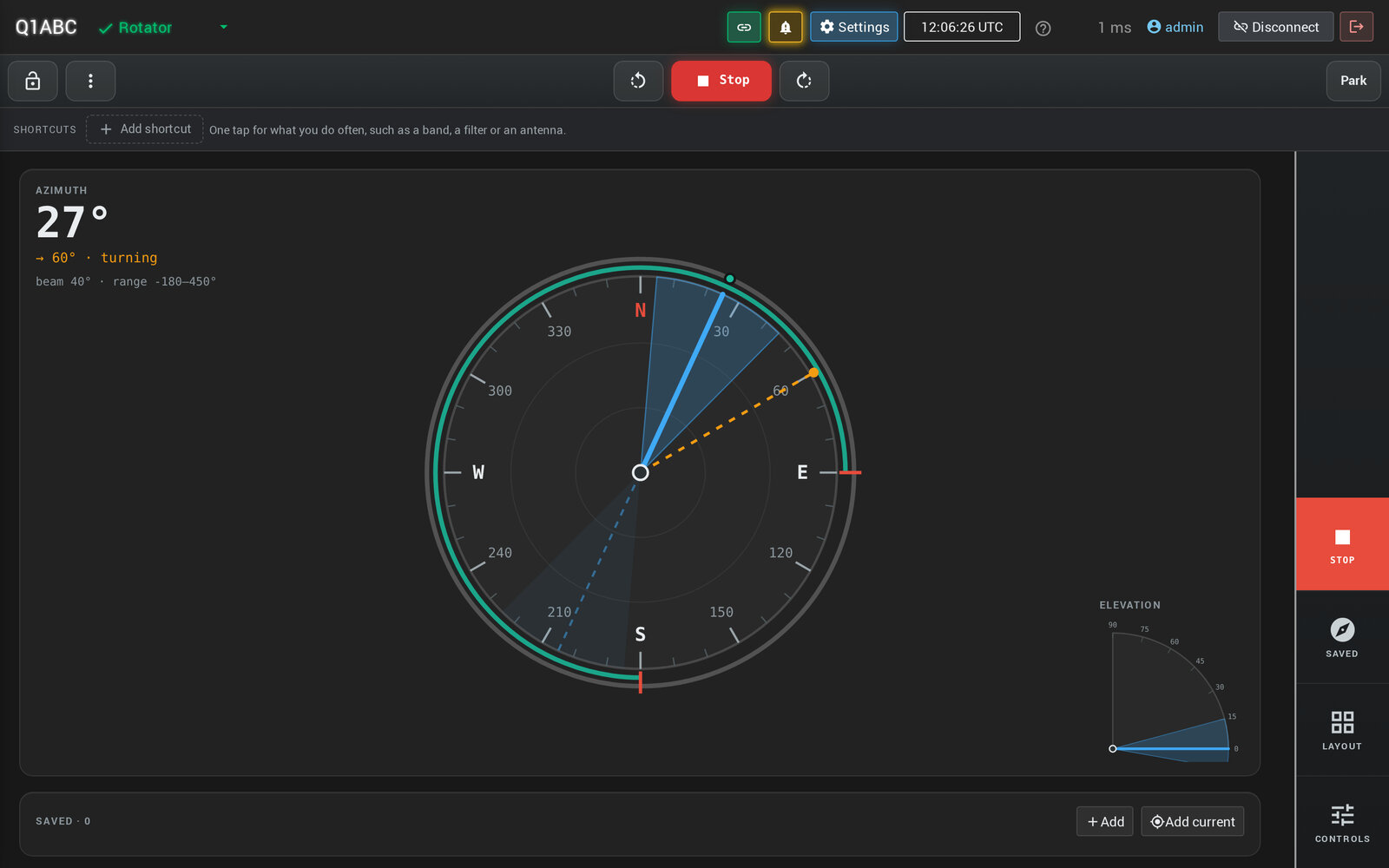
The large number at the top left is the azimuth, where the rotator points now. While it turns, the target follows it, → 245° · turning for example. Under it are the width of the beam and the range of the rotator.
The compass shows:
- the heading in blue, with the beam as a wedge, and the long path dashed on the far side;
- the target, dashed amber, while the rotator turns;
- the range of the rotator around the rim: the full turn on the outer track, the overlap, the part it can reach twice, in teal, and its end stops in red;
- your saved directions as small marks outside the rim, with their names.
A rotator that also turns in elevation has a quarter-circle gauge of the elevation at the bottom right.
Turn the rotator
- Tap the compass where you want the antenna to point. The rotator turns there at once, to the nearest position its range allows, so in the overlap it takes the shorter way. With a mouse, a dashed line and tap → 245° beside the azimuth show where a click turns it before you click.
- Type a bearing. Tap the azimuth, type the bearing, and press Enter. Esc leaves it as it was.
- Turn by hand. The turn buttons of the control row turn the rotator left or right until you choose Stop, where the rotator can turn so.
- Choose a saved direction, under Saved in the action bar or with Go in the list.
Stop ends a turn. It is filled red while the rotator turns. Park sends the rotator to its park position, where it has one.
Turn to a place
Instead of a bearing, you can type a place, and the station works out its bearing from your station:
- A Maidenhead locator of 4, 6, 8 or 10 characters, such as
JO65orKP20le. The center of the square is the place. - A latitude and longitude in decimal degrees, with a comma or a space between them, such as
60.17, 24.94. South and west are negative.
Type the place
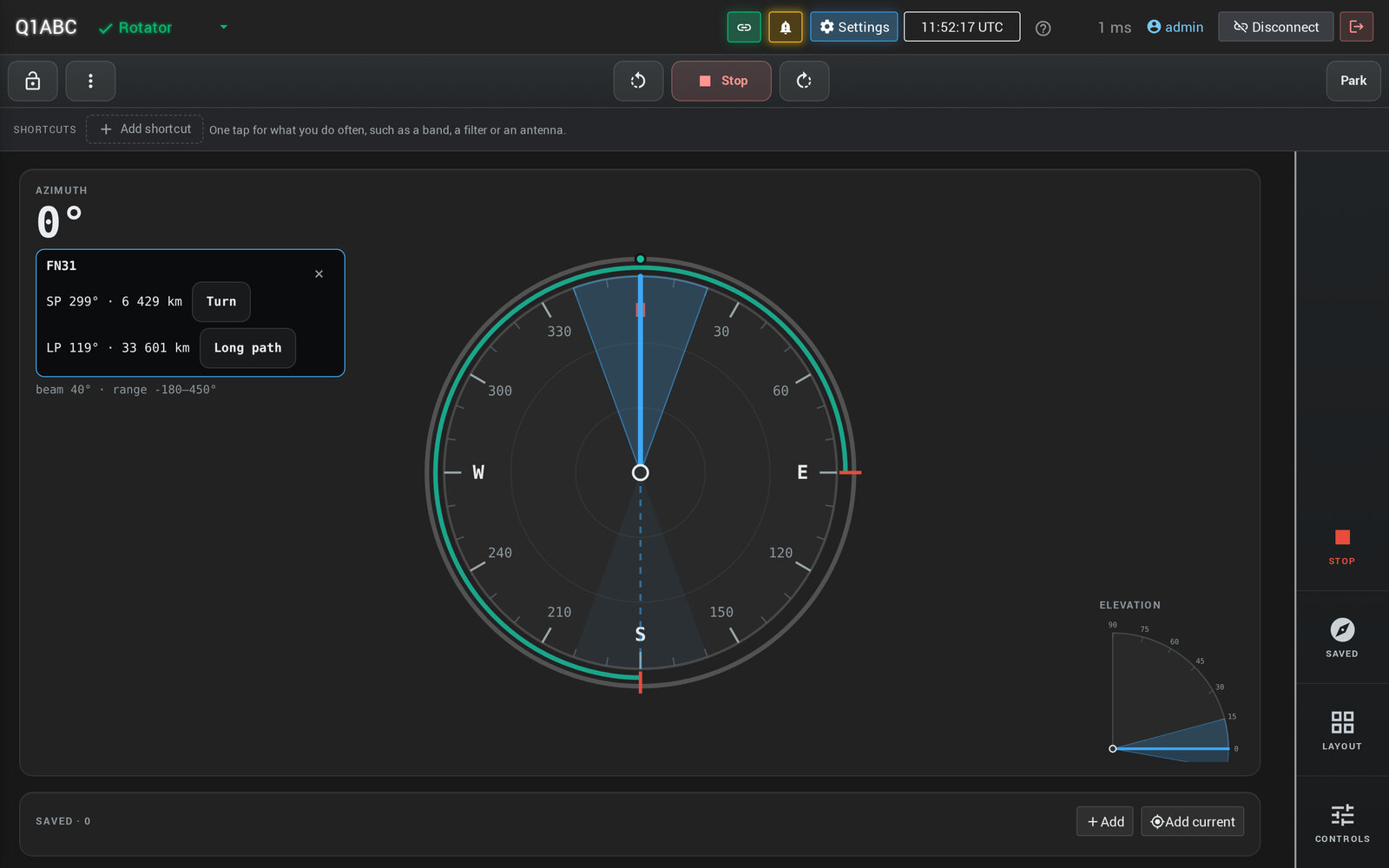
Tap the azimuth, type the locator or the coordinates, and press Enter. The rotator doesn’t turn yet.
Read the paths
The place shows under the azimuth with its short path, such as SP 45° · 1 234 km, and its long path the other way round the Earth, LP 225° · 38 798 km. The distance is in kilometers or miles, as you set in Settings › My settings › Map.
Turn
Choose Turn for the short path, or Long path. A path the range of the rotator doesn’t reach says out of range, and its button is grayed. × closes the place.
The paths are measured from the location of the station. Until the station administrator sets it in Settings › Station › Location & time, a place you type says so.
The gauges and the map
The gauges show the azimuth and, for a rotator with elevation, the elevation side by side, each with its value, its target while it turns, and −10, −1, +1 and +10. A tap on a gauge turns the rotator there, as on the compass. You can type a bearing or a place in their values too.
The map is the Amateur Radio Map centered on your station, with the beam, the target and the saved directions. A tap on the map turns the rotator toward the place (see The Amateur Radio Map).
Lock the views
Lock, at the left of the control row, keeps a stray tap from turning the antenna. While it is on, it glows red, and a tap on the compass or the gauges only says Locked. Unlock to turn by tapping. On the map, a tap then shows the place instead. The lock is kept with your account for this rotator.
Saved directions
The saved directions list each direction with Go, its name, its azimuth and, for a rotator with elevation, its elevation.
- Go turns the rotator there.
- Add saves a direction you type, and Add current the one the rotator points to now.
- The pencil changes a direction, and the bin deletes it after asking.
- Drag a row by its handle to put the list in your order.
The list is kept with your account, for this rotator. Saved in the action bar, and on the card of the rotator in Station control, lists the same directions.
The Layout panel
Layout in the action bar chooses how the page looks, for this rotator and the layout in use:
- View: Compass, Gauges or Map, and Shortcut actions, the shortcut bar.
- Compass: Orientation, north up or heading up; Scale, a mark every 30°, 10° or 5°; Names of the directions; whether the beam width shows; and Smooth pointer movement.
- Gauges: whether the beam width shows, and Smooth pointer movement.
- Map: the style and the layers of the map.
- Full screen, where the browser has it.
With Smooth pointer movement on, the pointers glide from one reading to the next. It is off where your system asks for reduced motion.
The lamps and the range
A rotator that reports its status lights a lamp at the end of the control row while it is at an end stop, in amber, or turned into the overlap of its range, in blue. Point at a lamp, or press and hold it, to read what it means. A rotator that can’t report its status shows no lamps.
The range is how far the rotator turns. The compass draws it, a tap turns to the nearest position within it, and a typed bearing is held to it. The station administrator sets the range of the rotator as it is added. Where the rotator takes the long way round when you tap a bearing near north, its range may be set wider than the rotator really turns.
The beam drawn on the views is the beam width of the rotator. Where the antenna switch chooses an antenna on this rotator with a beam width of its own, the views draw that one instead.
When you may only view it
Where your device access lets you only view the rotator, its controls, the saved directions, Stop and Saved are grayed, and a tap on the views turns nothing. Point at a control, or press and hold it, to see why. Lock keeps working, as it changes only your own view.
If something went wrong
- A tap does nothing but say it is locked. Turn off Lock at the left of the control row.
- A place I type is refused. The station has no location yet. Ask the station administrator to set it in Settings › Station › Location & time.
- The rotator takes the long way round. Its range may be set wider than the rotator turns. Ask the station administrator to set the range in the connection settings of the rotator.
- The rotator doesn’t move, and the target goes away. The station gives up on a target the rotator hasn’t moved toward in 10 seconds. Check that the rotator controller is on, and see A device doesn’t work.
The station administrator sets the range and the beam width of a rotator as Rotators describes.