Antennas and relays
An antenna switch chooses which antenna the station uses. A device of relays switches things such as the power supply of a radio or the mains of an amplifier. Here you choose an antenna, see how the switch follows the band of the radio, and switch the relays.
Each one has a page of its own, opened on Devices or in the device selector of the top bar, and a card in Station control (see Station control).
Who may switch
Anyone who may receive can choose an antenna or switch a relay. Where the station requires reservations, you can do so while you hold the reservation of the device, or of a radio it is related to.
Choose an antenna
The page of the switch shows its antennas as tiles, numbered in their order. On a phone they are compact rows. Each tile names the antenna and its bands, and where it has them, the rotator it is mounted on and its beam width.
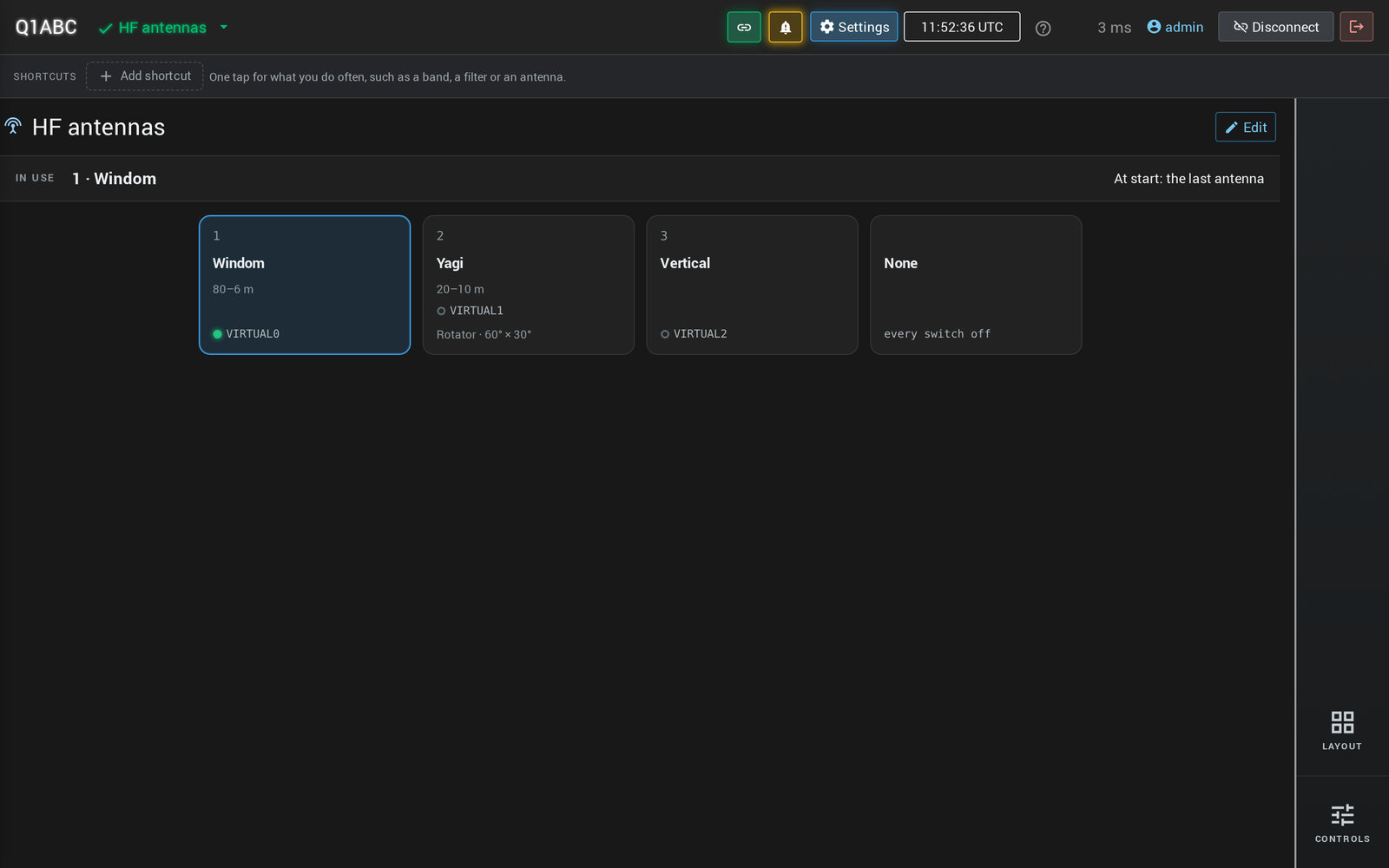
- Open the page of the antenna switch.
- Tap the tile of the antenna you want.
The tile is marked at once, and the switch confirms it a moment later. In use, across the top, names the antenna in use. If the station refuses the change, for example while the radio transmits, the mark goes back to the antenna in use, and a notice says why.
The band across the top also says:
- At start: what the switch comes up on when the station starts, the default antenna or the last antenna.
- Default: the antenna connected while every switch is off, where the switch has one. Choosing it turns every switch off.
- used by: the radios the switch is related to, each a link to the page of that radio.
On a switch without a default antenna, the None tile turns every switch off, so no antenna is connected.
The switch turns off the switches of the old antenna before it turns on those of the new one, so two antennas are never connected at once.
In Station control, the card of the switch names the antenna in use, such as 1 · Windom. A tap opens the list of its antennas.
The switch follows the band
The station administrator can choose a preferred antenna for each band, and let the switch follow the band of a radio. As the radio comes to another band, the switch then chooses the antenna preferred there. It follows whatever tunes the radio: the band menu, a typed frequency, a spot, a memory, WRC Link or the front panel of the radio.
- Tuning within a band leaves an antenna you chose by hand as it is.
- On a band with no preferred antenna, the switch stays as it is.
- While a radio related to the switch transmits, the switch waits. Once the radio stops, it chooses the antenna for the band the radio is on then.
- A switch that two radios share follows the radio that transmits, and otherwise the last radio that changed band.
How the administrator sets it up is on Follow the band of a radio.
Switch a relay
The page of a device of relays shows its relays as a rack, one row each:
- The lamp: green while the relay is on, dark while it is off, red while the station can’t read it.
- The name, and under it the control line it uses.
- A switch for an output, which turns it on and off. A tap on the lamp or the name does the same. An input, such as a door contact, is only shown, marked input.
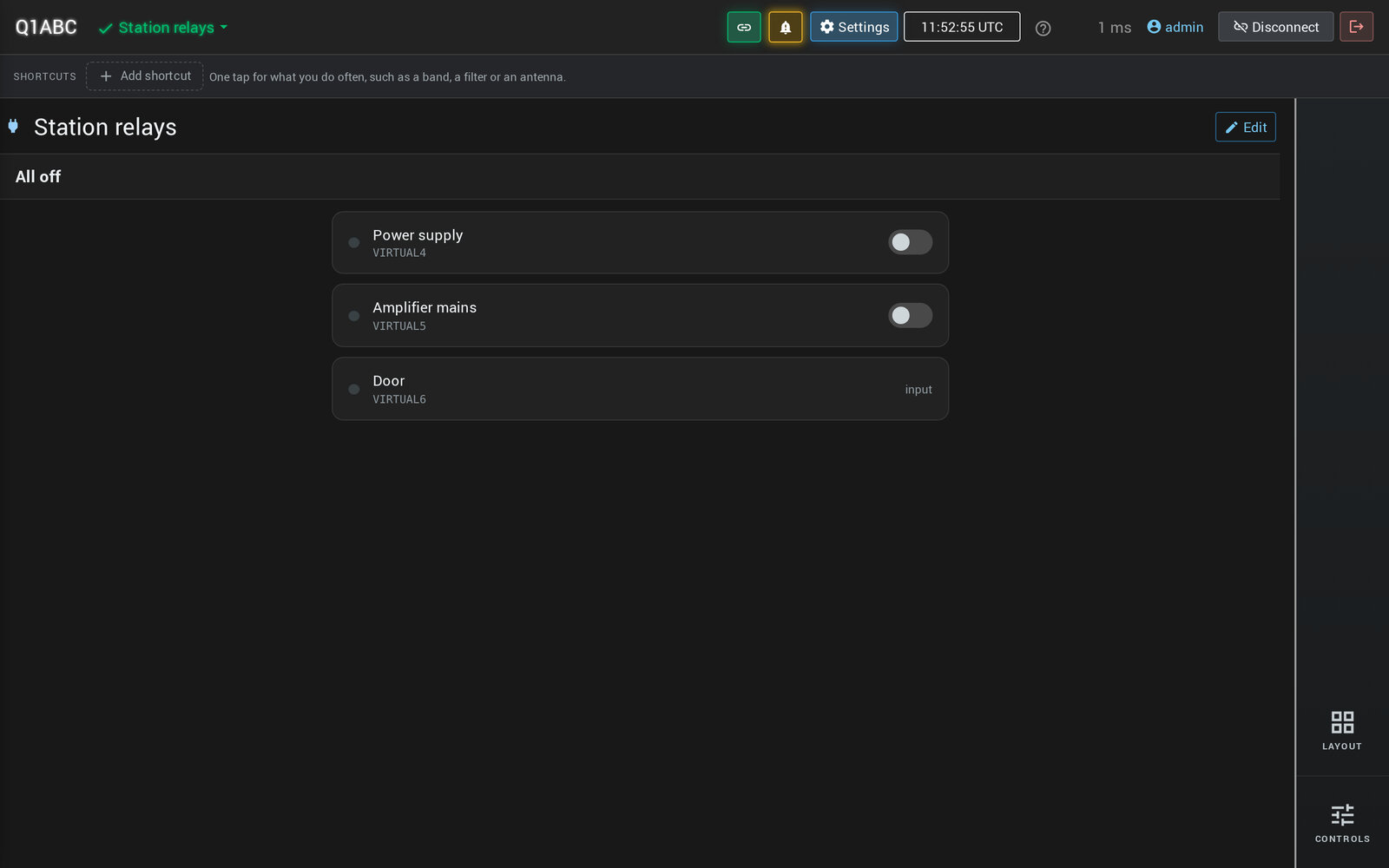
The band at the top of the page says which outputs are on, such as 2 of 8 on: Amplifier power, Fan, or All off, and any problems: Not connected, or a relay whose control line is missing.
A relay you switch shows amber until the device reports the change. If it hasn’t after 5 seconds, the band says not confirmed by the device, and the lamp shows what the device reports.
In Station control, the outputs of the device are a row of buttons, lit green while on, and its inputs plain lamps, lit amber while on.
Edit on the page
Administrators have Edit at the top of both pages, to put the antennas or relays in order, change them, add new ones and delete them. Done leaves editing (see Antenna switches and relays).
The action bar
The pages of an antenna switch and of relays have Layout, with Shortcut actions for the shortcut bar and Full screen, and Controls, which holds the shortcuts and sequences of the device (see Shortcuts and sequences).
If something went wrong
- The antenna goes back as I tap it. A radio related to the switch transmits, or you don’t hold the reservation. The notice says which.
- A relay says not confirmed by the device. The device didn’t report the change within 5 seconds. Check that it is powered and connected, and see A device doesn’t work.
- A control line is missing. The part that drives it isn’t there, such as an unplugged USB sound card. Plug it in, or ask the station administrator.