The amplifier
The page of an amplifier shows all it reports and lets you control it: put it in operate or standby, set its output power, tune it, and follow its power and supply over time. Open it on Devices, or in the device selector of the top bar.
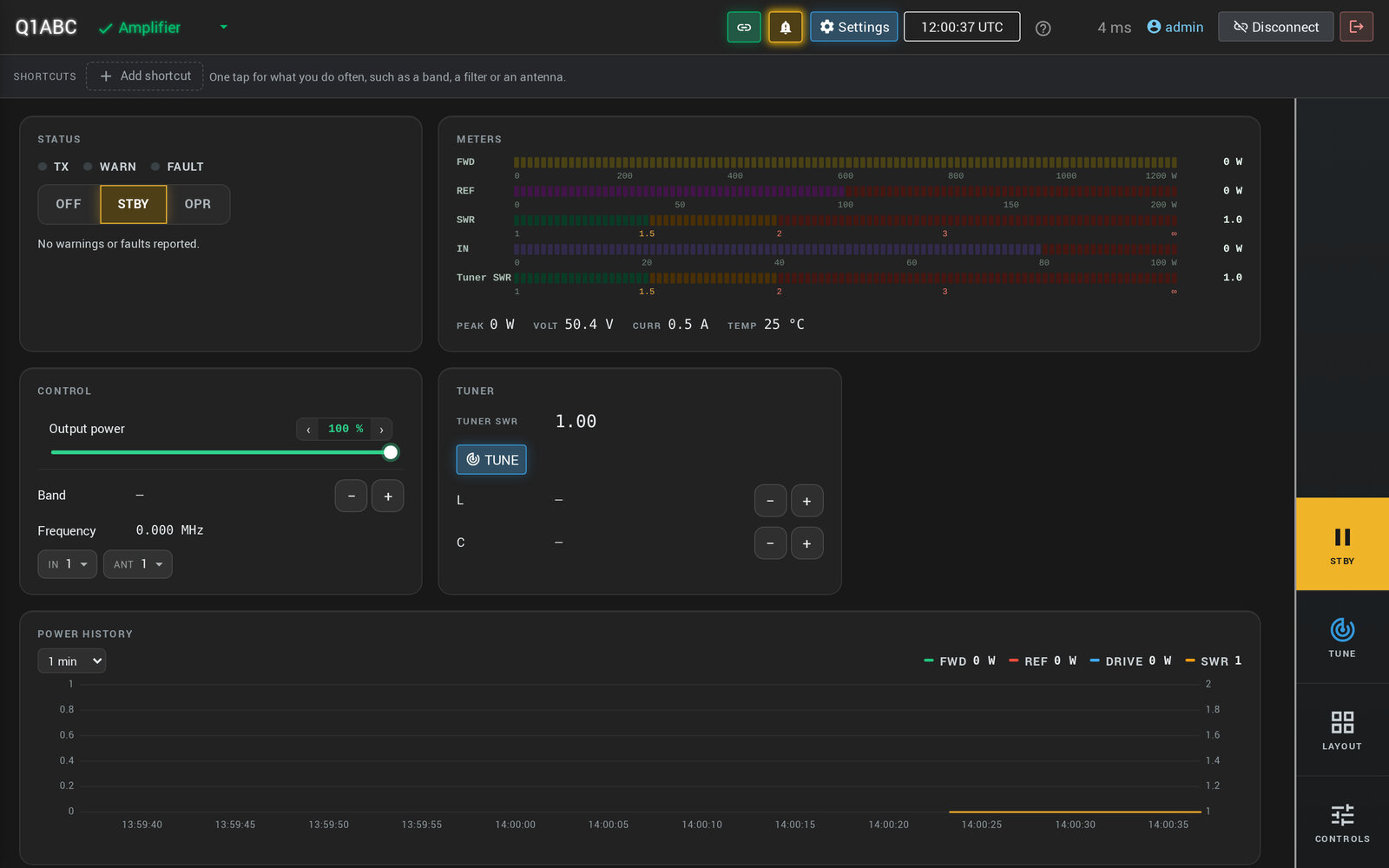
The page shows the amplifier as tiles under its shortcut bar: three to a row on a desktop, two on a tablet and one on a phone. A tile the amplifier can’t fill, such as the tuner of an amplifier without one, is left out.
Operate and standby
Turn it on
Where the amplifier can switch itself on, choose STBY in the Status tile, or on its card in Station control. While it is off, the button of the action bar reads OFF and does nothing.
Go to operate
Choose STBY, amber, in the action bar, or OPR in the Status tile. The amplifier goes to operate, and OPR glows green.
Go back to standby
Choose OPR in the action bar, or STBY in the Status tile.
While the amplifier operates, the station holds the radio to what the amplifier and its antenna take. Where the station administrator has set a drive limit, the Status tile says so, such as Drive limit 60 W. The RF power of the radio is held to this while the amplifier operates. The RF power of the radio is lowered to it as the amplifier goes to operate, and set back as it goes to standby. The station also watches the forward power against the rated output of the amplifier and the most the antenna takes (see Transmit limits).
The tiles
| Tile | What it shows |
|---|---|
| Status | TX, lit red while it transmits; WARN, amber, and FAULT, red; OFF, STBY and OPR; the warning or the fault it reports, or No warnings or faults reported. |
| Meters | The forward power (FWD), the reflected power (REF), the SWR, the drive (IN) and the Tuner SWR, as bars; under them the PEAK power, the supply voltage (VOLT) and current (CURR), and the temperature (TEMP), amber above 50 °C and red above 70 °C. |
| Control | Output power, where the amplifier sets it: drag the slider, or tap the value to type one. The Band with − and +, the Frequency, and the IN and ANT menus, its input and antenna. |
| Tuner | The Tuner SWR, TUNE, lit while it tunes, and the inductance (L) and capacitance (C), each with − and + where the amplifier can step them. |
| Power history | The forward, reflected and drive power and the SWR over time. |
| Supply history | The temperature, voltage and current over time. |
The meters use the same colors as the meters of the radio (see The meters of an amplifier). The histories are explained in Telemetry.
The action bar
- OPR, green, or STBY, amber, switches between operate and standby.
- Tune starts the tuner, where the amplifier has one. It is lit while it tunes.
- Layout has Shortcut actions, which shows or hides the shortcut bar, and Full screen, where the browser has it.
- Controls opens the drawer of the amplifier, with Quick, its shortcuts, and its settings by section (see Other devices).
When you may only view it
Where your device access lets you only view the amplifier, the power state, the Control tile and the tuner are grayed, and still show its readings. Point at one, or press and hold it, to see why. You can still choose the window of the histories.
If something went wrong
- The meters show —. The amplifier is off, or doesn’t report that reading. The station reads no meters while it is off.
- A meter reads red while all is well. Its scale doesn’t suit your amplifier. Ask the station administrator to set its meter scales.
- The RF power of the radio drops as the amplifier goes to operate. The drive limit holds it, as the Status tile says.
- WARN or FAULT is lit. Point at it to read what the amplifier reports, and see the manual of the amplifier.