Station control
The Station control module puts the other devices of the station beside the radio: an amplifier, a rotator, an antenna switch, and relays such as the power of the radio. Here you use each device from its card, choose which devices the module shows, and find the page of each device for more.
The module shows the devices related to this radio, and those related to no radio. The station administrator relates the devices to each radio. To show the module, choose Station control in the menu of a module position (see Change the module of a position).
Station control is part of the Complete and Club licenses. Under another license the module is grayed and says which license includes it. An amplifier that the Multi-mode license includes is used from its own page.
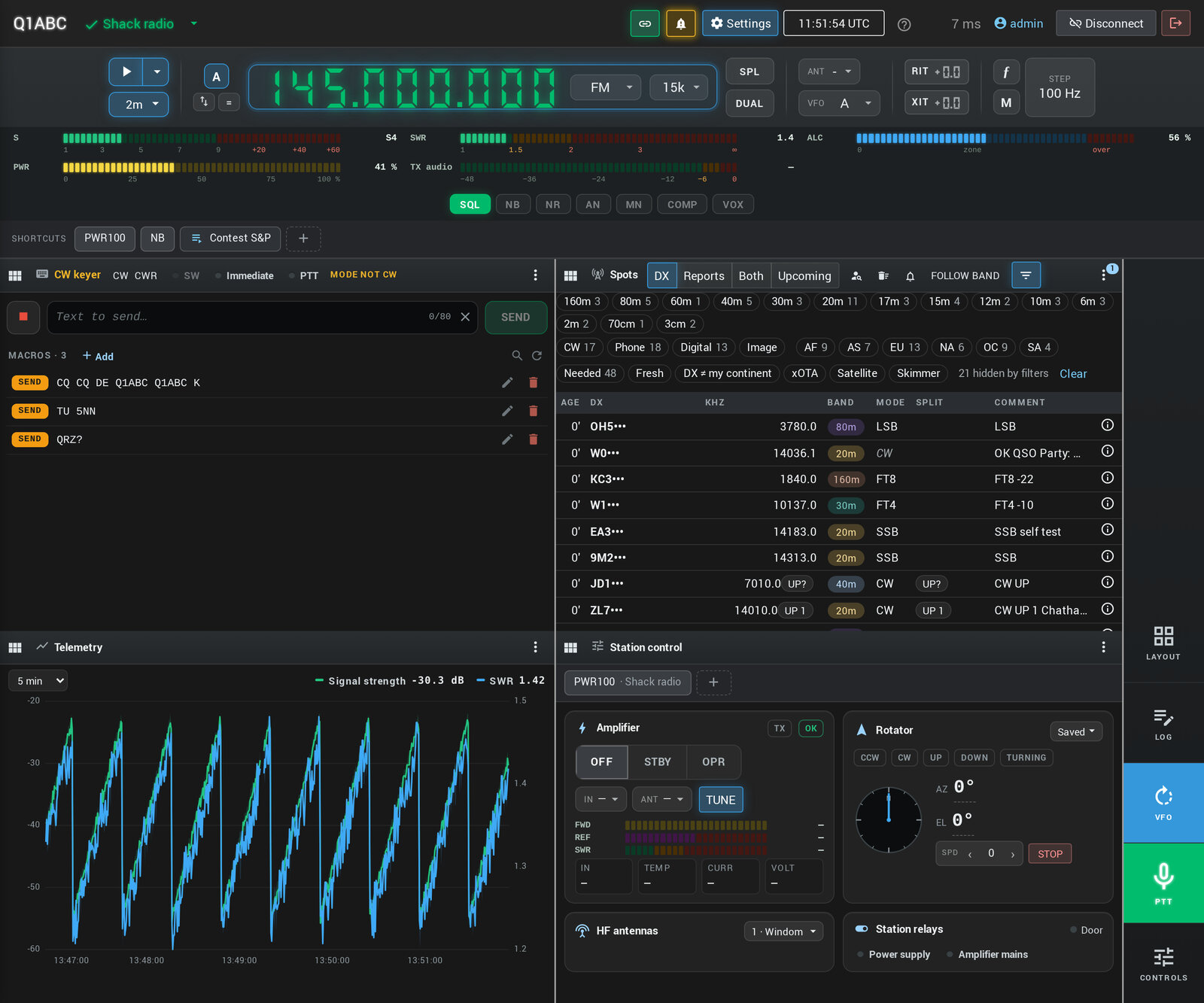
Each device on its card
Each device has a card with its icon and name, related where it is related to this radio, and its main controls. Each device also has a page of its own, with all its controls. Choose the device on Devices, or in the device selector of the top bar.
An amplifier
- TX, lit red while the amplifier transmits, and its health: OK, WARN in amber or FAULT in red. Point at it, or press and hold it, to read the warning or the fault.
- OFF, STBY and OPR, its power state, the current one lit. OPR is green and STBY amber.
- IN and ANT, its input and antenna, where it has them, and TUNE, lit while its tuner tunes.
- Meters of the forward power (FWD), the reflected power (REF) and the SWR, and the figures of its drive (IN), temperature (TEMP), current (CURR) and voltage (VOLT).
The figures show — until the amplifier reports them. The station reads no meters while the amplifier is off, so they fill in as it goes to standby and operate. See The amplifier.
A rotator
- Saved, a menu of the saved directions. A tap on one turns the rotator there.
- CCW and CW, and UP and DOWN for a rotator that turns in elevation, light at an end stop, in amber, or in the overlap of its range, in blue. TURNING is lit amber while it turns.
- A small compass with the heading and, while it turns, the target.
- AZ and EL, where the rotator points. Tap one to type where to turn it, then press Enter.
- SPD, its speed, where it has one, and STOP while it turns.
With a mouse, a click on the small compass turns the rotator there. On a touch screen, use the rotator page, where the compass is larger. See Turn the antenna.
An antenna switch
The card names the antenna in use, such as 1 · Windom. A tap opens the list of its antennas, and choosing one switches to it. See Antennas and relays.
Relays
A device of relays shows a button for each output, lit green while it is on, and a lamp for each input, lit amber while it is on. A tap on a button switches the output. A button or a lamp is red while the station can’t read it.
The shortcut bar of Station control
Above the devices, Station control has a shortcut bar of its own, for this radio and the layout in use. It holds the shortcuts and sequences filed under the station, such as one that sets up the amplifier, the antenna and the rotator for a contest. + and All shortcuts… list those you can run, and On the bar puts one on this bar. See Shortcuts and sequences.
Choose what the module shows
The ⋮ of the module has, under its first section:
- Show as: Auto, the default, shows the devices as cards, two to a row, where the module is wide, and as plain rows on a narrow screen. Cards or Plain keep one look at every width.
- Shortcut actions shows or hides the shortcut bar of the module.
Under Devices, it lists the devices of the module in their order. The switch of each one shows or hides it, and the arrows move it up or down. All of this is kept with the layout.
Settings › My settings › Station control holds your defaults for Show as and Shortcut actions, for every radio. The module of a radio follows them until you change one in its ⋮. Use my defaults in the ⋮ then forgets the choice of the module, so it follows your defaults again. All station control settings ›, at the foot of the ⋮, opens the page for this radio.
When you may only view a device
Where your device access lets you only view a device, its controls are grayed on its card, and still show its state. Point at one, or press and hold it, to see why. Where the station requires reservations, you can use a device while you hold its reservation, or that of the radio it is related to.