Reports and activations
Besides the spots of the DX clusters, the Spots module and the Spots page have two more panes. Reports shows where your calls are heard: by the skimmers of the Reverse Beacon Network on CW and RTTY, and by the receivers of PSKReporter on digital modes. Upcoming lists the DXpeditions, program activations, satellite operations and special events announced ahead. Here you read both, and set them up in My settings.
Choose Reports, Upcoming, or Both for the spots and the reports side by side, in the bar of the Spots module or the Spots page (see The Spots module). The station administrator chooses which sources the station uses.
Where your calls are heard
Choose your calls
Settings › My settings › My reports chooses the call signs of the station whose reports you see. While none is chosen, Reports shows the call sign of the license.
The bands
Above the reports, each band your calls were heard on has a card: how many reports and receivers, the best signal-to-noise ratio, and the farthest receiver with its distance. In the Spots module, and wherever it is narrow, each band is a line instead, such as 20m · 12 · -9 dB.
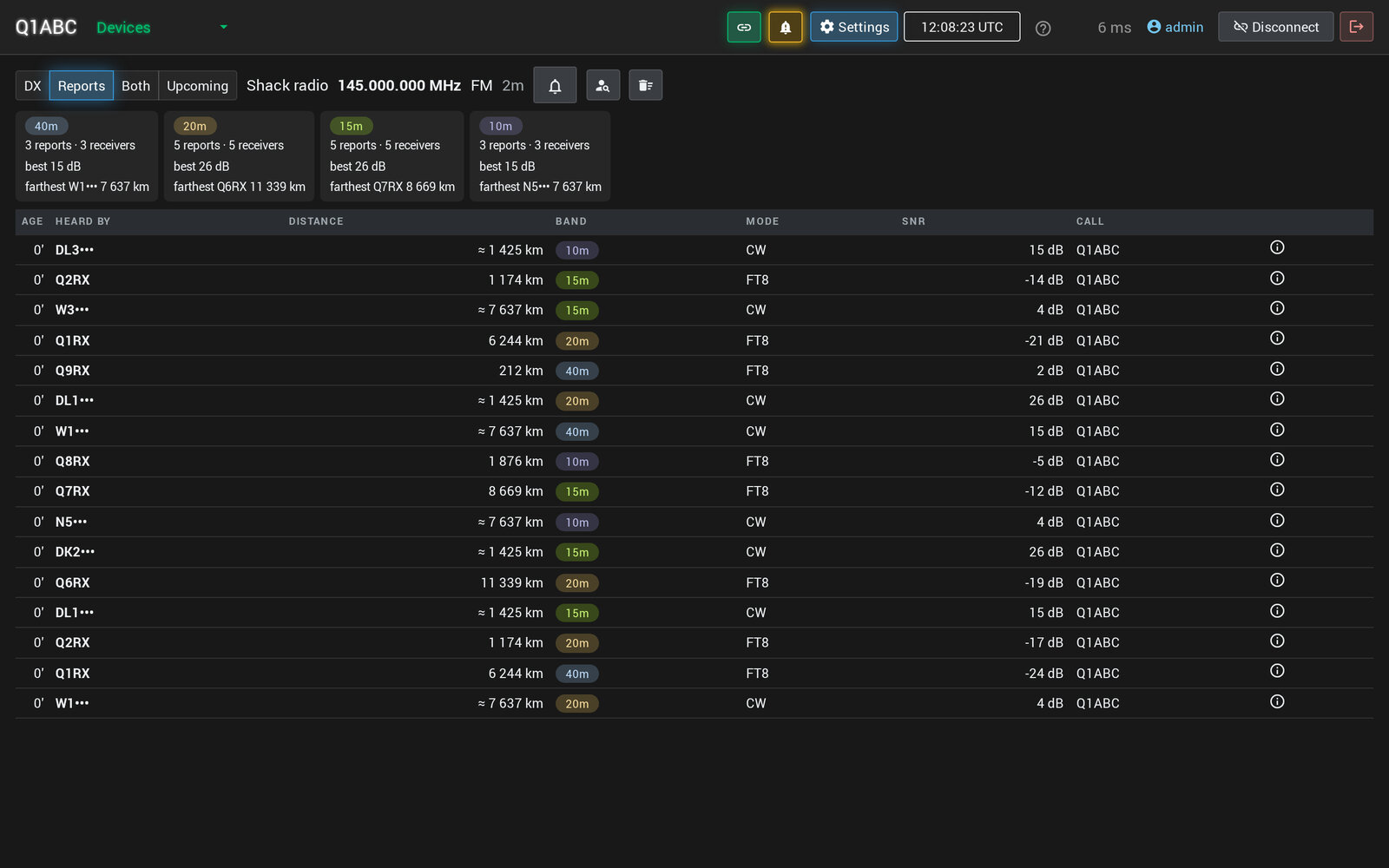
- A tap on a band shows only its reports, and another tap shows all again. You can choose several bands.
- A long press on a band, or a right click, opens its summary: its reports and receivers, the best signal and the farthest receiver, how many reports each source gave, the receivers by continent, the modes heard, and the receivers with the best signal first. Filter by 20m chooses the band from there.
The signal-to-noise ratio is the figure every mode has, so the bands are compared by it.
The reports
Under the bands are the reports, newest first: their age, who heard you and how far away, the band, the mode, the signal-to-noise ratio, and which of your calls was heard. A distance with ≈ means that only the country of the receiver is known.
A tap on a report, or its ⓘ, opens its details: the receiver, the frequency and mode it heard you on, its country, locator, bearing and distance, the best signal, and each report with its time, frequency and signal.
- Tune tunes the radio to the frequency heard. Turn SP and Turn LP turn the rotator toward the receiver.
- A long press on a report, or a right click, tunes as a spot is tuned to.
On digital modes, the frequency of a report is where your tone was heard, the dial frequency plus the audio offset. So on FT8 the dial lands that much above where you transmitted.
The map of the radio shows the reports too, each receiver where it heard you (see The Amateur Radio Map).
Upcoming activations
Upcoming lists what has been announced, from a week back to 90 days ahead: DXpeditions, the scheduled activations of POTA and WWFF, satellite operations from hams.at, and special events. It groups them by when each is on: Now, Today, This week, Later, and Recently ended, folded.
Each row gives the window in UTC, the calls, the references, the satellite or the country, the bands, and the status:
- On the air, with the frequency, while a spot of the activation was heard recently, within the last 30 minutes by default;
- Now while its window runs;
- Withdrawn when its source stopped listing it before it began;
- Workable for a satellite pass your station can work (see Satellite passes).
Filter the activations
Upcoming has chips of its own, each with its count: the kinds (DXpeditions, Programs, Satellites, Special events), the bands, the programs and the continents. With no chip chosen in a group, all show. Long-running shows the program activations announced for more than a week, such as “every day this month”, which are hidden until you ask. Clear clears the chips.
The details of an activation
A tap opens the details: the calls and the status, where it was heard while it is on the air, its kind and window, the country, its references or satellite, its bands and modes, the QSL route, who announced it, and its links.
- Tune, with the frequency, while it is on the air, tunes the radio to the spot it was heard on.
- Watch adds a watch on it to the end of your rules, so you get an alert as it starts. It says Watched once your rules have one (see Watch for an activation).
Your Upcoming settings
Settings › My settings › Upcoming chooses:
- On the air for: how long after its latest spot an activation counts as on the air: 10, 15, 30, 60 or 120 minutes.
- Long-running after: how long an announced program activation must run to be listed under Long-running: 3, 7, 14, 31 or 90 days.
Satellite passes
With your own hams.at API key, Upcoming tells which satellite passes your station can work, such as Workable 22:24–22:36 UTC · 80% match, or Not workable from your station. Get the key in your settings on hams.at, and add it in Settings › My settings › Services & lookups (see Your accounts). It is used only while the station administrator has the hams.at source on.
If something went wrong
- Reports is empty. Your calls haven’t been heard recently on CW, RTTY or digital modes, or the station doesn’t use the Reverse Beacon Network or PSKReporter. Ask the station administrator.
- Reports shows the wrong call. Choose your calls in Settings › My settings › My reports.
- A distance shows a locator or ≈. The location of the station isn’t set, or only the country of the receiver is known.
- Upcoming is empty. The station administrator hasn’t turned on a source of announced activations.