Needed marks, rules and alerts
The station can tell you which spotted stations your logbooks still need, hide the spots you never want, and alert you with a sound when a spot you are waiting for comes in. Here you turn on the needed marks, write your rules and watches, and choose how an alert reaches you.
Needed marks
A station is needed while your logbook has never worked a slot you count:
- New one: its country, the DXCC entity. Only this is counted until you choose others.
- New band: its country on the band of the spot.
- New mode: its country on the band, in the kind of mode of the spot: CW, phone, digital or image.
- New call: the call itself.
To see the marks in the spots, turn on Show the needed marks in Settings › My settings › Needed marks. It is off until you turn it on. A needed station then has its mark beside its call, in violet, and one worked but not yet confirmed is marked Unconfirmed, in gray. The entry of the LOG panel marks the call you log in the same way.
The slots you count, and the logbook each radio counts against, are set in Settings › My settings › Needed & worked (see Needed and worked). The marks follow your logbooks: a contact you log takes them away from its call and country at once.
The Needed chip of the filter strip, and your rules on what the DX needs, count the needed stations whether or not the marks show.
Rules and watches
Your rules decide about each spot before the filters do. Settings › My settings › Rules & watches lists them in their order. The first enabled rule that matches a spot decides.
Each rule does one of three things:
- Alert shows the spot even where your filters would hide it, marks it with a bell and an amber row, and alerts you (see Alerts and sounds).
- Hide never shows the spot.
- Show only leaves the spot to your filters. With any Show only rule, a spot that no rule matches is hidden.
Add a rule
Open your rules
Open Settings › My settings › Rules & watches, and choose Add rule.
Choose what it does
Choose the Action: Alert, Hide or Show only.
Choose what it is on
Under On, choose DX, the spotted station, or Spotter, the one who heard it. Then choose what it Matches and type its Value:
- on the DX: its call, prefix or suffix, its DXCC entity number, its CQ or ITU zone, its continent, a program reference, words the comment contains, or what your logbooks need of it, such as a new one;
- on the spotter: its call, prefix, suffix or continent.
Narrow it, if you want
Choose bands and modes to limit the rule to them. None chosen means all bands and all modes.
Save it
Choose Save rule.
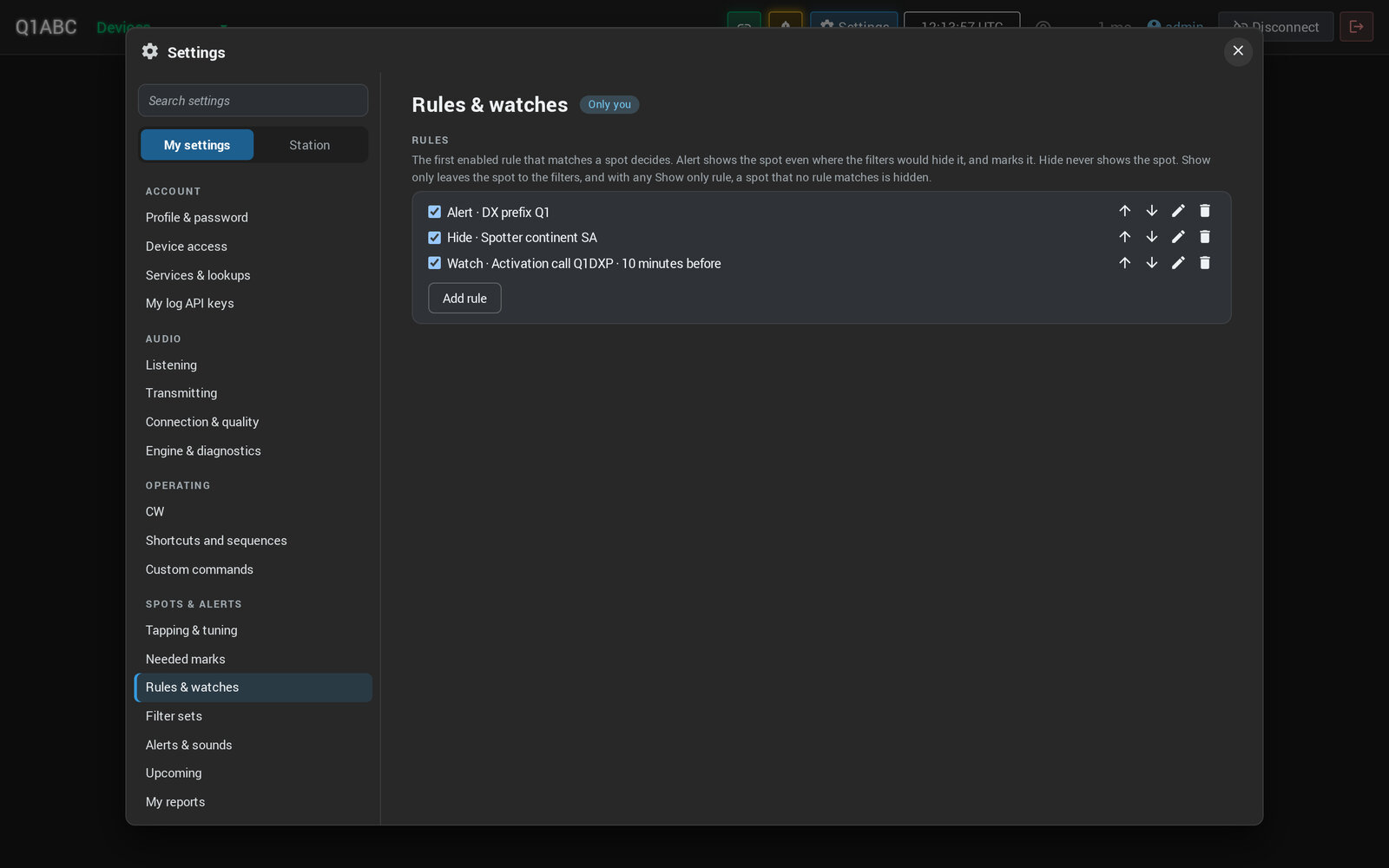
Each rule has a checkbox to turn it on and off, arrows to move it up and down the list, a pencil to edit it and a bin to remove it. A change shows in your open lists of spots at once. The counts of the filter strip count the spots your rules leave to the filters.
Watch for an activation
A rule on Activation is a watch. It waits for an activation announced in Upcoming: by its call, a prefix, a DXCC entity number or a program reference. A watch only alerts:
- for an activation with a start time, before it starts: 10 minutes by default, or 5, 15, 30 or 60, as you choose under Before a timed start;
- for one announced for a day without a time, at its first spot, with that spot to tune to.
Each activation alerts once. Watch, in the details of an activation in Upcoming, adds a watch on it to the end of your rules, and says Watched once you have one (see Upcoming activations).
Alerts and sounds
When a rule alerts you of a spot, every browser you are logged in on shows a short notification and plays your alert sound. The alert also waits under the bell of the Spots module and the Spots page, which counts the alerts you haven’t seen yet. Open the bell to Tune to the spot, as a long press on its row would, or to dismiss one alert or all of them with Dismiss all. An alert you tune to or dismiss goes away in your other browsers too. One not yet seen waits up to a day for your next login.
Settings › My settings › Alerts & sounds chooses how an alert reaches you:
- Alert sound: the sound an alert plays in this browser: Chime, Two tones, Beep, or CW “DX”, the letters DX in Morse code. There is no sound until you choose one. Play tries it.
- Quiet after an alert: the same call on the same band and mode alerts again only after this long, 10 minutes by default. A change of your rules starts the quiet times afresh.
- Browser notification: a notification of the browser while the tab of the station is in the background. The browser asks you once to allow it.
While you have an alert rule or a watch turned on, the station keeps the sources of the spots connected for you, even with no Spots module or page open.
If something went wrong
- No needed marks show. Turn on Show the needed marks in Settings › My settings › Needed marks.
- A spot I want doesn’t show. An earlier rule may hide it, or a Show only rule may hide every spot that no rule matches. The first enabled rule that matches decides, so move your alert rules to the top.
- No sound plays. Choose an Alert sound in this browser. A browser plays sound only after you have tapped or clicked on the page once.
- The browser says it can’t show notifications, or that it doesn’t allow them. Allow notifications for the station in the site settings of the browser, then turn Browser notification on again.