Reserve a radio
A reservation keeps a radio for you for a time. Where the station requires reservations, only the operator who holds the reservation may operate the radio. Elsewhere, a reservation tells the other operators when you want the radio. Here you reserve a radio now or for later, extend or end your reservation, and see who has the radios.
You need:
- the Reserve role, which the station administrator gives;
- device access that lets you operate the radio. An operator who may only view a radio can’t reserve it;
- a license of the station that includes reservations. Without one, a notice under the title of the Reservations page says which license includes them, such as Your license does not include reservations. Upgrade to Club to use them. In setup mode it says Reservations are off until the station has a valid license.
To open the Reservations page, choose the call sign of the station at the left of the top bar, then Reservations. A calendar mark beside it shows while a reservation is in force.
Every time on the page is in your time zone, which the page names under its title, such as Times in Europe/Helsinki. To change it, see Time.
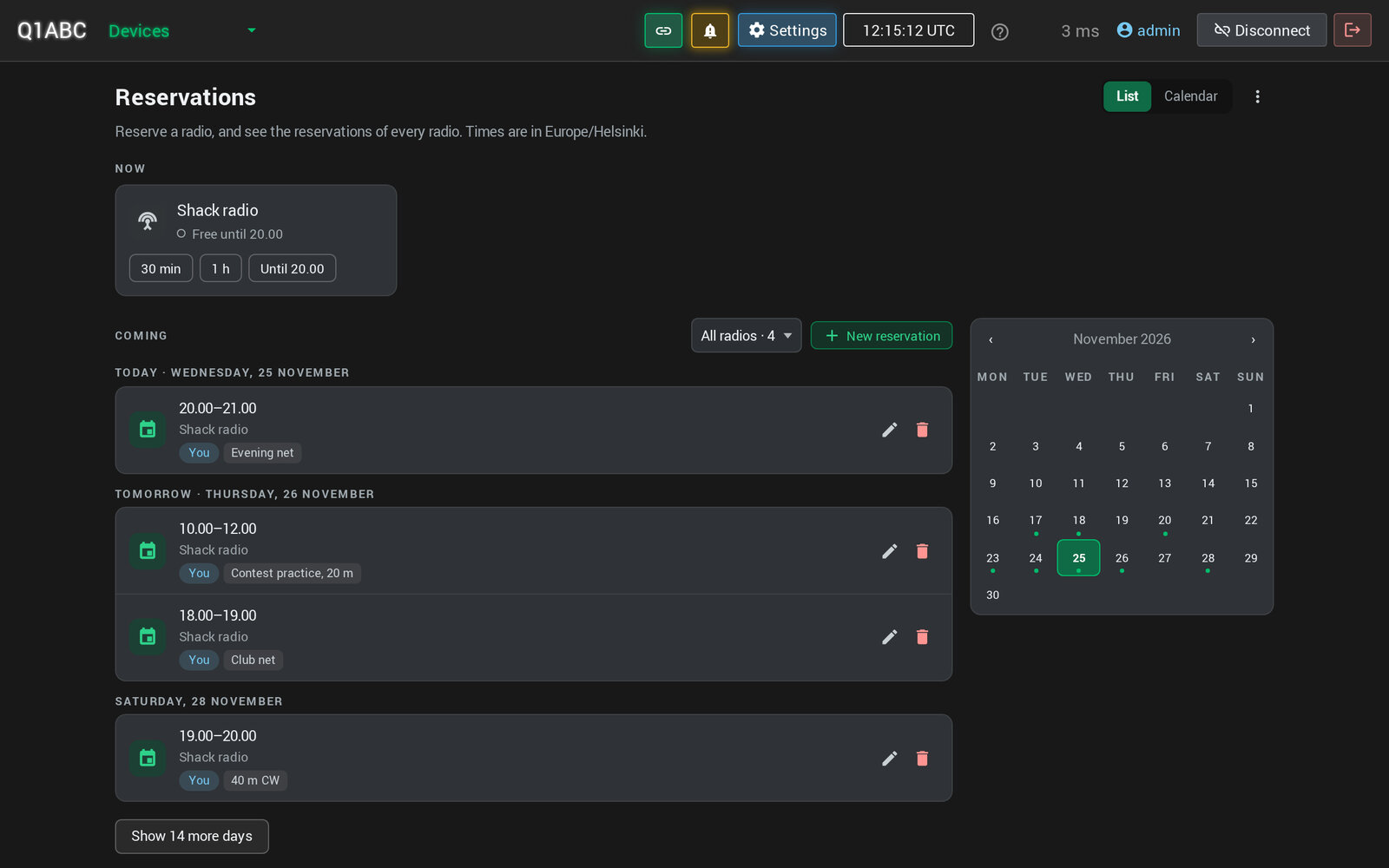
Reserve a radio now
Now has a card for each radio, which says what the radio is doing now:
- Free, or Free until 14:00 before its next reservation;
- Yours until 13:30, while you hold it;
- Reserved until 16:00, while another operator holds it, with their call and what it is for when they show them.
On a free radio, choose 30 min, 1 h, or Until 14:00 before the next reservation. The reservation starts now, as far as the next reservation and the limits of the station allow. The card then says Yours until ….
If the station can’t make the reservation, the card says why.
Extend or end your reservation
On the card of your reservation:
- +30 min extends it, as far as the next reservation and the longest reservation of the station allow. Where less time is free, the button says how much it adds.
- End now ends it at once. The radio is free for the others straight away.
Reserve for later
Open the form
Under Coming, choose New reservation. The form opens at the top of the list.
Fill it in
- Radio: the radio you want.
- Starts: type the date and time, or pick them from the calendar.
- For: how long, within the limits of the station, or Until… to pick when it Ends.
- What for, if you want to say, such as Club net or Contest practice.
- Others see: Reserved alone, Your call, the default, or Call and what for. Where the station shows everyone’s details, the form says so instead.
Reserve it
Choose Reserve. The button waits until the reservation fits. What keeps it from fitting is said under the fields (see The limits of the station).
An administrator or a power user can also choose For whom, to make a reservation for another operator.
Change or delete a reservation
On your own reservations under Coming, the pencil opens the same form in the row, and the bin deletes the reservation after asking.
A reservation that has started keeps its start. Only its end can move, and it can’t be deleted. To end it, choose End now, on the card of the radio under Now or in its form.
Administrators and power users can change and delete anyone’s reservation.
The limits of the station
The station administrator sets the limits of the reservations. The form says what keeps a reservation from fitting:
- another reservation in the way, named with its times. Start at … moves your reservation to when the radio is next free, for as long;
- the shortest and the longest reservation;
- your time on the radio in a week. The week starts on Monday, in the time zone of the station, the same week for everyone. Under the form you see how much of your week you have used;
- the start, at most two hours ago, and an end that hasn’t passed yet.
Administrators and power users are held to none of these limits. The administrator sets them as Reservation rules describes.
Coming reservations
Coming lists the reservations of the next 14 days, by day. Show 14 more days goes further.
- Your reservations are marked You.
- The reservations of others show their call when they share it, or Reserved when they don’t.
- Radio, above the list, shows the reservations of one radio, or of All radios.
The month beside the list marks the days with reservations. Choose a day to list the reservations from that day. From today goes back.
The calendar
Calendar, beside List at the top of the page, shows the reservations on a calendar. Choose Week, Day, Month or Agenda on a desktop, Day or Agenda on a phone. Your reservations are green.
- Choose a free time to reserve it. The same form opens.
- Choose one of your reservations to change it.
- Drag your reservation to move it, or drag its end to make it longer or shorter. The station checks its limits first, and says above the calendar what keeps the change.
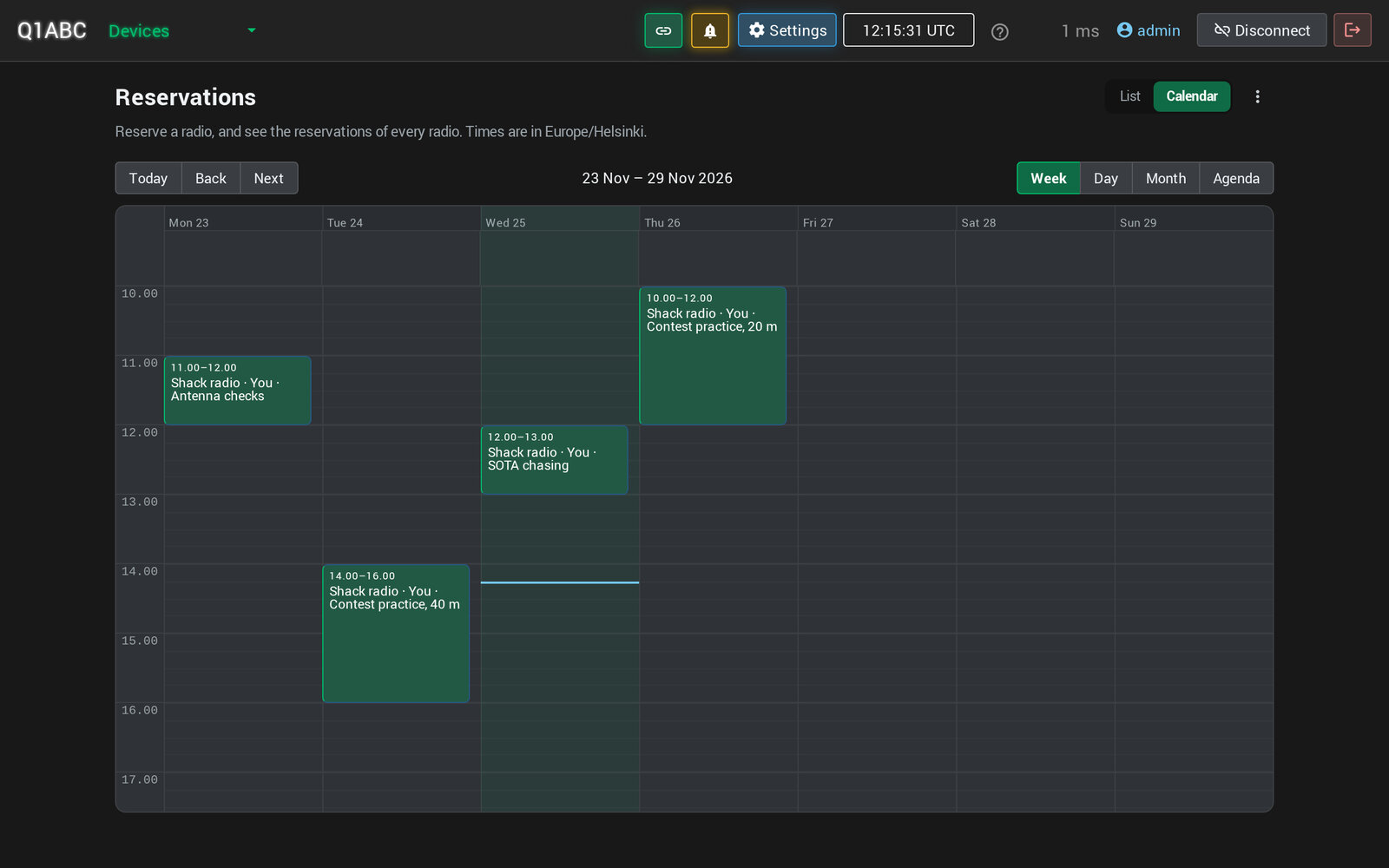
For an administrator or a power user, Day has a column for each radio, and they can move anyone’s reservation, also onto another radio.
Who may use a reserved radio
The same rule holds in the browser, for the audio and for the links of WRC Link:
- The holder of the reservation operates the radio, listens and transmits, as their roles and device access allow.
- An administrator isn’t held to reservations.
- A power user can listen to the radio and see its state, but needs the reservation to control it or transmit. They can take the radio over with End now on the reservation of its holder.
- Everyone else uses the radio only while no one holds it. Where the station requires reservations, they use it only within their own reservation.
A rotator, an amplifier or an antenna switch related to the radio follows the reservations of the radio. The holder of the radio uses them too, without reserving them.
When the station ends a reservation
The station administrator can have the station end a reservation whose operator doesn’t come, or goes away:
- Cancel when not connected: a reservation is canceled if you haven’t connected to the station by its time to connect, 15 minutes from its start unless the administrator changed it.
- Release when away: a reservation in force is released once you have had no connection to the station for its time away, also 15 minutes unless changed.
Connected means logged in to the station as yourself, in a browser, in WRC Link or in an application. The radio is then free for others at once. Notifications tells you, such as Your reservation of IC-7610 from … was canceled at …, as you had not connected.
In the Controls drawer
Reserve, in the Controls drawer of the radio page, shows the reservation of the radio: the time left of a reservation in red, the time until the next one in green, or a green calendar while there is neither.
Its menu shows the radio now, as its card under Now does, with the same one-tap buttons, then the next reservation. Reserve… and Change your reservation… open the form, and All reservations… opens the Reservations page.
See The Controls drawer for its other tiles.
For administrators and power users
⋮ at the top of the Reservations page has two tools:
- Search by description… finds every reservation by what it is for, on any day. You can change and delete the ones found where they are.
- Delete reservations before… deletes every reservation that ended before the time you give, on every radio and for every operator. It can’t be undone.
The rules of the station, such as whether reservations are required, are in Settings › Station › Reservations (see Reservation rules).