Shortcuts and sequences
A shortcut is one tap for something you do often, such as a band, a filter or an antenna. A sequence does several things in order with one tap, on one device or several: for example, the amplifier to standby, the antenna switch to the Yagi, the radio to 14.025 MHz CW, and the amplifier back to operate. Here you run them, add them, build sequences, and give them a key or a trigger.
Shortcuts and sequences
- A shortcut does one thing. A shortcut can also turn something on and off, such as the attenuator: it is then lit while its device has it on, and a tap turns it off again.
- A sequence does up to 20 things, one after the other, in the order you give them.
Each one is filed under a device or under the station. Filed under a device, it shows in the Controls drawer of that device and can go on its shortcut bar. Filed under the station, it shows in Station control (see Station control).
You have your own shortcuts and sequences, up to 100. The station has shortcuts and sequences for everyone too, which the station administrator and power users make. You can run the station’s, and copy one to change it as your own.
The shortcut bar
Each device page has a shortcut bar: on the radio page under the header, and on the other device pages at the top. Station control has a bar of its own, above its devices.
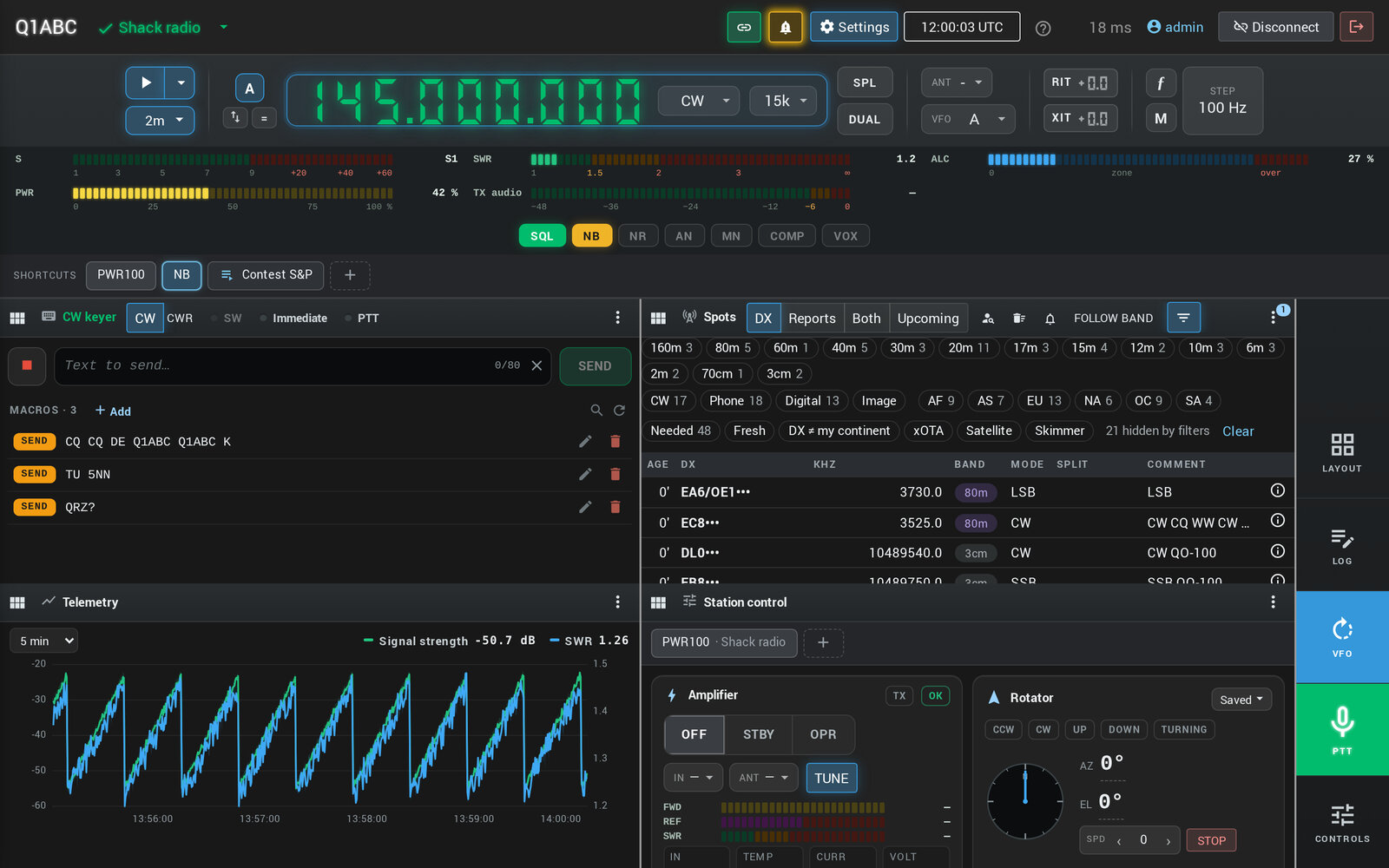
- A tap runs a shortcut or a sequence.
- A sequence has a list mark with a play arrow before its name. An amber shield after a name means that it asks first.
- · station after a name marks one of the station. A device name after the dot marks one filed under another device, such as an amplifier shortcut on the bar of its radio.
- A shortcut that turns something on and off glows blue while its device has it on.
What doesn’t fit goes under ⋯, which counts them. Its menu runs any of them, and ends with All shortcuts…, which lists all you can run on this device. + at the end of the bar opens the same list. On a bar that is still empty, it is Add shortcut.
Press and hold an item, or right-click it, for its menu: Run, Edit, Move left, Move right, and Remove from bar, which takes it off the bar but keeps it.
Each bar is kept with your account, for each device and each layout. To hide the bar, turn off Shortcut actions in the Layout panel (see The Layout panel), or in the ⋮ of Station control.
All the shortcuts of a device
Controls on a device page opens its drawer. Its Shortcuts section lists every shortcut, then every sequence, filed under the device that you may run, yours and the station’s:
- A tap on a row runs it.
- On the bar puts it on the shortcut bar of the device, at its end, or takes it off.
- Add opens the editor with a new sequence for this device, and Edit… opens the editor.
Run a shortcut or a sequence
Tap it. A shortcut that is lit runs to off, and one that isn’t runs to on.
Each step is checked as if you did it by hand: your device access, your operator class, the reservation of the device and the transmit limits. Devices are not held while a sequence runs, so another operator may change a device between two of its steps. Nothing is undone when a step fails.
A sequence that asks first
A sequence set to ask first shows its steps before it runs, each with its device. A step that raises the power, such as an amplifier to operate, is marked power up. One that keys the transmitter, such as the tuner, is marked keys, and one that sends a raw command to the radio, raw. Run runs it, and Cancel doesn’t.
One at a time
Only one of your shortcuts or sequences runs at a time, from whichever browser, key or WRC Link you started it. Every screen you are logged in on shows it running. After a second, a small spinner turns on its corner, and a bubble under it offers Stop, which ends the sequence after its current step.
A tap on another shortcut while one runs runs nothing. A bubble says which one is still running, with Stop.
How it went
How a run went shows on the shortcut itself, on every screen of yours:
- A green check on its corner: done.
- A red mark, and a bubble that says at which step it stopped and why, such as a refusal for your operator class or the reservation.
- An amber mark: a sequence ran to its end but a step failed, or Stop ended it.
Details, in the bubble of a sequence, lists each step as done, failed, refused or not run, with the reason for each one that failed. A tap elsewhere or Esc closes the bubble.
A run that failed is also kept for you in Notifications until you read it (see Notifications).
Add a shortcut
The quickest ways start from what the radio does now:
- From a setting. In the Controls drawer, choose ☆ at the end of the row of a setting, then Add to shortcuts. The shortcut goes at the end of the shortcut bar. A switch becomes a shortcut that turns it on and off, and a level one that sets its value now (see Quick).
- From the current state. In the Controls drawer, choose Tools › Save current state as a sequence…. The sequence keeps the frequency, mode and passband, the settings in Quick, and the antenna, amplifier and rotator of the radio (see Save the current state as a sequence).
- In the editor, below.
Build a sequence
Settings › My settings › Shortcuts and sequences is where you make, change and order your shortcuts and sequences. On a phone, the list shows first, and an item opens over it.
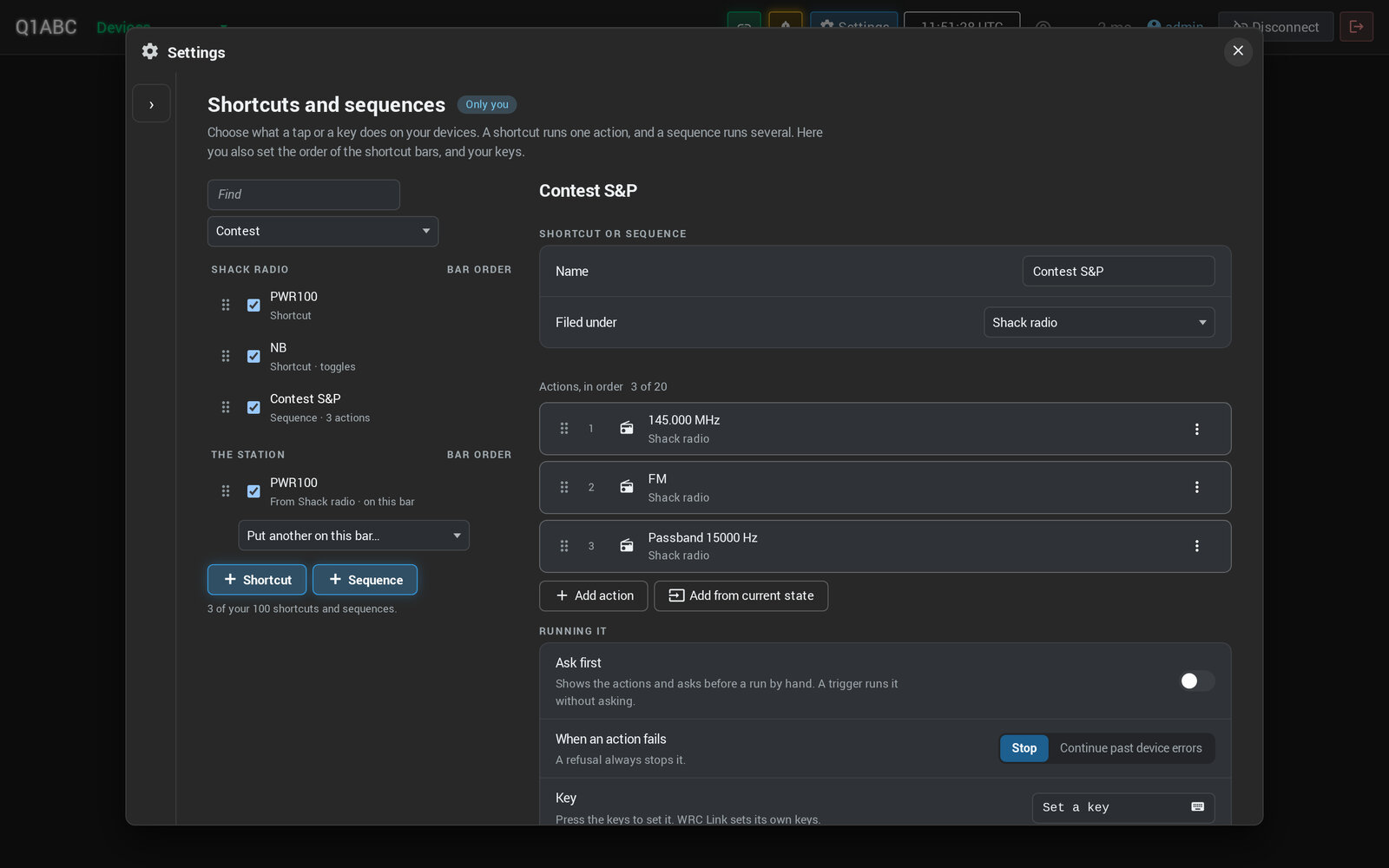
Start a sequence
Choose Sequence, with the + sign, under the list. Shortcut starts a shortcut instead.
Name it and file it
Type its Name. Choose under Filed under the device whose drawer and bar show it, or The station, for Station control.
Add its actions
Choose Add action, then the device and what it should do, such as Frequency and mode, Band, A setting, Antenna or Power status. Then choose Which setting, band or memory, and its Value. Use current fills in what the device has now. What the device can’t do is grayed, and what keys the transmitter or raises the power is marked keys.
Repeat for each action, up to 20. Add from current state adds what the radio and its related devices have now, each to tick or not.
Put them in order
Drag an action by its handle to move it. Its ⋮ menu has Edit… and Delete.
Choose how it runs
Tick Ask first to see the actions before each run. Under When an action fails, choose Stop, or Continue past device errors. A refusal always stops it.
Save it
Choose Save. Run tries it.
Where the antenna is switched or the band changed while the amplifier is in operate, the editor offers to swap the two actions, so the amplifier is in standby first. Swap swaps them, and Keep my order leaves them.
Duplicate makes a copy of an item, and Delete sequence or Delete shortcut deletes it after asking.
Put it on a bar
The list shows the shortcut bars of a layout, the one this browser uses, chosen at its top under Shortcut bars of layout. Each device has a group, its bar first.
- Tick On the bar to put an item on the bar, at its end, or untick it to take it off.
- Drag an item by its handle to change its place on the bar.
- Put another on this bar… puts an item filed elsewhere on this bar, such as an amplifier shortcut on the bar of its radio.
The station’s shortcuts and sequences
From the station · run or copy, at the end of the list, holds the shortcuts and sequences of the station. Open one to run it, or choose Copy into your own to make a copy that you can change. Its On the bar puts it on the bar of its device. Power users and the administrator make them as The station’s shortcuts and commands describes.
Give it a key
- Open the item in the editor.
- Choose the Key field and press the keys, such as Alt+1.
- × takes the key off again, and Esc gives up.
A key that Web Radio Control uses itself is refused, and the editor says what it does, as is a key another of your items has. Your keys are kept with your account, the same in every browser. As Web Radio Control uses Ctrl on a Mac and Alt elsewhere for its own keys, a key it uses on another system is refused too.
A key runs its item on every page, except while you type in a field. How the run went shows as a notification.
WRC Link sets its own keys, and runs your shortcuts and sequences from hotkeys and controllers too (see Hotkeys, controllers and CW keys).
Add a trigger
A trigger runs a sequence by itself when something happens. The station keeps your triggers and runs them as you, with your device access and operator class, even when you are not connected. The result waits in your notifications.
- Open the sequence in the editor.
- Under Triggers, choose Add trigger.
- Choose what runs it:
- My reservation starts or My reservation ends, on a radio;
- I change band, on a radio, to a band. Only your own changes count, from the browser, WRC Link or a spot, not those of other operators or the front panel of the radio.
- The state of a device changes while I operate it, such as an amplifier to operate or standby, PTT on or off, or the radio changing to a mode. You operate a device while your reservation of it is on, or while its page is open where it needs no reservation.
- Choose Add trigger.
When a triggered sequence fails, it stops, and a notice is kept for you until you read it.
The station administrator can also give the sequences of the station triggers, such as a time of day or any reservation starting.
When you may only view a device
A shortcut or a sequence that needs more than your device access allows is grayed, on the bar and in the lists, and runs nothing. Point at it, or press and hold it, to see which action and why. Its menu, the editor and your keys stay yours.
If something went wrong
- A shortcut is missing from the bar. Its device is hidden from you, it has been deleted, or it acts on a device that was removed. It comes back once you can run it again.
- A sequence says it won’t run. One of its actions acts on a device the station no longer has. Open it with Edit it, and delete or replace that action.
- A key is refused. Web Radio Control or another of your items uses it already, on this system or another. Choose another key.
- A step was refused. The bubble says why: your operator class, the reservation of the device, or the radio transmitting while the antenna was to switch. See You can’t tune or transmit.