Modules and layouts
A layout is how the radio page is arranged for you: the module in each of its four positions, the meters, the bars under the header and how each module looks. Here you change the modules, keep layouts for different uses, such as one for contests and one for your phone, and use full screen.
What a layout keeps
A layout keeps how the page looks, for each radio:
- the module in each position;
- the meters, when each shows and how many to a row (see Meters);
- the bars under the header: the indicator buttons, the band plan and your shortcut bar;
- what the action bar holds in the place of LOG;
- how each module looks, such as the view and layers of the map, the devices of Station control, the meters that Telemetry charts, and the panes and filters of the spots.
What the radio does for you is the same in every layout: the volumes, the CW keyer, the dial delay, and what a tap on a spot does.
Everyone has the Default layout, and can add others. Your layouts are kept with your account. The layout in use is chosen in each browser, so your desktop in the shack and your phone can each use their own.
Change the module of a position
The page has four positions, each holding one module.
- Choose Switch module position, the button at the left end of the bar of a module. A menu lists the modules in three groups, Radio, Station and Tools.
- Choose the module you want. It takes this position. If it was in another position already, the two swap places.
The two positions on the left show at every width. The two on the right show only in a window at least 992 pixels wide, so on a phone or a tablet in portrait you see the left two alone. Put the modules you need on a phone on the left.
The radio page lists every module and what it shows.
The Layout panel
Choose Layout in the action bar to open the Layout panel. It changes the layout in use.
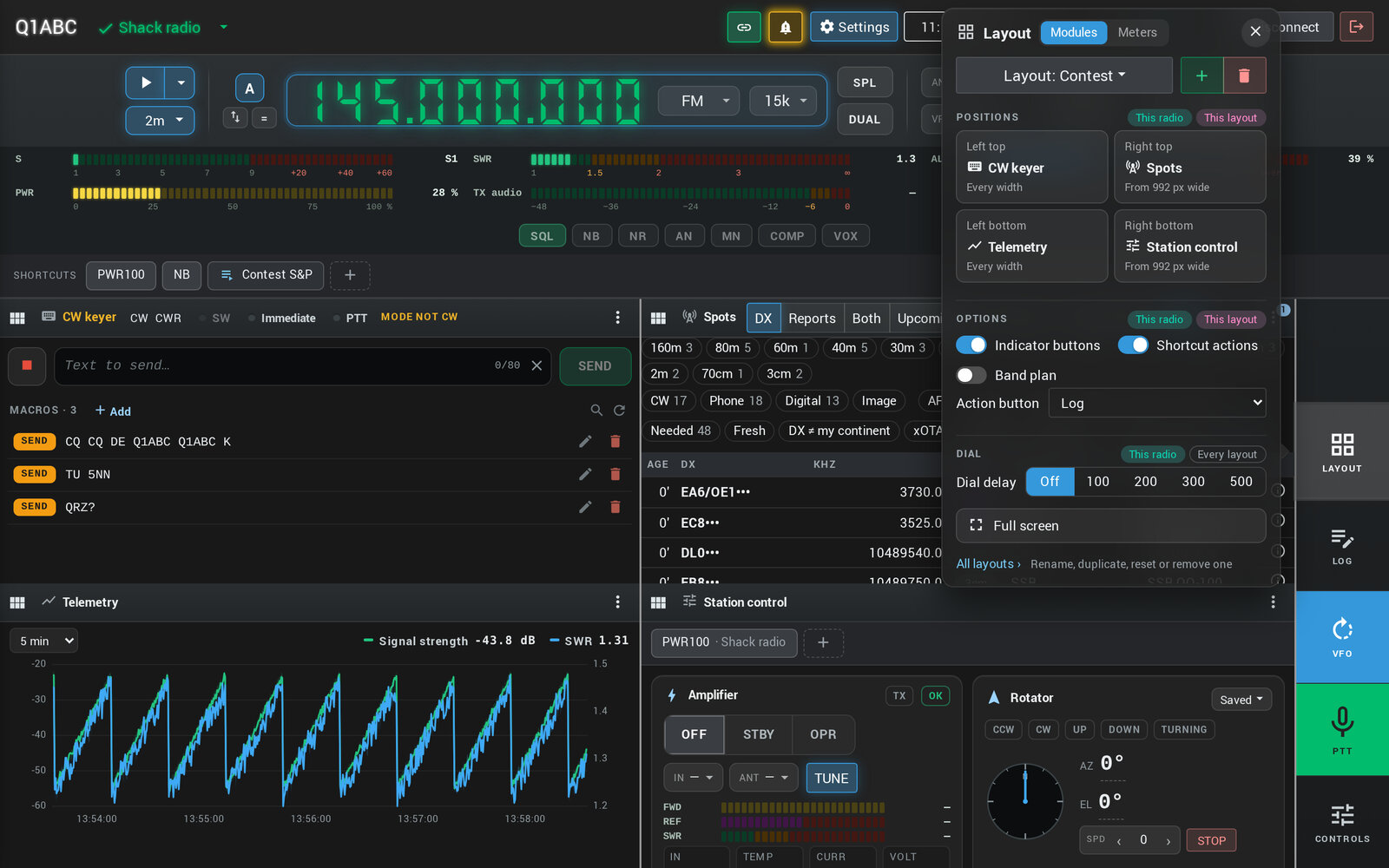
At its top, the layout menu names the layout in use, and chooses another. Beside it, + makes a new layout, and the bin deletes the layout in use after asking. The Default layout can’t be deleted.
The Modules tab has:
- Positions: the four positions as the page shows them, each naming its module and the widths it shows at, Every width or From 992 px wide. Choose one to choose its module.
- Options: Indicator buttons, the row of buttons lit for the functions of the radio that are on, such as NB and ATT; Shortcut actions, your shortcut bar (see Shortcuts and sequences); Band plan, the bar of the band segments; and Action button, what the action bar holds under Layout: Log, Memory channels, or the on-screen keyer, KEY, on a radio that has one.
- Dial: the dial delay, how long the dials wait after you stop turning before they tune the radio. Off tunes as you turn. A delay helps over a slow connection. It is set for this radio, and holds in every layout.
The Meters tab chooses the meters (see Choose the meters).
The tags beside each section say what a change reaches: This radio and This layout, or Every layout for the dial delay.
All layouts › at the foot of the panel opens your layouts in My settings.
Make a new layout
- Choose Layout in the action bar.
- Choose + beside the layout menu.
- Type a name for the layout, such as Contest or Phone. Each layout needs a name of its own.
- Choose Create.
The new layout starts as a copy of the one you were using, and is now in use in this browser. Change its modules and meters as you like. The layout you copied stays as it was.
To go back to another layout, choose it in the layout menu.
Manage your layouts
Settings › My settings › Layouts lists your layouts, Default first. The one in use in this browser is marked In use in this browser. Choose a layout to open it. Its page shows the modules of each radio, and:
- Use puts it in use in this browser.
- Name and Rename change its name.
- Duplicate makes a copy of it and puts the copy in use.
- Reset… sets its modules and its look back to those of the default layout. For the default layout itself, it goes back to the layout Web Radio Control starts with.
- Remove deletes it. You can undo this for a few seconds. A layout in use when you remove it is replaced by the default layout.
New layout, under the list, makes a layout with the modules Web Radio Control starts with, and puts it in use.
The Default layout can’t be renamed or removed.
Full screen
Full screen, at the foot of the Layout panel, makes the page fill the screen without the bars of the browser. Leave full screen, Esc or the controls of the browser take you back. Dialogs, menus and notifications show over the page as usual.
The other device pages have it too: the rotator page in its Layout panel, and the pages of an amplifier, an antenna switch and relays under Layout in their action bar.
A browser makes a page full screen only after a tap, a click or a key press. To have it happen at once, turn on Full screen from my first tap in Settings › My settings › Screen. Your first tap on the page after it loads then makes it full screen (see Screen).
Some browsers have no full screen, such as Safari on an iPhone. Full screen is then not offered. Install Web Radio Control as an app instead, for a window without the browser bars: Add to Home Screen in the share menu on an iPhone or iPad, or Install in the browser menu elsewhere.
If something went wrong
- A module is missing on a phone or tablet. Only the two positions on the left show in a narrow window. Choose the module in the menu of a position on the left.
- A new layout is refused. Its name is empty, or another layout has it already. Names are compared without regard to capital letters, so Contest and contest are the same name.
- The page looks different on another desktop, tablet or phone. Each browser has its own layout in use. Choose the same layout in the layout menu there.