Send CW
The CW keyer module sends text as Morse code and keeps your macros, the texts you send often. Here you send text and macros, choose the keyer that keys the radio, key by hand from the screen or the keyboard, and set your paddles, weighting and speeds.
What you need
- Permission to transmit on the radio.
- A license that includes Morse keying. Under a license without it, the module is grayed and names the license that includes it.
- A radio that can send CW from text, or a keyer line that the station keys the radio with. The station administrator sets this up.
To show the module, choose CW keyer in the menu of a module position (see Change the module of a position).
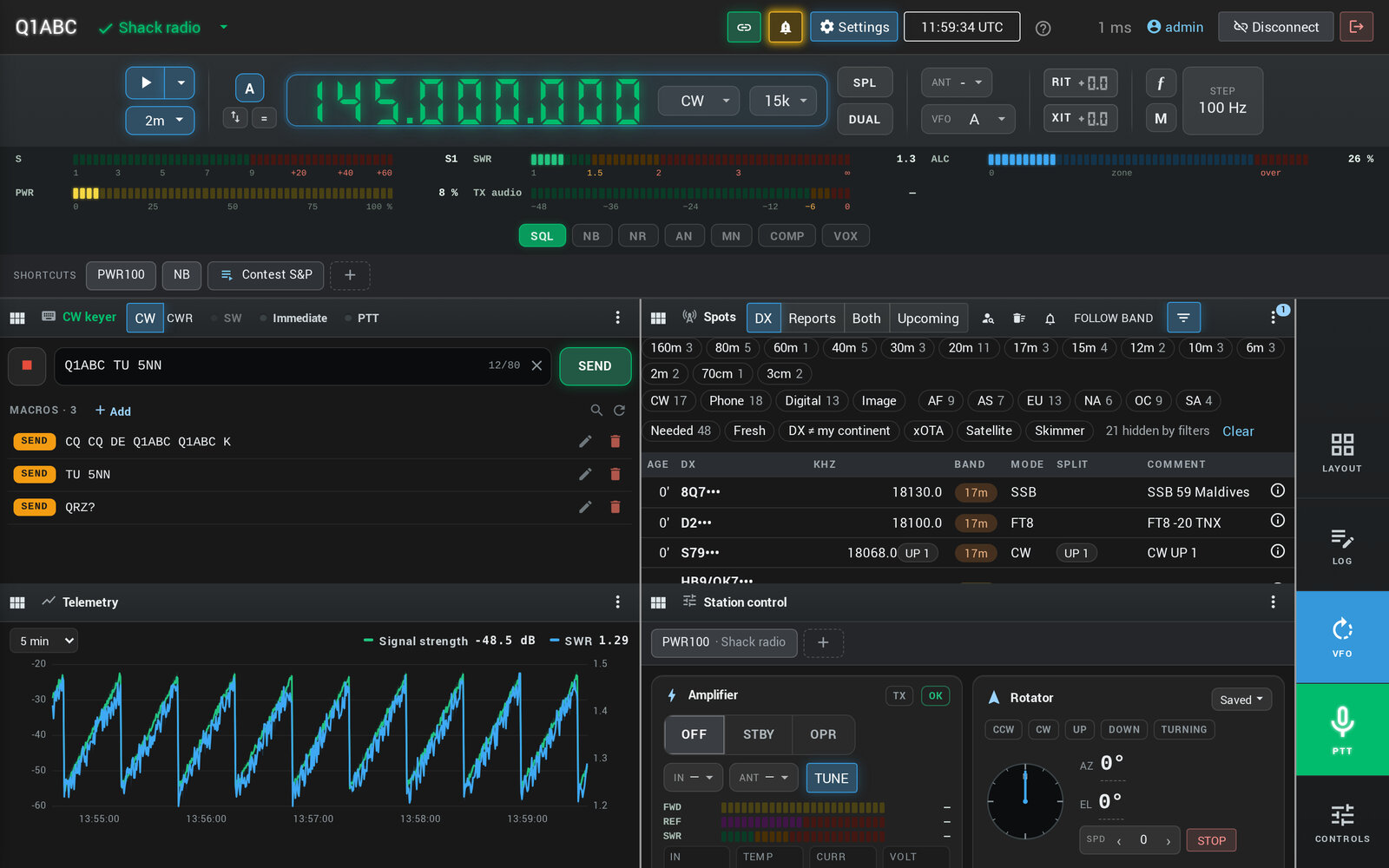
Send text
Choose CW
Choose CW or CWR at the left of the module bar. While the radio is in another mode, the bar says MODE NOT CW.
Type the text
Type up to 80 characters in the entry. The count of characters shows at its right.
Send it
Press Enter, or choose SEND. The entry clears at once, so you can type the next text while the first is sent. An amber line along the foot of the entry shows how far the sending is.
To stop the sending, choose the button at the left of the entry, red while a text is sent, or press Esc in the entry. × clears the text you typed.
Send as you type
Immediate, in the module bar, sends each character as you type it. There is then no SEND: the characters sent run by in amber at the left of the entry, and × clears them.
The module bar
| Control | What it does |
|---|---|
| CW, CWR | Put the radio in CW or reverse CW. |
| The speed | The speed of the software keyer in words per minute, with your three speed presets beside it. A preset sets the speed with one tap. |
| SW | Key the text with the software keyer of Web Radio Control instead of the keyer of the radio. Grayed where the radio has only one of them. |
| Immediate | Send each character as you type it. |
| PTT | Whether the software keyer switches the transmitter on and off. Lit amber while on. |
| ⋮ | Config… for the keyer of this radio, and All CW settings ›, your CW settings. |
A toggle is a word with a dot that is lit while it is on. Where the module is narrow, the controls fold into ⋮, which shows how many it holds. Your choices are kept with your account, for each radio.
The two keyers
The keyer of the radio keys the text with its own timing and break-in, as when you send from the front panel. An amplifier is then keyed by the radio itself, as you have wired it.
The software keyer, chosen with SW, is the keyer of Web Radio Control. The station keys the radio on its keyer line, with the speed and presets of the module bar, and your weighting. With PTT lit, the station also switches the transmitter on before the first character and off a moment after the last, and switches the amplifier and the other lines of the station in the right order. With PTT off, the break-in of the radio does that.
The station administrator sets the timing of the software keyer for each radio: the wait before the first character and how long the transmitter stays on after the last (see The Morse keyer).
Macros
Under the entry, Macros lists your macros for this radio, newest first.
- SEND sends the macro, with the keyer chosen in the bar. Its line is tinted while it is sent. One text is sent at a time, so a macro can’t be sent while another text is.
- A tap on the text of a macro puts it in the entry, to change before you send it.
- The pencil edits the macro in place. Enter or Save keeps the change, and Esc or × leaves it as it was.
- The bin asks first. It turns into Delete? for three seconds, and a tap on it deletes the macro.
To add a macro, choose + Add after the heading, type the text, and press Enter. The search button finds the macros that hold what you type, and the refresh button reads them again, to show a change made in another browser.
A macro is named by its text. Your macros are kept on the station, for each radio. A sequence can send one of them too (see Shortcuts and sequences).
Key by hand
The on-screen keyer
KEY in the action bar opens the on-screen keyer, where the Layout panel has it as the Action button (see The Layout panel).
- Choose Straight, Bug or Paddle.
- Choose how it keys:
- Audio keys a tone in your transmitted audio. It needs the audio running to the radio. Activate turns the keyer on, and Activate + PTT transmits too.
- Software sends your key to the station, which keys the radio on its keyer line, with the transmitter switched as PTT of the CW keyer says. This works with the straight key only.
- Press and hold the key, or the dot and dash paddles, to send.
The keyboard
On the radio page, the keys . (a dot), - and / (a dash) and , (a straight key) key Morse code, as the on-screen keyer does. They key nothing while a dialog, a panel or a text field has the keyboard, so typing never keys the radio. Ctrl+Alt+E, R and D key the same with a panel open too, and Ctrl+Shift+E, R and D on a Mac.
While the hotkeys of your WRC Link are on, the keys that transmit key nothing in the browser, and a line under the header says so (see Hotkeys, controllers and CW keys).
Every key of Web Radio Control is in Keyboard shortcuts.
Your CW settings
Settings › My settings › CW holds your own CW settings, the same on every radio of the station:
- Swap the paddles: dahs from the left paddle and dits from the right, on the on-screen keyer and on the keyboard, where . then sends dahs. It is for audio keying, as software keying uses a straight key.
- Weighting, from 25 to 75 %, 50 by default: how heavy your dits and dahs are. Above 50, every dit and dah is longer and the space after it shorter, so the speed stays the same. The software keyer and the paddles use it. The keyer of the radio keeps the weighting set on the radio.
- Speed presets: three speeds in words per minute, 18, 25 and 30 by default, shown beside the speed of the software keyer.
The page is for operators who may transmit. All CW settings › in the ⋮ of the module opens it too.
When the keyer can’t send
- Sending CW from text is not set up: the radio can’t send CW from text by itself, and the station has no keyer line for it. An administrator sees Set up a keyer line…, which opens the connection settings of the radio. Anyone else asks the station administrator.
- Morse keying is off until the station has a valid license.: the station is in setup mode (see Setup mode).
- This is not in your license.: the license of the station doesn’t include Morse keying. The line names the license that does.
Where your device access lets you only view the radio, the module bar, the entry and the changes to macros are grayed. Where you may operate the radio but not transmit, what sends is grayed: the entry and SEND. Point at a grayed control, or press and hold it, to see why.
A radio that may not transmit now, for example with no antenna chosen on its antenna switch, refuses the text, and a notice says why.