The Controls drawer
The Controls drawer holds the settings and tools of the radio: its power, the antenna tuner, the tone burst, the settings of each part of the radio, and your own Quick section for the settings you use most. Here you change a setting, pin it to Quick, and use the tools of the radio: the tone burst, the DTMF dialer, custom commands and the memory channels.
Open the drawer
Choose Controls in the corner of the action bar. The drawer opens on the left of the radio page, and the radio stays usable beside it. ×, Esc, a tap outside the drawer, or Controls again close it.
The drawer reads the settings of the radio as it opens. Refresh reads them again whenever you want. A radio that is switched off or doesn’t answer has nothing to read. Its sections then say Refresh to display settings.
The drawer remembers the section you left it on. What you started from it, such as a held tone, keeps going while it is closed.
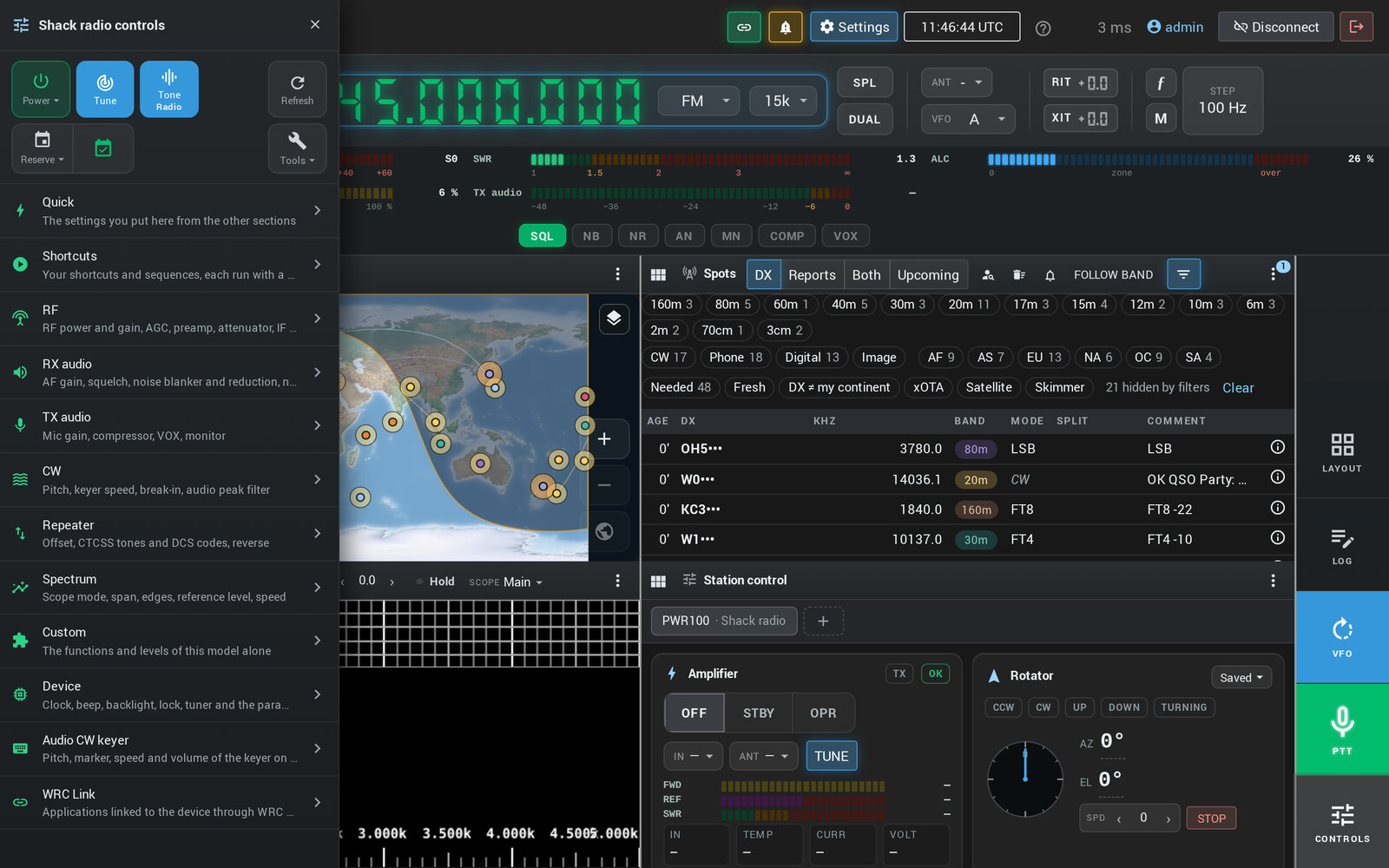
The tiles
The tiles at the top of the drawer are the tools of the radio. A tile is green while what it shows is on, red while it is off, and amber while it acts. A tile with a small arrow after its name opens a menu.
| Tile | What it does |
|---|---|
| Power | Green while the radio is on, red while it is off or doesn’t answer. Its menu has Power on and Power off, where the radio can switch itself. |
| Tune | Starts the automatic antenna tuner of the radio, where it has one. |
| Tone | Sends a tone burst while you hold it, to open a repeater. Tools chooses the tone (see The tone burst). |
| Refresh | Reads the settings of the radio again. |
| Reserve | The reservation of the radio: the time left of a reservation in red, the time until the next one in green, or a green calendar while there is neither. Its menu reserves the radio (see Reserve a radio). |
| Tools | The tone burst, the DTMF dialer, saving the current state as a sequence, and custom commands (see Tools). |
The sections
The settings of the radio are in sections, listed under the tiles. Each line has the name of its section and what it holds. Choose a line to open its section, and ‹ Back to return to the list.
| Section | What it holds |
|---|---|
| Quick | The settings you put here from the other sections (see Quick). |
| Shortcuts | Your shortcuts and sequences, and those of the station, each run with a tap. On the bar puts one on the shortcut bar of the radio (see Shortcuts and sequences). |
| RF | RF power and gain, AGC, preamp, attenuator, IF shift. Where a transmit limit holds the power, the section says so. |
| RX audio | AF gain, squelch, noise blanker and reduction, notch, passband. |
| TX audio | Mic gain, compressor, VOX, monitor. |
| CW | Pitch, keyer speed, break-in, audio peak filter. |
| Repeater | Offset, CTCSS tones and DCS codes, reverse. |
| Spectrum | Scope mode, span, edges, reference level, speed. |
| Custom | The functions and levels of this model alone. |
| Device | Clock, beep, backlight, lock, tuner, the parameters of the model. |
| Audio CW keyer | Pitch, marker, speed and volume of the CW keyer of this page. |
| WRC Link | Add a link in WRC Link, and the links to the radio (see Link your applications). |
A section lists only the settings the radio can set. A section with nothing for this radio stays in the list, dimmed, and says None on this radio.
How the station administrator sets the limits that hold the RF power is on Transmit limits.
Change a setting
Each row has the name of the setting and its value. Point at the name, or press and hold it on a touch screen, to see what the setting is.
- A level shows its value between arrows, ‹ 50 ›. The arrows step it, and repeat while you hold them. Tap the value to type one, then press Enter, or Esc to leave it as it was. Under it, drag the slider and let go, or double-click the slider to set the middle of its range.
- A function that is on or off is a switch.
- A setting with a list of values is a menu that shows the value in use.
- The clock of the radio, in Device, is a time field. Type the time and press Enter.
- A value the radio only reports shows as it is, and you can’t change it.
A value you change is amber until the radio confirms it, then green. A ? after a name means that the radio can set this setting but doesn’t report it, so the value shown is the last one set from here.
VOX and a tone burst switch, such as TBURST, make the radio transmit once they are on. Turning one on needs your permission to transmit, as Tune does.
Quick
Quick, the first section, holds the settings you use most, so you find them without opening other sections. It is yours for this radio, and follows you to every desktop, tablet or phone.
Open a section
Open the section that holds the setting, such as RX audio.
Choose ☆
Choose the ☆ at the end of the row of the setting. Its menu opens.
Pin it
Choose Pin to Quick. The star fills, ★, and the setting is now in Quick too.
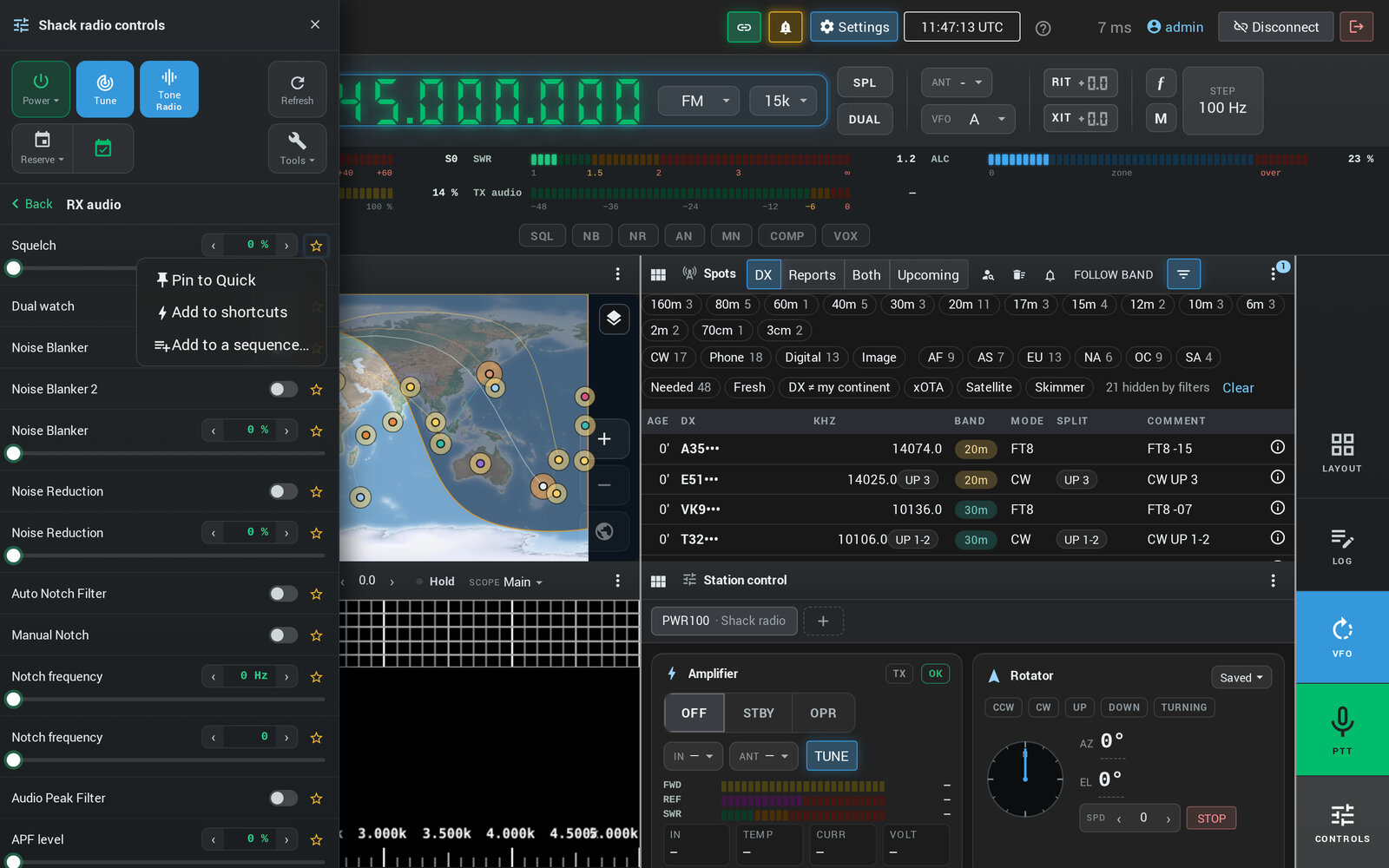
To take a setting out of Quick, choose × on its row in Quick, or Remove from Quick in its ★ menu.
The same menu makes shortcuts:
- Add to shortcuts makes a shortcut of the setting and puts it at the end of the shortcut bar of the radio. A switch becomes a shortcut that turns it on and off. A level becomes a shortcut that sets the value it has now, such as ATT 6.
- Add to a sequence… adds the setting, at its value now, to the end of one of your sequences.
You change your shortcuts and sequences in Settings › My settings › Shortcuts and sequences (see Shortcuts and sequences).
Tools
Tools opens a menu with the tools of the radio:
- Tone burst: the tone that Tone sends;
- DTMF dialer…;
- Save current state as a sequence…;
- Custom command…, for operators who may transmit.
The tone burst
Tone sends a tone burst for as long as you hold it, to open a repeater. Under Tone burst in Tools, choose where the tone comes from:
- Radio’s tone burst, the tone of the radio itself, where it has one. This is the default.
- 1750 Hz or 2135 Hz, a tone that this page plays into your transmitted audio. It needs the audio running to the radio. It turns PTT on while you hold Tone, unless PTT was on already.
Alt+T sends the same tone burst from the keyboard, and Ctrl+T on a Mac. Your choice is kept for this radio.
The DTMF dialer
The DTMF dialer sends DTMF tones in your transmitted audio, for example to control a repeater. It works only while the audio runs to the radio. Until then its keys are grayed.
- Choose Tools › DTMF dialer….
- In DTMF codes, type up to 64 characters: the digits 0 to 9, the letters A to D,
*and#. - Choose Dial. Cancel stops the tones while they are sent.
The keypad of the dialer sends each key as you press it. Volume sets how loud the tones are.
Save the current state as a sequence
Save current state as a sequence… keeps the radio as it is now, to come back to it with one tap: the frequency, mode and passband, the settings in Quick at their values, and the antenna, amplifier and rotator of the radio, where it has them.
- Choose Tools › Save current state as a sequence….
- Untick what the sequence should leave alone. A line that raises the power, such as the amplifier to OPERATE, is marked power up and starts unticked.
- Type the Name, and choose under Filed under where it is kept.
- Choose Save sequence.
The sequence goes on the shortcut bar of the radio. You can change it later in Settings › My settings › Shortcuts and sequences.
Custom commands
A custom command is raw data that the radio takes as it is, for a command Web Radio Control doesn’t have yet. The manual of the radio lists its commands. Tools › Custom command… opens Settings › My settings › Custom commands for this radio. With several radios, choose the radio at the top of the page.
Send a command once
Under Send once:
- Choose Command as: Text for Kenwood and Yaesu radios, such as
FA;, or Binary for Icom, two hexadecimal digits for each byte, such asFE FE 94 E0 03 FD. - Choose how the answer ends, Response by its: Length in bytes, 0 for a command without an answer, or
Delimiter, such as
;for Kenwood and Yaesu orFDfor Icom. - Type the command and choose Send. Response shows the answer of the radio.
Save… keeps the command under a name, to send it again.
Your saved commands
Under Send once are the saved commands of the radio: yours first, then those of the station, marked · station. Each shows what it sends and how its answer is read.
- Send sends it, and the answer shows under it.
- The pencil changes it. The bin deletes it, after asking.
- A command of the station has a copy button, which copies it into your own commands.
Saving and changing commands needs the right to configure the station, which power users and administrators have. The administrator keeps the commands of the station in Settings › Station › Custom commands (see Custom commands). A shortcut or a sequence can send a custom command too.
Memory channels
The radio page has two kinds of memory channels. Software memory channels are saved on the station for each radio, with names. Radio memory channels are the memories of the radio itself, where it has them.
The MEM panel
MEM in the action bar opens the memory channels, for operators who don’t log contacts or who chose Memory channels for the Action button in the Layout panel.
- Choose Software or Radio at the top of the panel.
- Step through the channels with the arrows, or tap the number to type a channel and press Enter.
- The list button beside the number, Channels near this one, lists the channels around it to pick from.
For the memories of the radio, VFO → M saves the frequency and mode in the current channel, M → VFO tunes to it, and Clear clears it, as the radio offers them.
The software memory channels
M in the header of the radio, or Shift+S, opens Software memory channels:
- Find a channel by name narrows the list as you type.
- Tap a channel to tune the radio to it. The pencil changes the channel, and the bin deletes it after asking.
- Save the current frequency keeps what the radio is on now, under a name and, if you want, a number.
- New channel takes a name, a number, the frequency and the filter in kHz, the mode, and where the radio has them, the repeater offset and the CTCSS and DCS tones. From current fills it from the radio.
A tone left Unchanged keeps what the radio has when you recall the channel. Off turns the tone off.
When you may only view the radio
Where your device access lets you only view the radio, its tiles and settings are grayed where they stand, showing their values. Point at one, or press and hold it, to see why. Refresh still reads the settings. Quick stays yours: you can still pin settings to it and take them out, as that changes only your own view of the drawer.
Other devices
An amplifier and a rotator have a Controls drawer too, on their own pages:
- An amplifier (see The amplifier): the tiles OPR/STBY, which switches between operate and standby, Tune where it has a tuner, and Refresh.
- A rotator (see Turn the antenna): the tiles Stop, where the rotator can stop, Saved, the saved directions, and Refresh.
Their sections are Quick, Shortcuts, Main with their main settings, Custom, and WRC Link. The drawer of an antenna switch or another device holds its Shortcuts alone.