Listen and transmit
Listen to the radio and transmit from your browser. Here you start the audio, choose your speakers and microphone, transmit with PTT, and set how the audio plays and how it is sent.
You need:
- speakers or headphones;
- a microphone or a headset, to transmit voice;
- your roles and your device access must let you listen to the radio, and to transmit on it (see Operator guide).
Start the audio
Choose the streaming button, at the left of the header. It starts the audio both ways. What the radio receives plays in this browser, and your microphone is ready to transmit. Choose it again to stop the audio.
The menu at the arrow of the streaming button starts one direction alone: Start RX receives only, and Start TX sends your microphone only.
Choose the audio devices
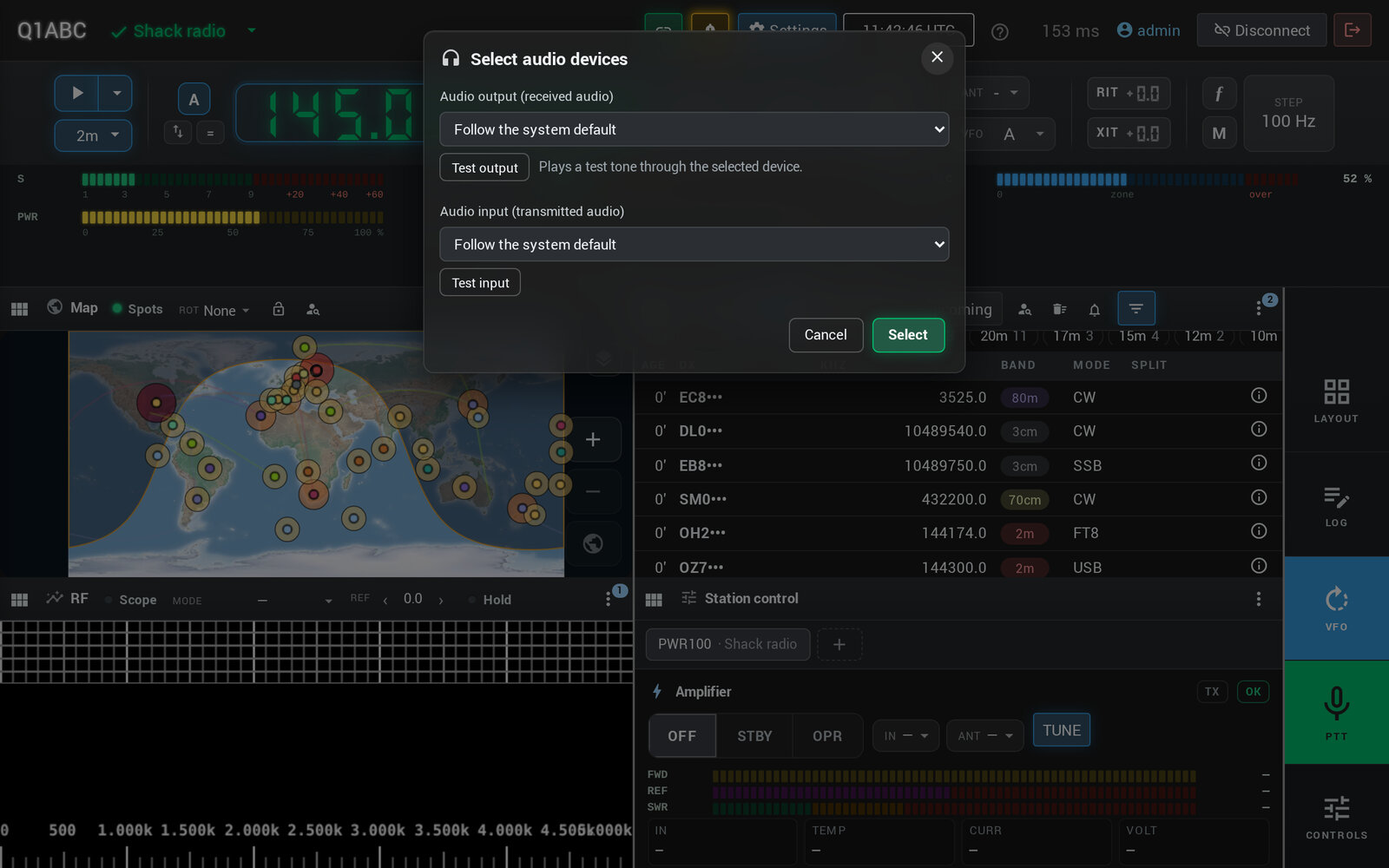
The first time you start the audio in this browser, Select audio devices asks which devices this browser uses:
- In Audio output (received audio), choose your speakers or headphones. Test output plays a test tone through them.
- In Audio input (transmitted audio), choose your microphone. Test input shows its level while you speak.
- Choose Select.
The browser shows the names of the devices only once you allow audio input. If the names are hidden, choose Show all devices. Follow the system default, first in each list, uses the device your operating system uses. The browser of a phone, and Safari before version 18.4, can’t choose an output. They play through the output that the operating system uses.
The browser keeps your choice. To change it later, open the menu at the arrow of the streaming button and choose Select audio devices….
Allow the microphone
When the browser asks to use the microphone, allow it. Receiving works without it, but you need it to transmit voice. If you blocked it, allow it later in the site settings of the browser, usually behind the icon next to the address, and start the audio again.
Transmit
Choose PTT in the action bar. A tap turns the transmitter on, and the next tap turns it off. If you hold PTT down instead, it turns off as you let go. PTT is green while you receive and red while you transmit. Speak into your microphone while it is on.
From the keyboard, Alt+W turns PTT on and off, and holding Alt+P transmits while you hold it. On a Mac, use Ctrl in place of Alt.
The streaming button
The streaming button shows how the audio of the radio is running. Point at it to see why, when the audio doesn’t run as it should.
| The button | What it means |
|---|---|
| Blue, with a play sign | The audio is off. Choose it to start. |
| Blue, with a hand | The audio starts at your first tap on the page, as the browser needs before it plays sound. |
| Red | The audio is connecting, or connecting again. |
| Amber, with a stop sign | The audio is running. Choose it to stop. If one direction can’t run, pointing at it says why. |
| Gray, with a pause sign | The audio is running, but the station audio is paused for now. It goes on by itself once the station audio runs again. |
| Gray, with an exclamation mark | The audio couldn’t start. Point at it to see why. |
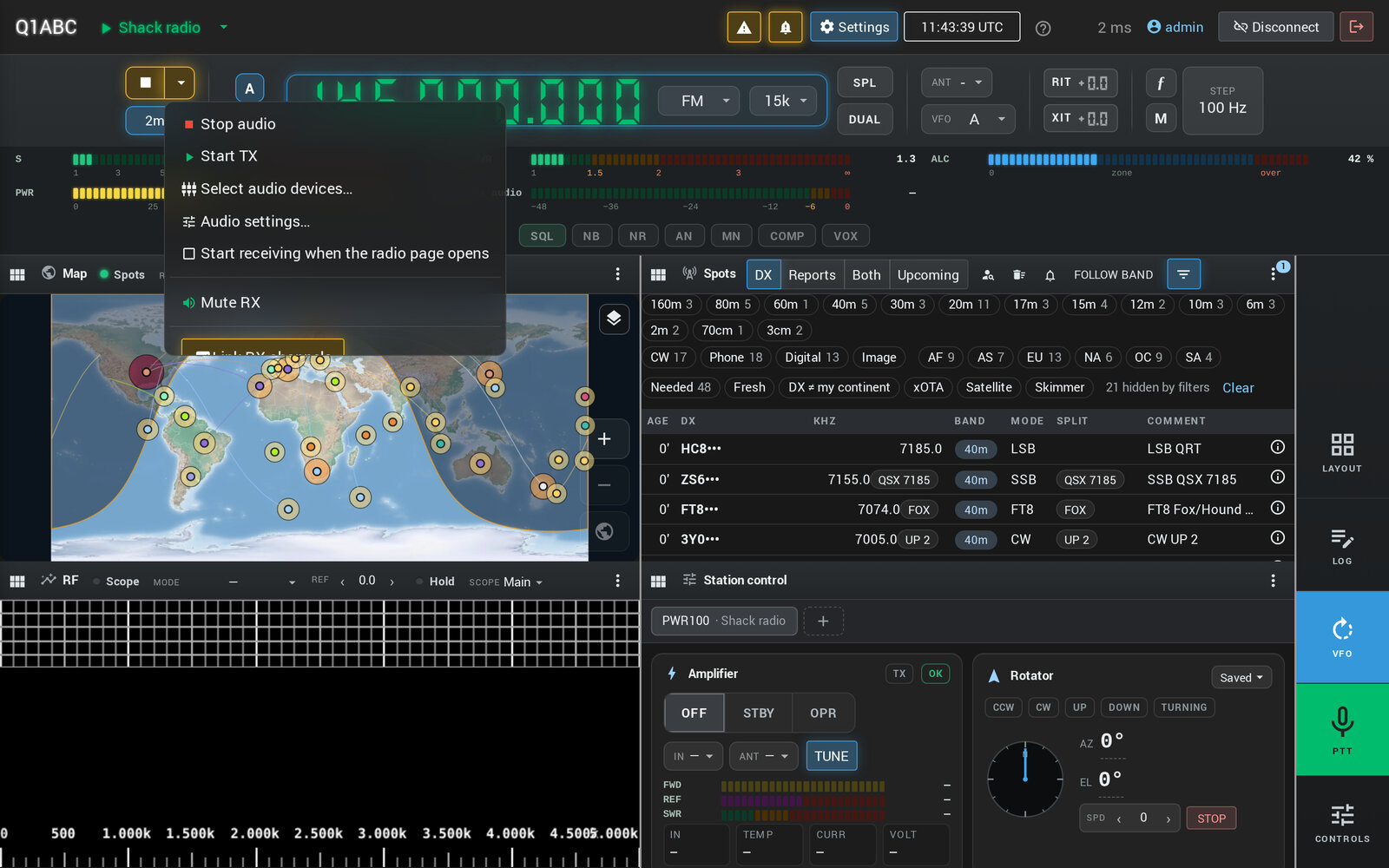
The menu at the arrow of the streaming button has:
- Start RX or Stop audio, and Start TX or Stop TX;
- Select audio devices…, to change your speakers or microphone;
- Audio settings…, which opens your audio settings for this radio;
- Start receiving as the radio’s page opens, which starts receiving, never transmitting, each time you open a radio page in this browser;
- while the audio runs, Mute RX and Mute TX, the volume of the received audio, RX volume, and of your microphone, TX volume;
- while receiving, Link RX channels, which sets the left and right volumes together, and RX channel selection, where you hear Both channels, the Left or the Right.
Alt+A starts and stops the audio from the keyboard, and Ctrl+A on a Mac.
Your audio settings
Your audio settings are in Settings › My settings, under Audio: Listening, Transmitting, Connection & quality and Engine & diagnostics. Each page is for one radio, which you choose at its top. Audio settings… in the streaming button opens them for the radio you are on.
The volumes, mutes and channels under This radio are yours for that radio, on every desktop, tablet or phone you use. Your other audio settings are kept in this browser, as they suit this device and its network. To make them the starting point of your other browsers too, choose Keep for my account on Engine & diagnostics.
Some changes apply only when the audio starts again. Apply now, beside a section title, applies them to the audio running now. The audio pauses for a moment.
Listening
This radio: your Volume and Mute for the radio, Same volume left and right, and the Channel you hear.
Received audio: how the audio is smoothed and kept in time. The Jitter buffer sets how much delay rides out an uneven network:
- Live, the least delay, for a good connection;
- Intelligible, the default, for most listening;
- Smooth, the most delay, for a poor connection or a mobile network.
The other settings of the section, such as Delay recovery, fine-tune it. Full duplex keeps you hearing the radio while you transmit.
Opening a radio: Start receiving as the radio’s page opens, the same as in the streaming button menu.
Transmitting
- This radio: your Transmit volume, how loud your microphone reaches the radio, and Mute.
- Microphone: what the browser does to your voice before it is sent: Automatic gain, Echo cancellation and Noise suppression.
- Tones: the tone burst, DTMF and the CW keyer of this page, on air and in your ears.
- When this computer falls behind: what happens to your audio when the browser can’t keep up. Late audio is Stay close to live by default, which drops audio that waited too long, so what you transmit stays in step with when you spoke. Backlog allowed is how long audio may wait first.
Connection and quality
- Audio profile sets several settings at once for one use. Choose Use next to a profile. The profile whose
settings all hold says In use.
- Voice and CW, for operating with the least delay;
- Mobile network, for a phone or a laptop on a 4G or 5G network;
- Digital modes (reliable feed), for FT8 and the other digital modes, which need every bit of the audio (see Operate FT8 and other digital modes).
- Codec and bitrate: how the audio is encoded on the way. Opus is the default. Receive bitrate is Station decides unless you choose one. A lower bitrate uses less of a slow or metered connection.
- Transport: how the audio travels between the station and you. Automatic chooses the best way that works.
Engine & diagnostics sets how this browser plays and records the audio, and shows how the audio of the radio runs (see The audio engine).
If something went wrong
| What you see | What to do |
|---|---|
| No sound | Point at the streaming button. Gray with a pause sign means Receiving paused, with the reason. Check the output in Select audio devices…, and the volume in the same menu. In setup mode, the station sends no audio until the license is activated. |
| The browser is blocking the microphone (audio input) for this site. | Allow the microphone in the site settings of the browser, usually behind the icon next to the address, and start transmitting again. Receiving goes on meanwhile. |
| No microphone or audio input was found. | Connect a microphone, or choose another in Select audio devices…, and start transmitting again. |
| The microphone could not be opened | Another application may be using the microphone, or the privacy settings of the operating system may block the browser from it. |
| PTT is grayed, with a lock | Your roles, your device access, a reservation or the license don’t let you transmit on this radio. Point at PTT, or press and hold it, to see why. |
| The audio breaks up | Choose Smooth in Jitter buffer, under Listening. On a phone, choose the Mobile network profile in Connection & quality. |
| The connection status icon is amber, Streaming on a fallback | The audio works, but not in its usual way. Point at the details in Connection Status to see why. If the audio runs over WebSocket from the internet, the station administrator checks that the port of the station is forwarded for UDP too (see Forward the port on your router). |
More help is in Audio problems.