Log in
Log in to use the station from your browser. Here you also find how long a login lasts, how to log out, and how to change your details and your password.
You need:
- the station address, such as
https://shack.local/on the local network of the station, or its address underwrcs.techfrom elsewhere (see Use the station from another device); - your username and password. The station administrator creates your user account and gives you both.
Open the station address
Open the station address in your browser. Bookmark it, so that you find the station again.
Web Radio Control shows Log in to Web Radio Control. Nothing on the page connects to the station until you log in.
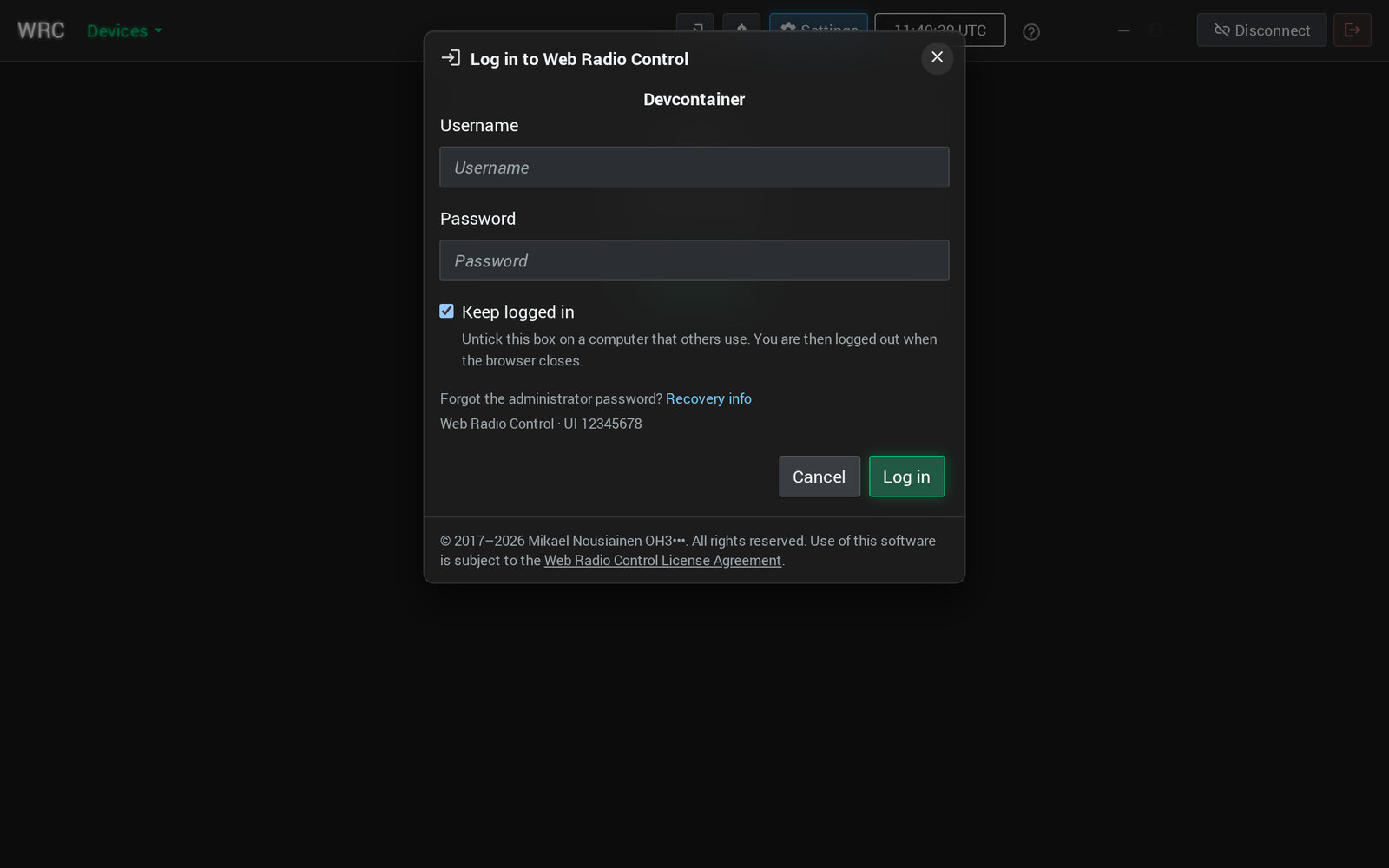
Type your username and password
- Type your Username and Password.
- Leave Keep logged in ticked to stay logged in after you close the browser. On a computer that others use, untick it. The login then ends when the browser closes.
- Choose Log in.
Web Radio Control connects to the station and opens on Devices, the list of the station devices (see Find your way around).
The login dialog also shows the version of Web Radio Control that the station runs, such as Web Radio Control 2.0.0-b2, with the day it was built. Give it when you ask for help.
Cancel or × in the login dialog leaves you disconnected. The page then stays disconnected, also after a reload, until you choose Connect, which asks for the login again.
If something went wrong
| The login dialog says | What to do |
|---|---|
| The username or password is wrong. | Type them again. If you have forgotten your password, see A forgotten password. |
| Too many failed logins. Try again in … seconds. | Wait for that time, then log in again. After failed logins the station slows down new tries for a while, but never locks you out. |
| The station cannot be reached. | The station may be restarting, or this device is not on a network that reaches it. Wait a minute and try again. Check that you opened the right station address. |
| The login failed at the station (HTTP …). | The station failed to log you in. Try again in a moment. If it keeps failing, tell the station administrator. |
More help is in You can’t reach the station.
How long a login lasts
- With Keep logged in ticked, the login lasts as long as the station lets a login last. By default that is 90 days from its last use, so a login you use regularly doesn’t end.
- With Keep logged in unticked, the login ends when the browser closes, and at the limit of the station at the latest. A browser that opens its tabs again when it restarts may keep the login.
The administrator sets the limit for the whole station in Settings › Station › Connected sessions, under How long a login lasts: the days, and whether they count from Its last use or from Logging in.
An administrator can also log you out, from Connected sessions or from your page in Users & roles. Your browser then asks you to log in again (see Sessions and paired clients).
Log out
- Choose Log out, the red button at the right end of the top bar. On a narrow screen, open the top bar menu, ☰, and choose Log out there.
- Web Radio Control asks first. Choose Log out again.
The page disconnects from the station. To log in again, you need your username and password.
To stop using the station for a while without logging out, choose Disconnect instead (see Find your way around).
Your profile and password
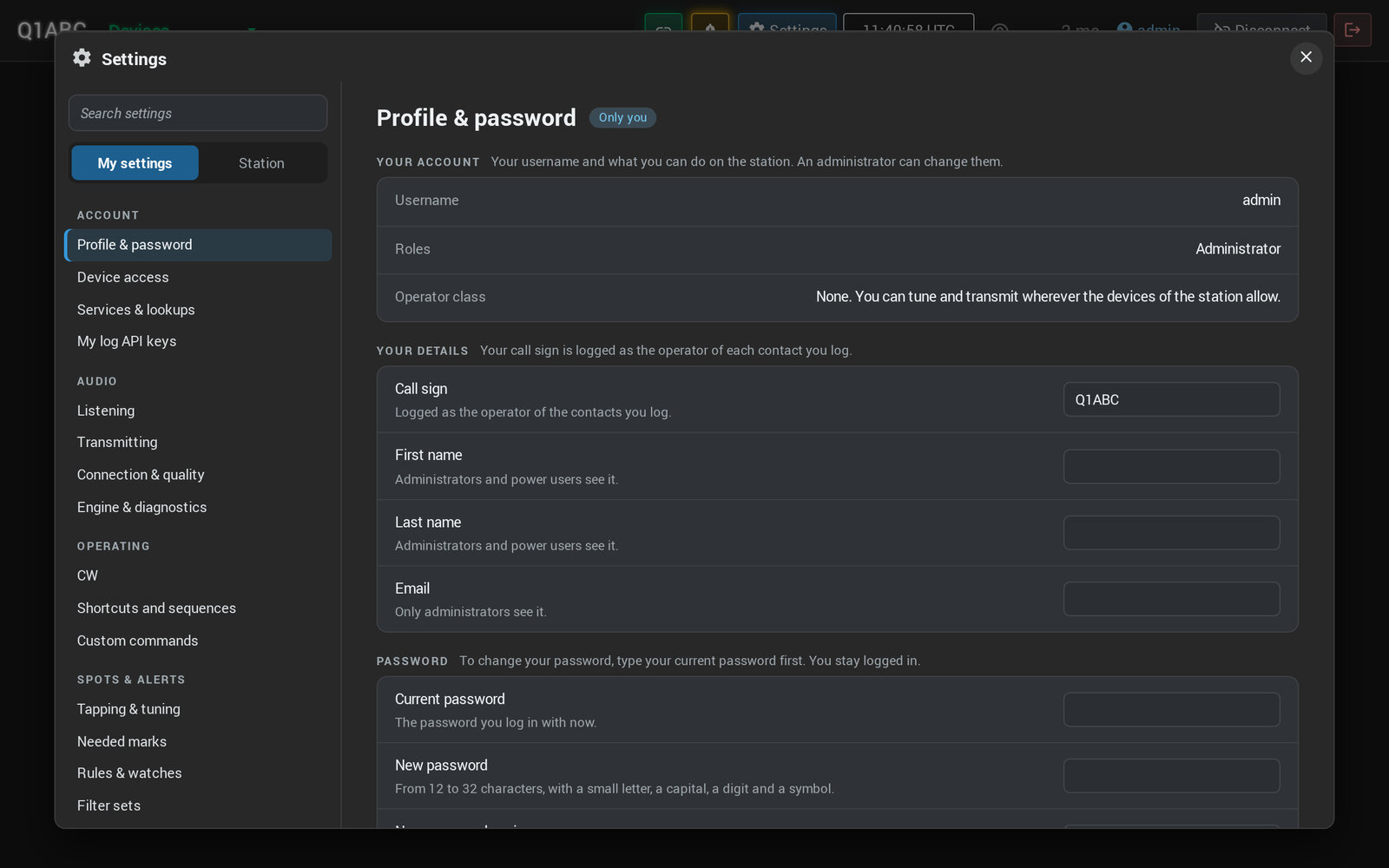
Choose your username in the top bar, or open Settings › My settings › Profile & password.
- Your account shows your Username, your Roles and your Operator class. An administrator sets them.
- Your details are your Call sign, which is logged as yours, your First name and Last name, which others on the station see, and your Email, for the administrator only. A changed detail waits in a bar at the bottom of the page. Choose Save to keep it.
- Password changes your password. You stay logged in.
To change your password:
- Type your Current password.
- Type the New password, and again in New password again. A password has 12 to 32 characters, with a lowercase letter, an uppercase letter, a digit and a symbol among them.
- Choose Change password. The page confirms the change beside the button.
A wrong current password counts as a failed login. After three of them, each new try waits a little longer, up to a minute, and the bar at the bottom of the page says how long to wait.
A forgotten password
- An operator asks the station administrator. The administrator opens your page in Settings › Station › Users & roles and types a new password under Login password, or chooses Generate a password, and gives it to you. Log in with it, then change it to your own in Profile & password.
- The administrator needs the station control computer in hand to reset the administrator password. In the login dialog, Forgot the administrator password? has Recovery info, which says how.