The Logbook page
The Logbook page lists the contacts in the logbooks of the station. Here you find contacts, look at them by view or by session, correct a contact, restore one you deleted, and export the logbook as an ADIF file. Administrators can also empty the trash.
To open it, choose the call sign of the station at the left of the top bar, then Logbook. Every operator who may listen to the station sees it. To log a new contact from the radio page, see Log a contact.
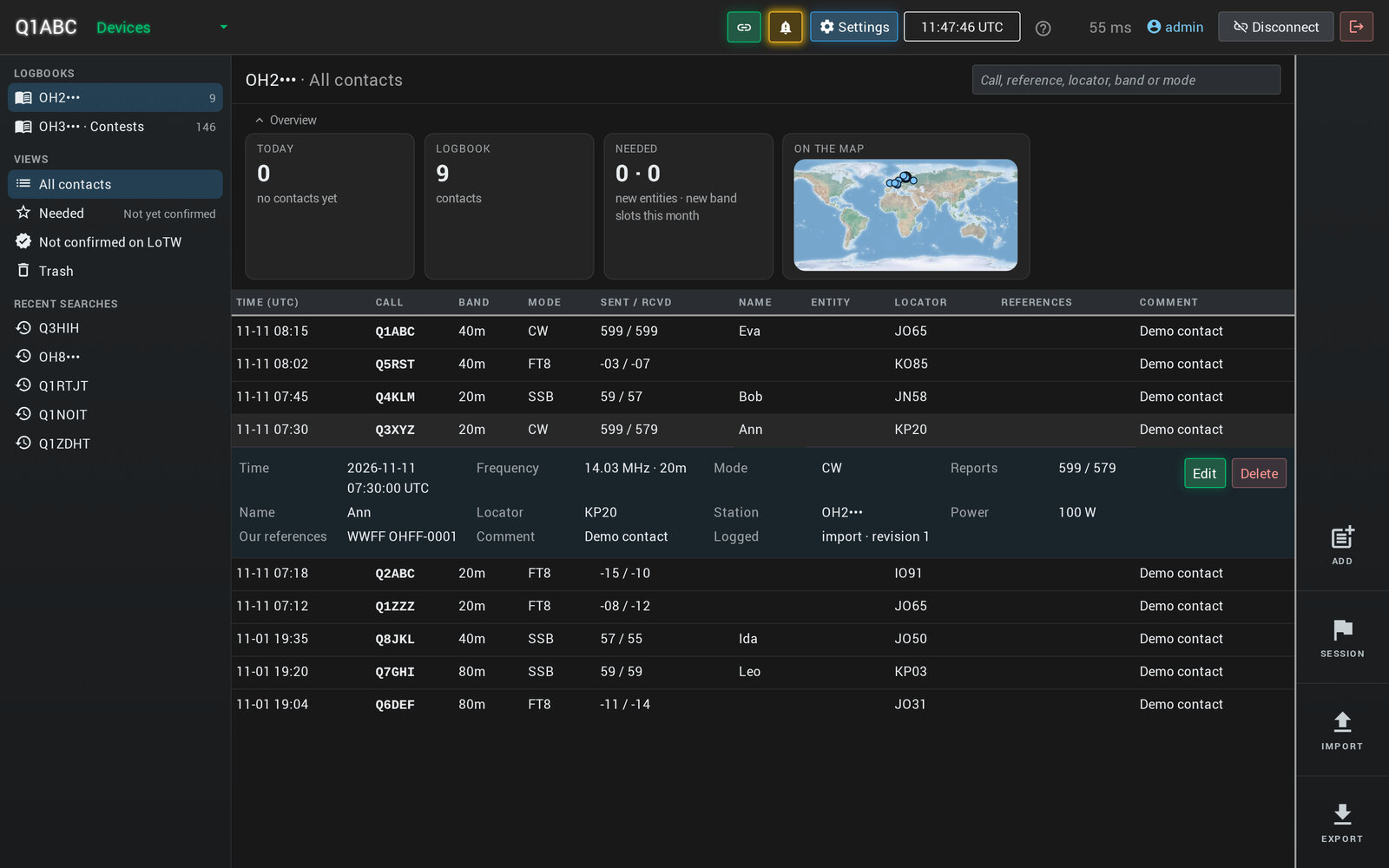
The sidebar
The sidebar at the left chooses what the list shows:
- Logbooks: each logbook of the station, with the number of its contacts. The page remembers the one you choose.
- Views:
- All contacts;
- Needed, the contacts of a country on a band and mode that no contact of the logbook there has confirmed yet;
- Not confirmed on LoTW;
- Waiting to send, the contacts not yet sent to the Wavelog or Cloudlog of the station, when the logbook is sent to one;
- Trash, the contacts deleted from the logbook (see Delete and restore a contact).
- Sessions: the open sessions of the logbook, with their contacts and the progress of an activation. Ended sessions are folded under Ended. Choose a session to list its contacts.
- Recent searches: your last five searches, each one click away.
On a tablet, the sidebar is a narrow row of icons. On a phone, it opens from Views above the list, and closes once you choose.
Find contacts
Type in the search box at the top of the page, Call, reference, locator, band or mode. Each word you type is read by its form:
| You type | It finds |
|---|---|
Q1A | Contacts with calls that begin with Q1A. |
20m | Contacts on the 20 m band. |
FT8 | Contacts in FT8. |
JO65 or JO65ab | Contacts in that locator square. |
FI-0123, OHFF-0001, EU-043 | Contacts with that reference, such as a POTA park, a WWFF area or an IOTA island. |
Combine words to narrow the list. 20m ft8 q1 lists the contacts on 20 m in FT8 with calls that begin with Q1.
The overview
Overview, above the list, sums up the contacts the list holds. Fold it with its title.
- Today: the contacts of today and their bands.
- Logbook: the number of contacts in the logbook.
- Needed: the countries, and the bands of a country, that the logbook worked for the first time this month.
- Sending: when the logbook is sent to a Wavelog or Cloudlog, the contacts waiting and failed for each.
- Session: the progress of an open session.
- On the map: on a desktop, every contact the list selects on a small map of the world. Turn the mouse wheel over it, or pinch, to zoom.
The list
The list shows the latest contacts first, a hundred at a time. Load more at the bottom shows more. On a desktop or a tablet the list is a table. On a phone it is grouped by day, in UTC.
When contacts are logged or imported while you look, Contacts changed — show them appears. Choose it to list them again.
Open a contact
Choose a contact to open it in place. You see everything it holds: the time, the frequency, the reports, both stations, their references, the comment, the notes, and how it was logged. Edit and Delete are under it.
When the logbook is sent to the Wavelog or Cloudlog of the station, a mark beside the call shows whether the contact is waiting, failed or sent. Sent to in the contact lists each log with when it was sent, or why not. Resend sends it again, after you correct it or once a failure is put right (see Wavelog and Cloudlog).
Edit a contact
You can edit and delete your own contacts. Power users and administrators can edit and delete anyone’s.
Open the contact
Choose the contact in the list, then Edit. A drawer opens from the right, beside the list, or over the whole screen on a phone.
Correct it
The drawer has tabs:
- Contact: the date and time, the call, the frequency, the band, the mode and submode, the reports, the comment and your private notes;
- Their station: the name, the locator, the state and county, the DXCC entity and the references of the other station;
- This station: the operator, the power, the rig, the antenna, your locator and your references;
- QSL: the paper card and LoTW, sent and received;
- History: the earlier versions of the contact.
Mode, Submode, Band and DXCC entity are lists to pick from, with a search at the top. They hold every value of ADIF, the standard format for logbooks, not only your own modes and bands. The values you picked last come first.
Save it
Choose Save. Only what you changed is sent.
If someone else changed the contact while you edited it, nothing is overwritten. Close the drawer and open the contact again to see their change.
History lists the earlier versions of the contact. Restore this version puts one back, as a new change of its own.
Delete and restore a contact
Delete in an open contact moves it to the trash of the logbook, once you confirm with Move to the trash. The Trash view lists the deleted contacts. Open one and choose Restore to bring it back to the logbook. A contact in the trash is never exported.
Empty the trash
Administrators can empty the trash of a logbook. The contacts in it are then deleted for good. Operators and power users don’t see the button.
Open the trash
Choose the logbook in the sidebar, then Trash under Views.
Choose Empty the trash…
Choose Empty the trash… above the list. It isn’t available while the trash is empty.
Confirm
Web Radio Control asks first, and names the logbook and how many contacts go, such as Empty the trash of Q1ZZZ? The 3 contacts in it are deleted for good. This can’t be undone. Choose Empty the trash, or Cancel to keep them.
When a search narrows the list, or more contacts are still to load, the whole trash is emptied, not only the contacts you see. The question then says so: Every contact in it is deleted for good, including those not listed here. When the list shows the whole trash, only the contacts listed go. A contact deleted after the list was shown stays in the trash.
If something went wrong
| What you see | What to do |
|---|---|
| Only an administrator can empty the trash. | Your user role doesn’t allow it. Ask an administrator of the station. |
| The trash was not emptied. Reason: … | The station could not delete the contacts. Try again. If it fails again, send a diagnostic report to WRC support (see Send a diagnostic report). |
The action bar
The action bar of the Logbook page runs down the right side, or along the bottom on a narrow screen:
| Button | What it does |
|---|---|
| Add | Opens Add a contact, the same entry as the LOG panel. Choose a radio for its frequency, mode and power, or Without a radio to type them. |
| Session | Starts a session in the logbook, with its Name and Station location (see Sessions). |
| Import | Imports contacts from an ADI file of another logging application. Power users and administrators import (see Import contacts). |
| Export | Downloads the contacts listed as an ADIF file. |
Export the logbook
- Choose the logbook in the sidebar.
- Choose what to export: a view, a session or a search. Export takes the contacts the list selects, all of them, not only those shown.
- Choose Export.
The browser downloads an ADIF file (ADIF 3.1.7), named by the call of the logbook and the day. Logging applications and services such as LoTW, QRZ.com and Club Log read ADIF files.