Import contacts
You can bring the contacts of another logging application into a logbook of the station, from an ADI file. The station reads the file first and shows what it holds, so you choose what goes in before anything is imported. An import can be undone.
What you need
- The Power user or Administrator role. Other operators don’t see Import.
- An ADI file of up to 100 MB, exported from your logging application. ADX files are not read.
Import a file
Open the logbook
Choose the call sign of the station at the left of the top bar, then Logbook. Choose the logbook in the sidebar.
Choose Import
Choose Import in the action bar. The dialog Import into ‹call› opens.
Choose the file
Choose the file under ADI file, then Read the file. The file is sent to the station, with its progress, and read without changing the logbook. Stop stops the sending.
Read what it holds
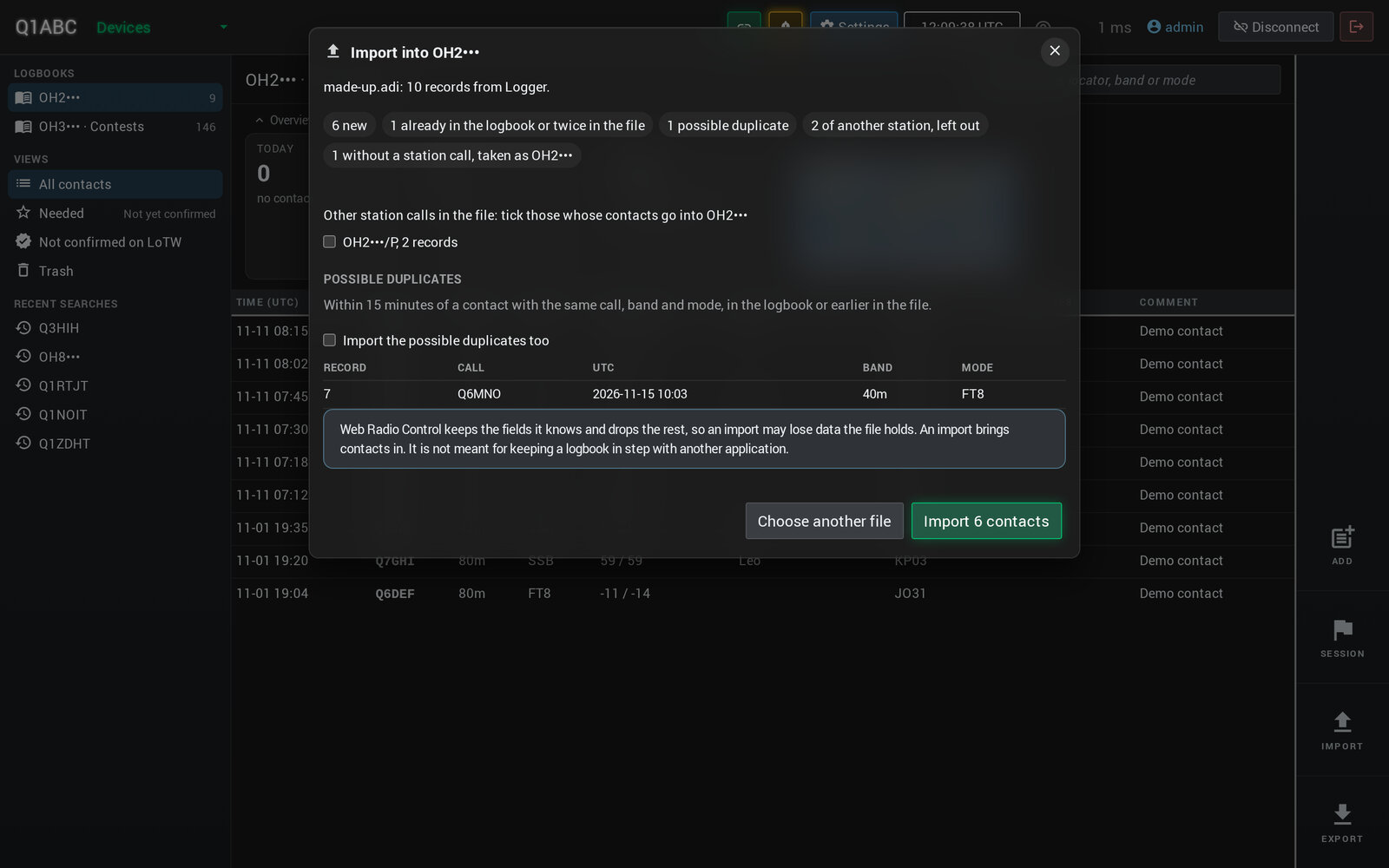
The dialog lists what the file holds:
- new: contacts the logbook doesn’t have. These are imported.
- already in the logbook or twice in the file: the same call, band and mode within a minute of a contact the logbook or the file has. These are skipped.
- Possible duplicates: the same within 15 minutes, listed by their record number. Tick Import the possible duplicates too to take them in.
- cannot be logged: records the logbook refuses, such as a call that isn’t a call sign or a contact before 1930. They are listed under Problems, with smaller problems that leave the contact in without one value.
- of another station, left out: contacts made under another station call. Each call is listed with its count of
records. Tick a call to import its contacts into this logbook too, such as your portable call with
/P. - without a station call: contacts that name no station call, taken as the call of the logbook.
- Fields not kept: the fields of the file that Web Radio Control doesn’t keep, with how many records hold each.
Import
Choose Import ‹n› contacts. The contacts go in, with the progress shown. You can close the dialog, and the import goes on at the station. Choose another file starts again with another file instead.
Each imported contact keeps who logged it, from the operator the file names, and shows the import as its origin. The entity and zones of each contact are kept as the file gives them, and filled in where it doesn’t. Its QSL statuses are kept too. Imported contacts are never sent on to the Wavelog or Cloudlog of the logbook.
A file read but not imported is discarded after a day.
Undo an import
Earlier imports, under the file in the dialog, lists the imports of the logbook: when each was made, how many contacts it imported, how many are still in the logbook, and how many were edited since.
- Choose Import in the action bar.
- Under Earlier imports, choose Undo on the import.
- Read how many contacts go to the trash, and how many of them were edited since. Then choose Undo the import.
Every contact of the import that is still in the logbook moves to the trash, edited ones too. Until the trash is emptied, you can restore them from it (see Delete and restore a contact).
An import that stopped part way is listed with what it imported, and is undone the same way.
If something went wrong
- Import isn’t in the action bar. Your role doesn’t allow importing. Ask a power user or an administrator.
- The file is refused. It is larger than 100 MB, or not an ADI file. Export an ADI file, or split a large log in parts.
- Many contacts are of another station. The file names another station call in its contacts. Tick the calls that belong in this logbook, or import them into the logbook of that call.
- Contacts are missing after the import. Look under Problems and Possible duplicates in the dialog: those records were left out.