Log from other applications
WSJT-X, GridTracker and other applications that can log to Cloudlog or Wavelog can log their contacts straight into a logbook of the station instead. Each application logs with a log API key of its own, as you, into the logbook the key names. Here you make a key and set up each application.
To control the radio from these applications too, link them with WRC Link, which takes the place of wrc-proxy of
Web Radio Control 0.13 (see Link your applications).
What you need
- Permission to log contacts on the station.
- A logbook to log into. The station administrator makes the logbooks.
- The address you open the station at in your browser, such as
https://shack.local.
Make a log API key
Open your keys
Open Settings › My settings › My log API keys.
Describe the key
Under Make a key, type the Name of the application, such as WSJT-X. Choose the Logbook it logs into and, if you want, the Location its contacts are logged at. Without one, the location of the logbook is used.
Make it
Choose Make the key. The key is shown once. Choose Copy, and paste the key into the application now. It isn’t shown again. Done puts it away.
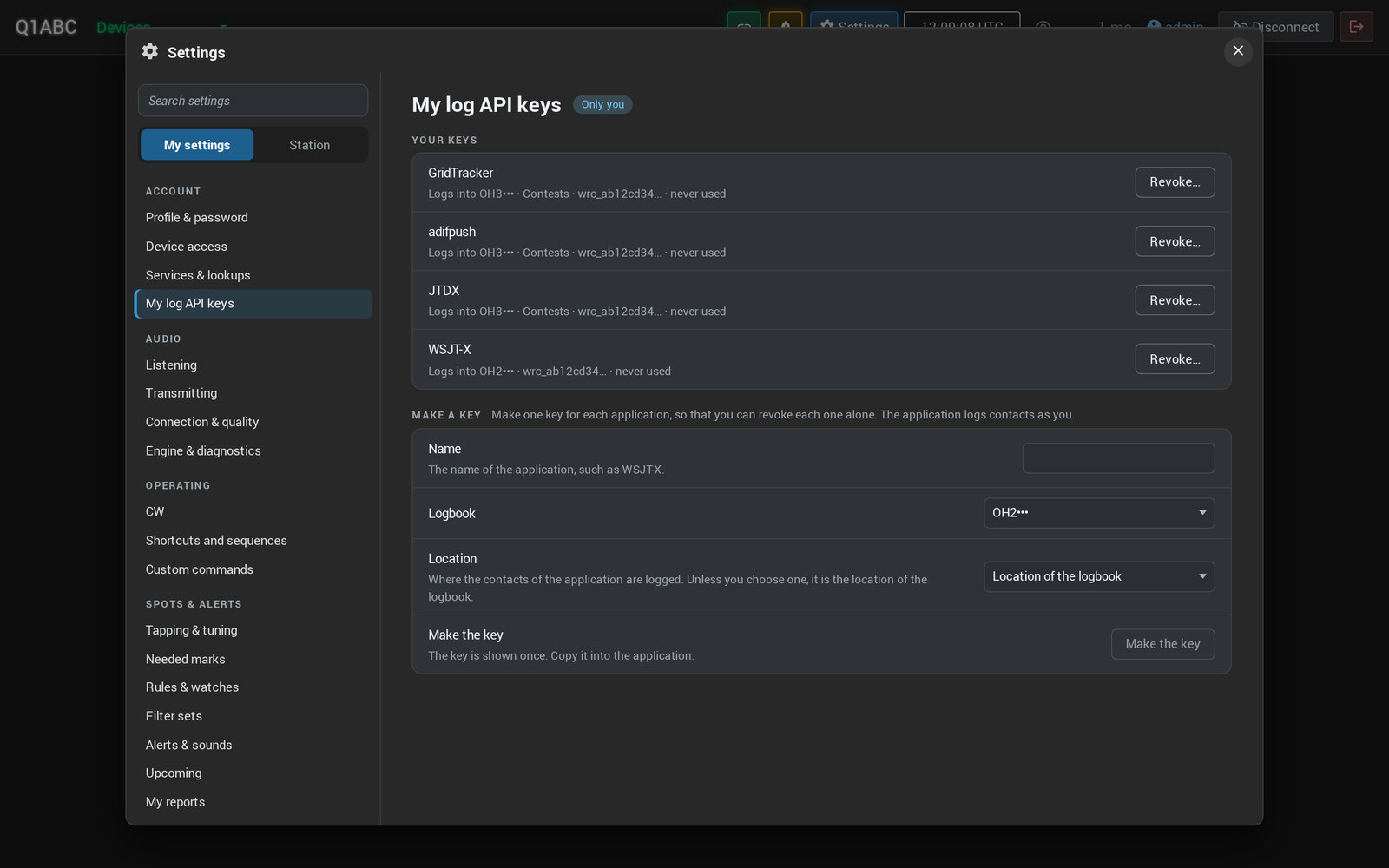
Make one key for each application, so you can revoke each one alone. You can have up to 20 keys, and they don’t expire.
Your keys lists your keys, each with the logbook it logs into, its beginning, such as wrc_ab12cd34…, and when it
was last used. Revoke… ends a key at once, and the application that uses it can no longer log contacts. Revoke a
key whenever you are in doubt.
A key logs as you, and only while you may still log. If your user is disabled, or your role no longer allows logging, your keys stop working too.
Set up the application
The application sends each contact to the station as it is logged. Most applications use the HTTPS address of the station. The desktop where the application runs must then trust its certificate: install the station certificate on it (see Install the station certificate), or use the wrcs.tech address of the station, if it has one.
For WSJT-X 3.0:
- Make a key named WSJT-X and copy it.
- In WSJT-X, open File › Settings…, the Advanced tab, and tick Upload QSOs to Cloudlog or Wavelog.
- In API URL, type the address of the station, such as
https://shack.local, or with its port where the standard ports are off,https://shack.local:8443. Type nothing after the name or the port, not even a/. - In API Key, paste the key. In Station ID, type
1. The key chooses the logbook and the location, so any number will do. - Choose Test API Key. It turns green.
WSJT-X sends each contact as you log it, with OK in Log QSO or by logging automatically. My Call in WSJT-X must be the call of the logbook. When the station refuses a contact, WSJT-X shows Cloudlog Error! with the reason. It says nothing when a contact went in, so check the Logbook page.
What the station takes
A contact from an application is logged as if you typed it in the LOG panel: into the logbook of the key, at its location, and sent on to the Wavelog or Cloudlog of the logbook, where it has one.
- The same contact again, with the same call, band and mode within a minute, is not logged twice. The application is told it was a duplicate.
- A contact the station can’t log, such as one without a time or a band, or with a call that isn’t a call sign, is refused with its reason. The rest are logged.
- A contact of another station call is refused, with the contacts after it. The call the application logs as must be the call of the logbook.
The station keeps every field of a contact that the ADIF export writes, and leaves out the others.
If something went wrong
- The test fails in WSJT-X or adifpush. The desktop doesn’t trust the certificate of the station. Install the
station certificate on it, or check the address: no
/after it in WSJT-X. - GridTracker can’t connect. Ask the station administrator to turn on Take contacts over plain HTTP too, and use
the
http://address of the setup page. - Contacts are refused as another station. The call in the application is not the call of the logbook. Set the call of the logbook as My Call, or make a key for the logbook of your other call.
- A key stopped working. It was revoked, or your user may no longer log. Make a new key, or ask the station administrator.
The station administrator sees the keys of every user, revokes them and turns on plain HTTP in Settings › Station › Log API keys (see Log API keys).