Find your way around
Every page of Web Radio Control has the same top bar. Here you find what each part of it does, the Devices page that opens after you log in, the other pages of the station, and where Web Radio Control tells you what is happening.
The top bar

From the left:
- The call sign of the station opens the station menu, with the pages of the station: Devices, Logbook, Spots, Map and Reservations (see The pages of the station).
- The device selector names the device whose page is open, or says Devices on the other pages. Its list has every device of the station, each with its status, its name, its manufacturer and model, and a calendar while it is reserved. Choose a device to open its page.
- The connection status icon shows how this page is connected to the station (see Connection status).
- The bell opens your notifications (see Notifications).
At the right end:
- Settings opens the Settings dialog at the settings of the station, those your roles let you see. Your own settings are in its other part, My settings, which you choose at the top of its sidebar.
- The clock shows the time in UTC. Choose it to see the local time of this browser, and again for UTC.
- Help, the ?, has the guided tour, What’s new and this documentation (see Help and the guided tour).
- The ping is how long the station takes to answer this page, in milliseconds. It turns red when it is high.
- Your username opens your own settings, My settings.
- Disconnect stops the connection of this page to the station (see Disconnect and connect).
- Log out, the red button, logs you out (see Log in).
On a narrow screen, such as a phone, the right end is a menu, ☰. It has your username, My settings, Settings, Disconnect, Log out, the time, the ping and, under Help, its three items.
Ctrl+, opens Settings from the keyboard, and ⌘+, on a Mac. See Your settings for My settings.
The Devices page
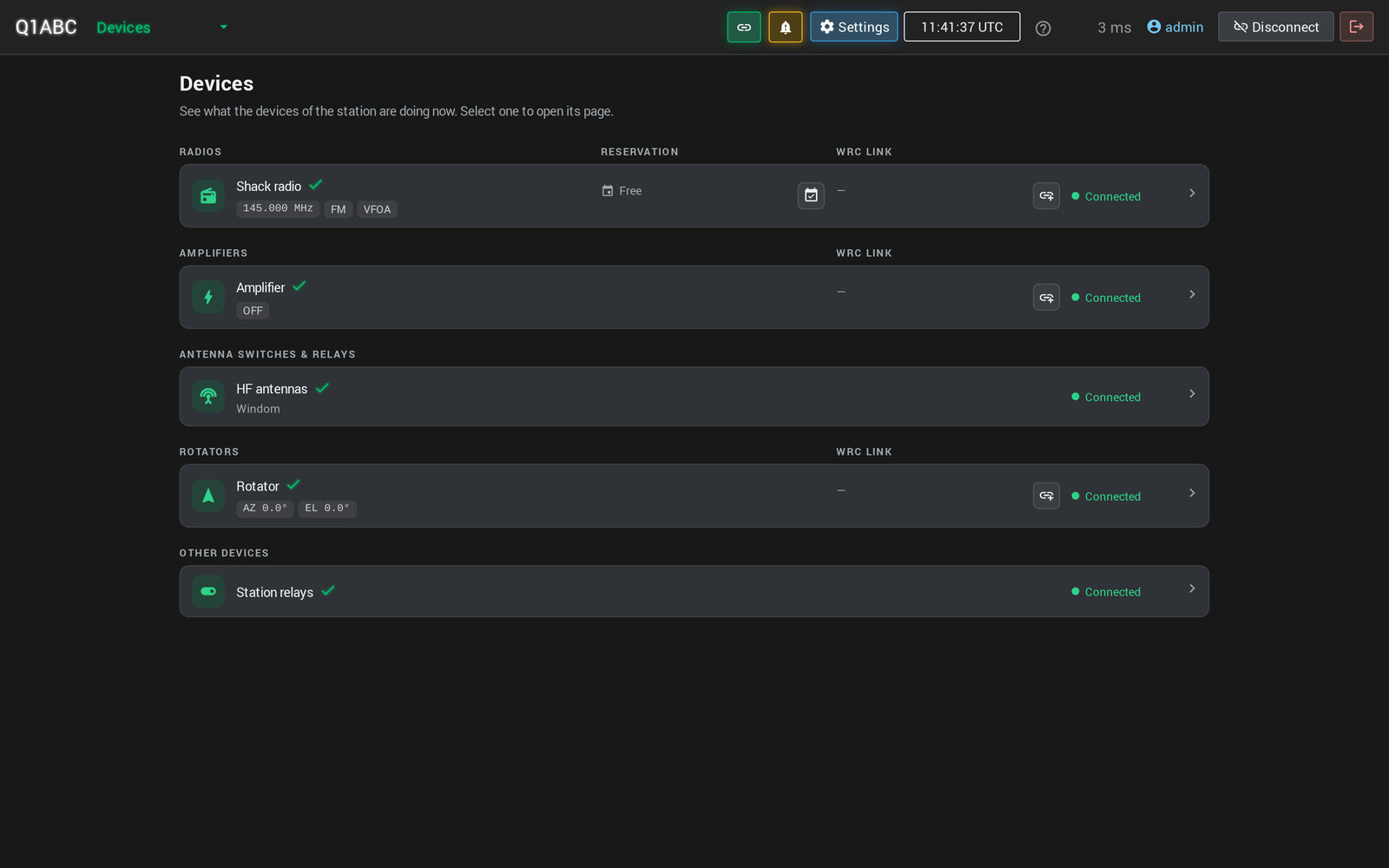
After you log in, Web Radio Control opens on Devices. It lists the devices of the station by kind: Radios, Amplifiers, Antenna switches & relays, Rotators and Other devices. A kind the station doesn’t have is left out. Each device shows its name and what it is doing now:
- a radio shows its frequency, mode and VFO, and Streaming while you listen to it;
- an amplifier shows whether it is off, in standby or operating: OFF, STBY or OPR;
- an antenna switch shows the antenna in use and the radios it serves;
- a rotator shows where it points, and the radios it turns for.
At the right, each device has its status in words: Connected, Switched off, Not answering, Not connected, or how many problems it has. Radios also show their Reservation: who holds the radio now and the next reservation. If you may reserve, the button at the end of the column reserves the radio, or extends your reservation (see Reserve a radio). Radios, amplifiers and rotators also have a WRC Link column. It shows the application your WRC Link connects to the device, such as WSJT-X, or that another operator controls the device through WRC Link (see Link your applications).
Choose a device to open its page. Choose a radio to open the radio page (see The radio page).
If the station has no devices yet, the page says so. An administrator then has Add a device under it, which opens the settings where devices are added.
Adding a device is described in Add a device.
The pages of the station
The station menu, at the call sign of the station in the top bar, opens these pages:
| Page | What it has |
|---|---|
| Devices | Every device of the station, with what it is doing now. |
| Logbook | The contacts in the logbooks of the station (see The Logbook page). |
| Spots | The spots of the DX clusters and other sources that the station follows (see Spots). |
| Map | The Amateur Radio Map: your station, the contacts, the spots and the reports (see The Amateur Radio Map). |
| Reservations | The reservation calendar. A calendar mark shows beside it while a reservation is in force (see Reserve a radio). |
Logbook, Spots and Map show for operators who may listen.
Connection status
The connection status icon, next to the device selector, shows the connection of this page to the station and every audio stream together. When several hold at once, it shows the most serious:
| Color | State |
|---|---|
| Green | Connected, or Streaming while audio runs |
| Blue | Connecting, the first time |
| Amber | Reconnecting after the connection was lost, or Streaming on a fallback when the audio can’t travel its usual way and takes another |
| Red | Audio connection failed for a radio |
| Gray | Not logged in, or Disconnected because you disconnected |
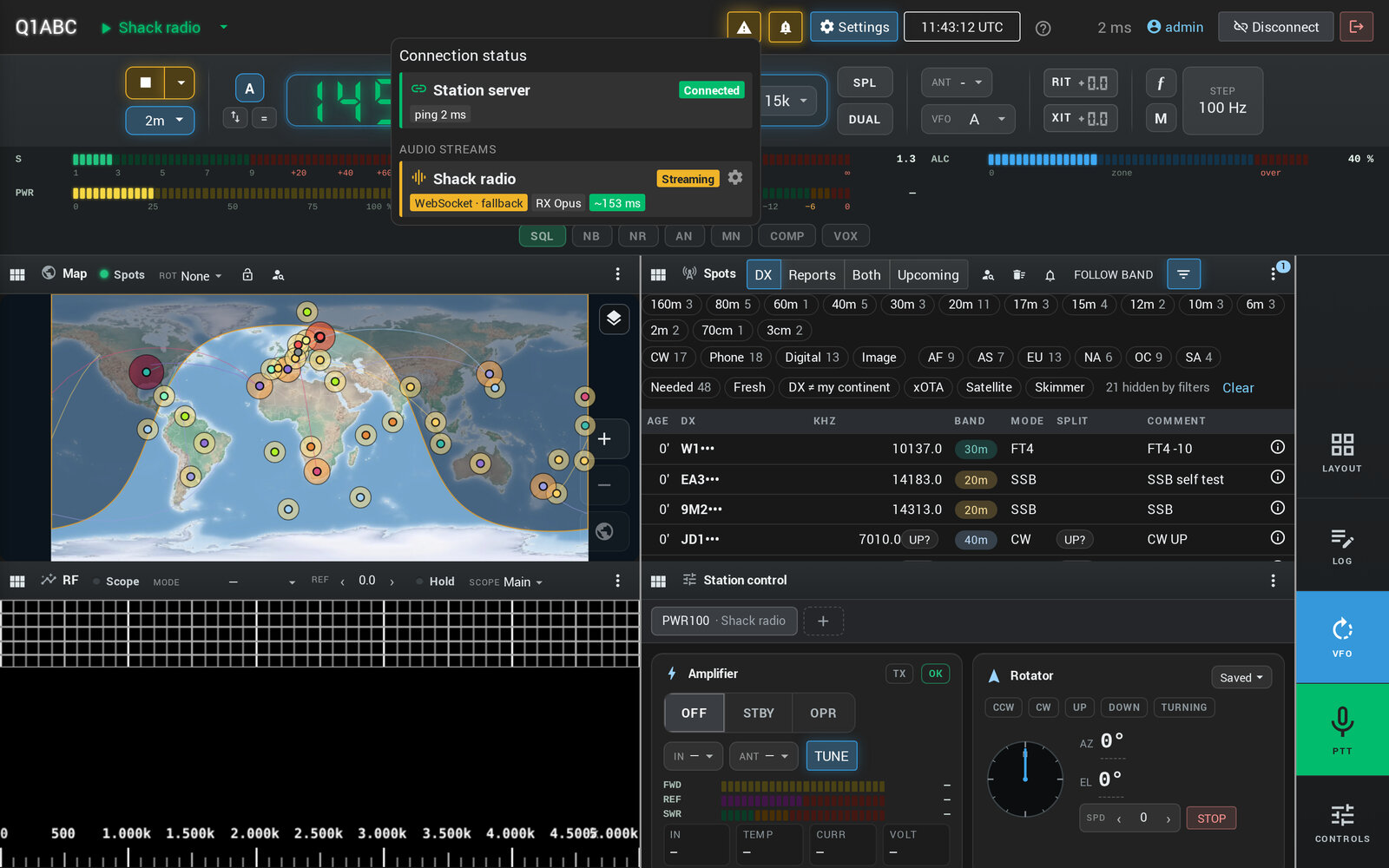
Choose the icon to open Connection Status. Its Station server card is the connection to the station server, with its ping, and there is a card for the audio of each radio you stream. Each card has its state and the details, such as the codec and how the audio travels. The gear on an audio card opens the audio settings for that radio (see Listen and transmit).
When the connection is lost
If the connection to the station is lost, the page stays as it was, its controls grayed, and a card says that Web Radio Control is connecting again. It tries again by itself until it is connected, and the page carries on where it was. Reconnect now tries at once.
A transmission stops when the connection is lost. The station releases the PTT of a connection it has lost.
When the station restarts, or its station control computer reboots, the card says so, and Web Radio Control connects again by itself, usually within a minute.
Disconnect and connect
Disconnect, in the top bar, stops the connection of this page to the station. The controls and the audio stop, and the page shows a card with Connect. You stay logged in. The page stays disconnected, also after a reload, until you choose Connect.
Notifications
Messages appear at the bottom of the page. On a radio page they appear above the action bar on a phone, and next to it on a wider screen, so they never cover the header. Each has its color:
- blue for information;
- green for something done;
- amber for a warning;
- red for an error.
A message goes away by itself after a few seconds, an error later than information. × closes it at once. A message that asks something stays until you answer it with its buttons.
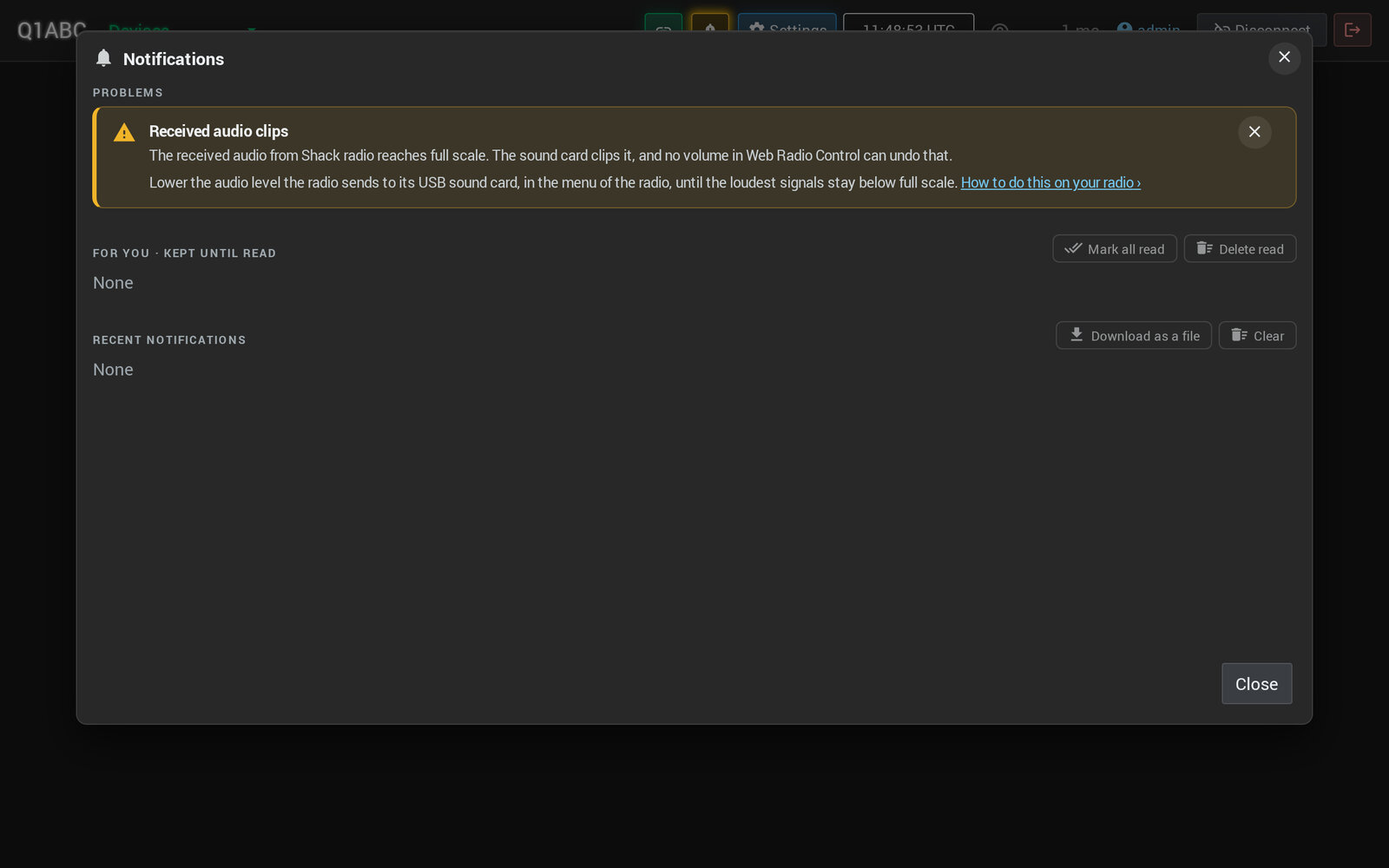
The bell in the top bar lights amber for a warning you haven’t read, and red for an error, with how many there are. Choose it to open Notifications, with three parts:
- Problems: the problems of the station now, each with what to do.
- For you · kept until read: notices the station keeps for you until you read them, such as a reservation of yours that the station canceled while you were away.
- Recent notifications: the warnings and errors shown lately, newest first. Download as a file saves them, and Clear empties the list.
Every message also goes to the log of this browser, in Settings › My settings › Browser log (see The browser log).
When this page connects to the station, the Web Radio Control status dialog opens if something needs action now, such as a license that is about to expire. When nothing needs action, it doesn’t open.
Help and the guided tour
Help, the ? in the top bar, has three items. On a narrow screen they are under Help in the top bar menu, ☰.
- Take the guided tour walks you through the top bar and the radio page.
- What’s new shows what changed in each version of Web Radio Control.
- Documentation opens this documentation in a new tab.
The guided tour
The guided tour shows each part of the top bar and the radio page in turn, with a card that says what it does. It changes nothing on the radio and never transmits. It shows only the parts that you may use.
- Next, or →, goes to the next step, and Done ends the tour at the last one.
- Back, or ←, goes to the step before.
- Skip, × or Esc ends the tour at any step.
At your first login, a notification offers the tour. Choose Take the tour, or No thanks. The answer is kept with your account, so the offer doesn’t come again. You can take the tour from Help at any time.
What’s new
After the station is updated, What’s new opens the first time you use Web Radio Control, with what changed since the version you last saw. Close closes it. Beside a change, Show me shows the new feature in a short tour, and Open opens the page where the change is.
To stop What’s new from opening by itself, untick Show what’s new after an update. The same switch is in Settings › Station › About, where Release notes… shows the changes of every version up to the one the station runs. This documentation has the same release notes.