Describe your station
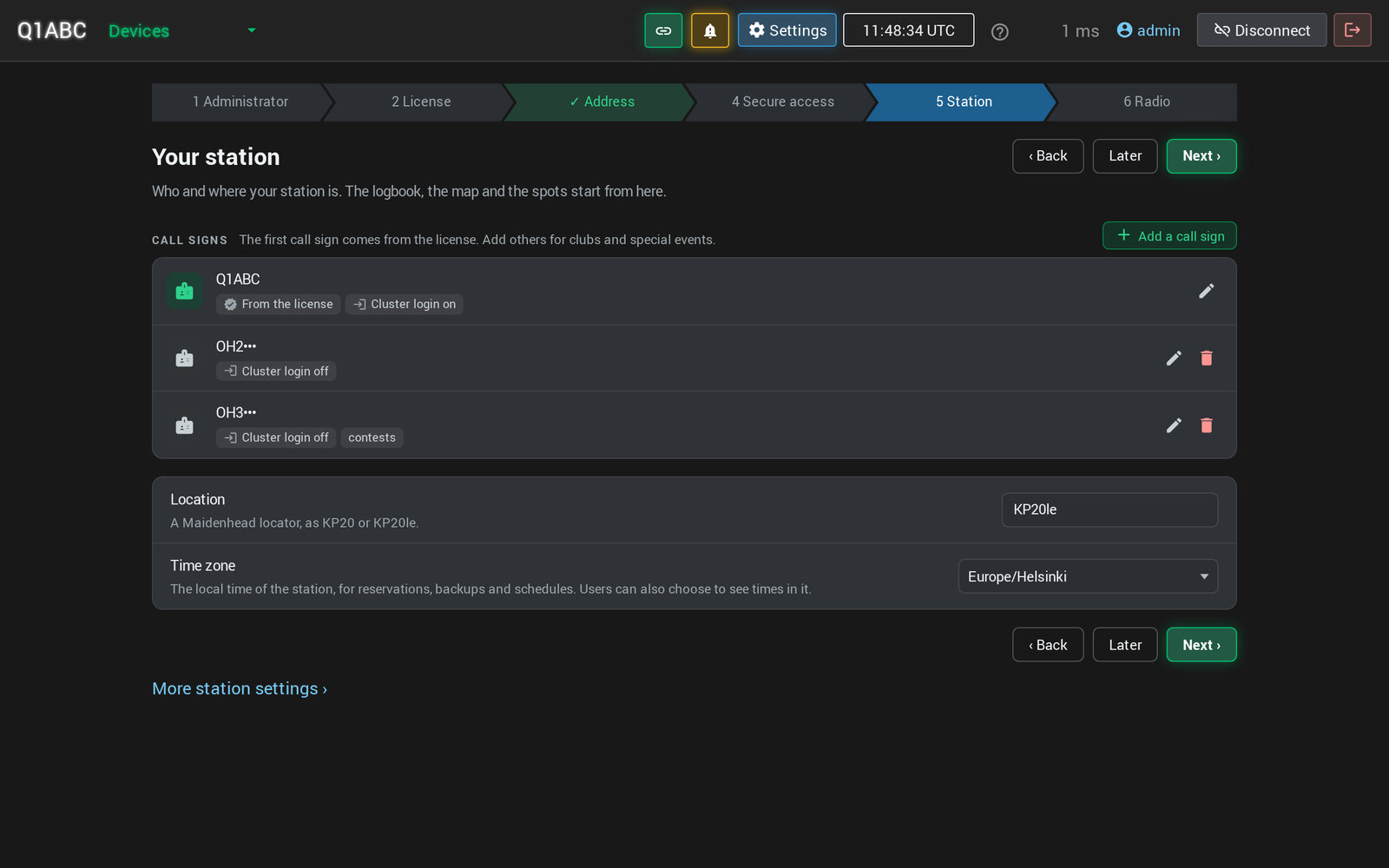
The Station step, Your station, says who and where your station is. The logbook, the map and the spots start from here. The step asks for three things: the call signs, the location and the time zone of the station.
Check the call signs
Call signs lists the call sign of the license first, marked From the license. The line under the title says The first call sign comes from the license. Add others for clubs and special events. The call sign of the license follows the license and can’t be removed. Each call sign shows whether it may be used to log in to DX clusters, Cluster login on or Cluster login off, and its note.
On a station without a license and with no call sign yet, the form for a call sign is open. Add the call sign of the station there.
Add other call signs, if the station has them
Add a portable call such as Q1ABC/P, a club call or a special event call:
- Choose Add a call sign.
- Type the Call sign, and a Note if you like.
- Leave Cluster login and posting on to log in to DX clusters and post spots with the call sign. A new portable,
mobile, maritime or aeronautical call sign (
/P,/M,/MM,/AM) has it off. - Choose Add.
A call sign can’t be changed once added. To correct one, remove it with the bin icon and add the right one. The pencil icon changes the note and the cluster login.
Enter the location
In Location, type the Maidenhead locator of the station, such as KP20 or KP20le.
Choose the time zone
In Time zone, choose the time zone of the station. Reservations and the logbook show the local time of the station.
Continue
Choose Next ›. It saves the location and continues to the Radio step.
The other station details are in Settings. More station settings ›, under the step, opens Station & call signs over the guided setup, with Location & time beside it. There you find the station announcement, the contact details, the location as coordinates, and more (see Station, call signs and location).
If something went wrong
- The location says Not a Maidenhead locator. Type the locator of the station in the form
KP20orKP20le. - A call sign is refused. The message under the list says why.
- No call sign is listed. Without a license, add the call sign of the station with Add a call sign. With a license, its call sign is listed by itself.
More help is in Troubleshooting.