Set up secure access
The Secure access step sets up the address and the certificate for the way you chose on the Address step. Its title is Secure access for every way. The line under it says what your way gives, such as No more certificate warnings. Your station gets its own address, with a certificate every browser trusts, renewed automatically. To choose another way, choose ‹ Back.
You need:
- for a
wrcs.techdomain name, an active license, a trial or a campaign license; - for your own domain, the account details of your DNS provider at hand, such as its token, password or key.
Set up the way you chose
Choose the tab for your way.
The step has three numbered cards. Work through them in order.
Get a station address. The Station address card says None yet, with the address pattern,
‹random name›.wrcs.tech. Choose Get a station address, then Get a station address again in the dialog.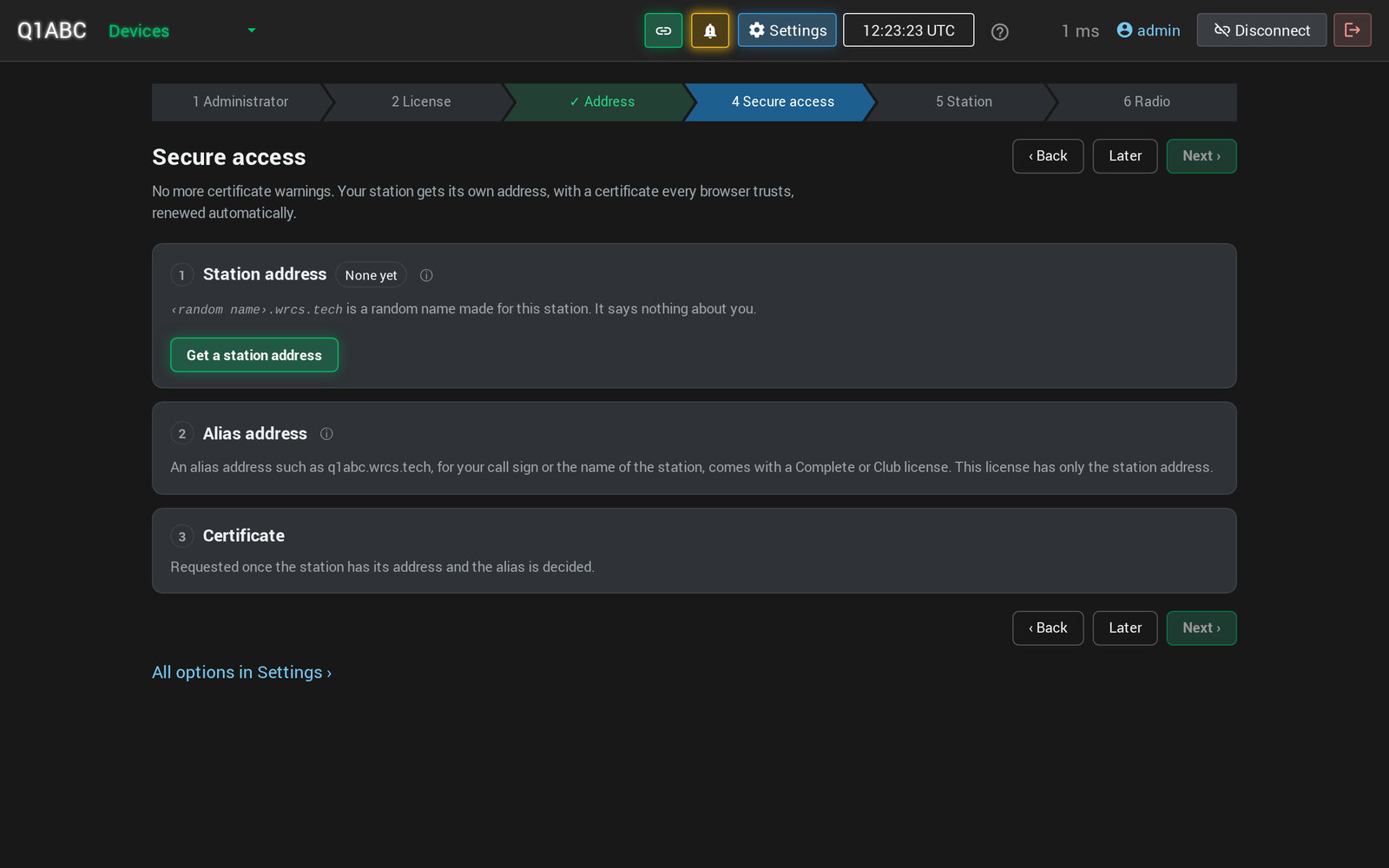
The card then says Yours, with the station addresses From the internet,
‹name›.wrcs.tech, and On the station’s network,lan.‹name›.wrcs.tech. Getting the address doesn’t request a certificate yet.Choose an alias, or none. The alias is optional, and comes with a Complete or Club license. With another license the card says so, and there is nothing to choose here. Choose No alias, or choose An alias, for your call sign or the station’s name, type its Name, choose Get this alias…, and confirm in the dialog.
An alias has 3 to 32 letters, digits and single hyphens, and starts and ends with a letter or a digit. It is the call sign of your license, or a free name such as
shack-north. The page checks it as you type.Request the certificate. Once the alias is decided, choose Request the certificate. The card shows the names the certificate covers, and says A station can request two certificates a day (UTC). This uses one of them. It says Getting the certificate… while the certificate is made, then Certificate issued.
Choose Next ›. Next › stays grayed until you request the certificate. If you choose Next › before the certificate is installed, the step asks first, because
lan.‹name›.wrcs.techdoesn’t work until then: The certificate is not installed yet … Go on anyway? Wait here stays on the step. Go on anyway continues.
The page then says Moving to the new address, with Waiting for the certificate to be installed until
the certificate is in place. It then moves your browser to lan.‹name›.wrcs.tech. You stay logged in. Bookmark that
address. It works on your local network and from the internet. The address you came from keeps working with the
station certificate. To continue without waiting, choose Next › on the page, which continues at the address you
are on.
Remote use. Once the station has its address, the Remote use card appears under the certificate. See Use the station from the internet.
Continue
When you are done, choose Next ›. The guided setup continues to the Station step.
Check: the bar of steps shows Secure access done with ✓.
- For a
wrcs.techdomain name, the certificate card says Certificate issued, and your browser opens the station atlan.‹name›.wrcs.techwith no certificate warning. - For your own domain, the provider check passed and the certificate is in place.
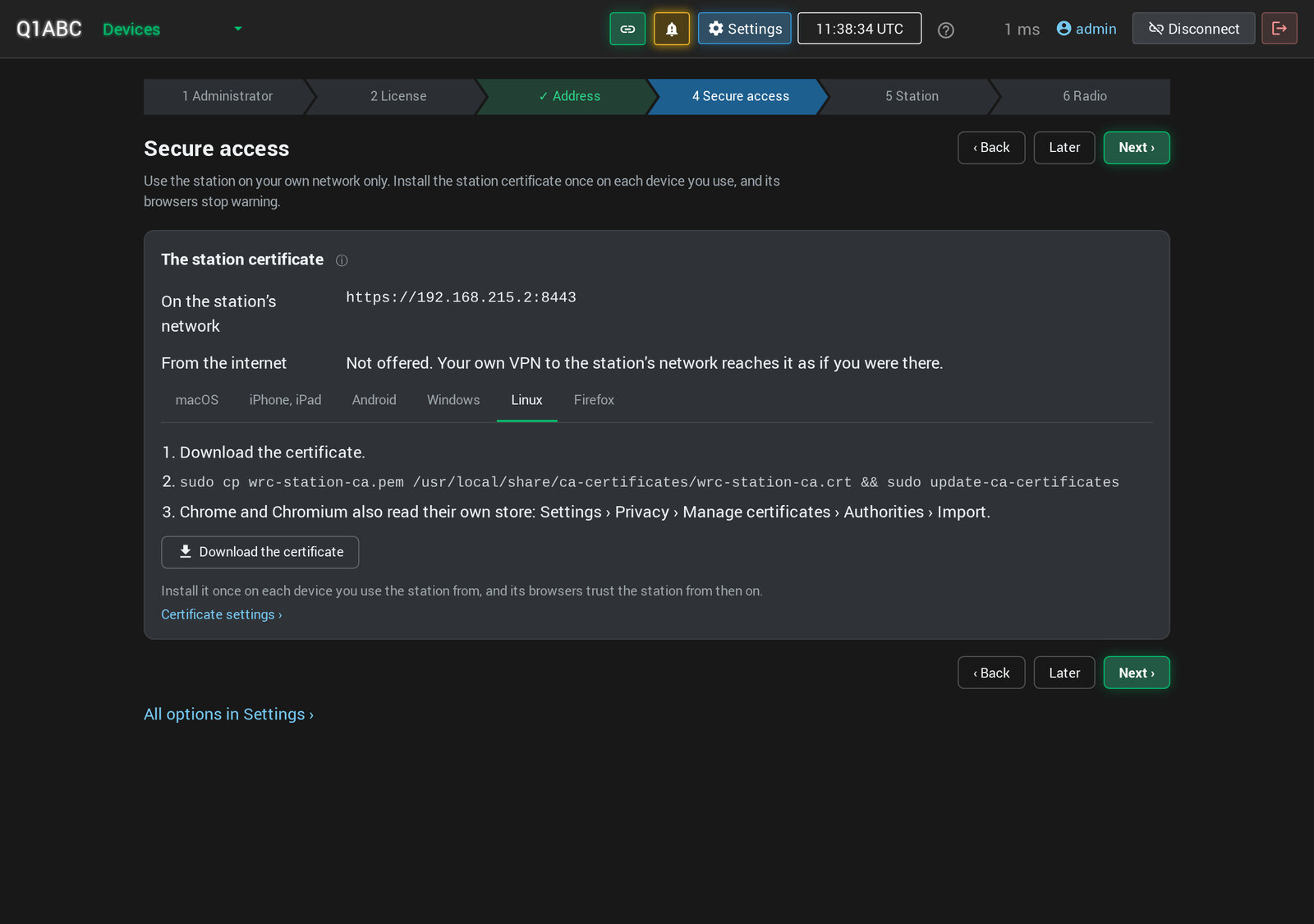
- For local only, this device has the station certificate installed.
Continue with Describe your station, or first with Use the station from the internet.
If something went wrong
- The certificate card says Getting the certificate failed, with the reason under it. When both certificate requests of the day are used, the page says so. The station requests it again by itself at its daily check, or you can try again the next day (UTC).
lan.‹name›.wrcs.techdoesn’t open on your local network. The step says Your router blocks public names that point into your home network (DNS rebinding protection). Settings › Station › Ways to reach says Your network hides the wrcs.tech address of the station. Addwrcs.techto the exceptions of your router, as in Let the station address through your router. Until then, the station keeps its own certificate on its network.- The page says Your login could not be handed across. Open the new address and log in there.
- The alias is refused. The field says why. A name with a reserved word, or a call sign that isn’t the call sign of your license, can’t be an alias.
- The provider check failed. The form gives the reason from the provider, such as a wrong key.
More help is in You can’t reach the station.
Let the station address through your router
On your local network, browsers open the station at lan.‹name›.wrcs.tech. This public name points at the address
of the station on your local network, such as 192.168.1.20. Many routers block such answers, to protect the devices
at home from an attack called DNS rebinding. The Secure access step then says Your router blocks public names that
point into your home network (DNS rebinding protection). Until you let the name through, the station keeps its own
certificate on your network, and browsers warn about the connection there.
To let the name through, add wrcs.tech to the exceptions of the DNS rebinding protection of your router. Choose the
tab for your router, or for the DNS server of your network. The menu names change between versions, so take them as
hints, and see the guide of the manufacturer linked in each tab.
- In the FRITZ!Box user interface, choose Home Network › Network, then the Network Settings tab.
- Choose Change Advanced Network Settings.
- On the DNS Filter tab, under DNS Rebind Protection, choose Add Exception.
- Enter the name of the station on your network, such as
lan.‹name›.wrcs.tech, and choose Add. The Station address card shows it under On the station’s network. If the station has an alias, add its name on your network too, such aslan.q1abc.wrcs.tech. - Choose Apply.
A FRITZ!Box asks for each whole name, not wrcs.tech alone. On older FRITZ!OS versions, the names go in the field
Domain name exceptions under Home Network › Network › Network Settings, one name per line, and the exception
works after the FRITZ!Box restarts.
The guide from FRITZ!: DNS rebind protection rejected your query.
lan.‹name›.wrcs.tech opens on your local network with no certificate warning.