Install the station certificate
Do you need the station certificate?
- No, if you open your station at its
wrcs.techaddress or at your own domain. Every browser already trusts the certificates of those addresses. - Only to stop a warning, if you open your station at a local name, such as
https://‹name›.local, or at its IP address. A station that is local only is always opened this way.
Without the station certificate, the browser warns that the connection isn’t private. Continue past the warning, and the station works as it should. The connection is still encrypted. The warning only means that the browser can’t confirm that it’s your station. Install the certificate on a device, and its browsers open the station without the warning.
You install the station certificate once on each device. It keeps working when the station renews its certificate. Install it only for a station you own.
Download the file
On the setup page, Show the steps in How to start opens A secure connection. Get the file there, or in Web Radio Control in Settings › Station › Certificates, and on the Secure access step for local only.
- On the setup page, the page picks the system this browser runs on and shows its steps, the file to download and the certificate fingerprint. Choose another system for another device. On a desktop, the page also shows a code. Scan it with a phone to open the steps there.
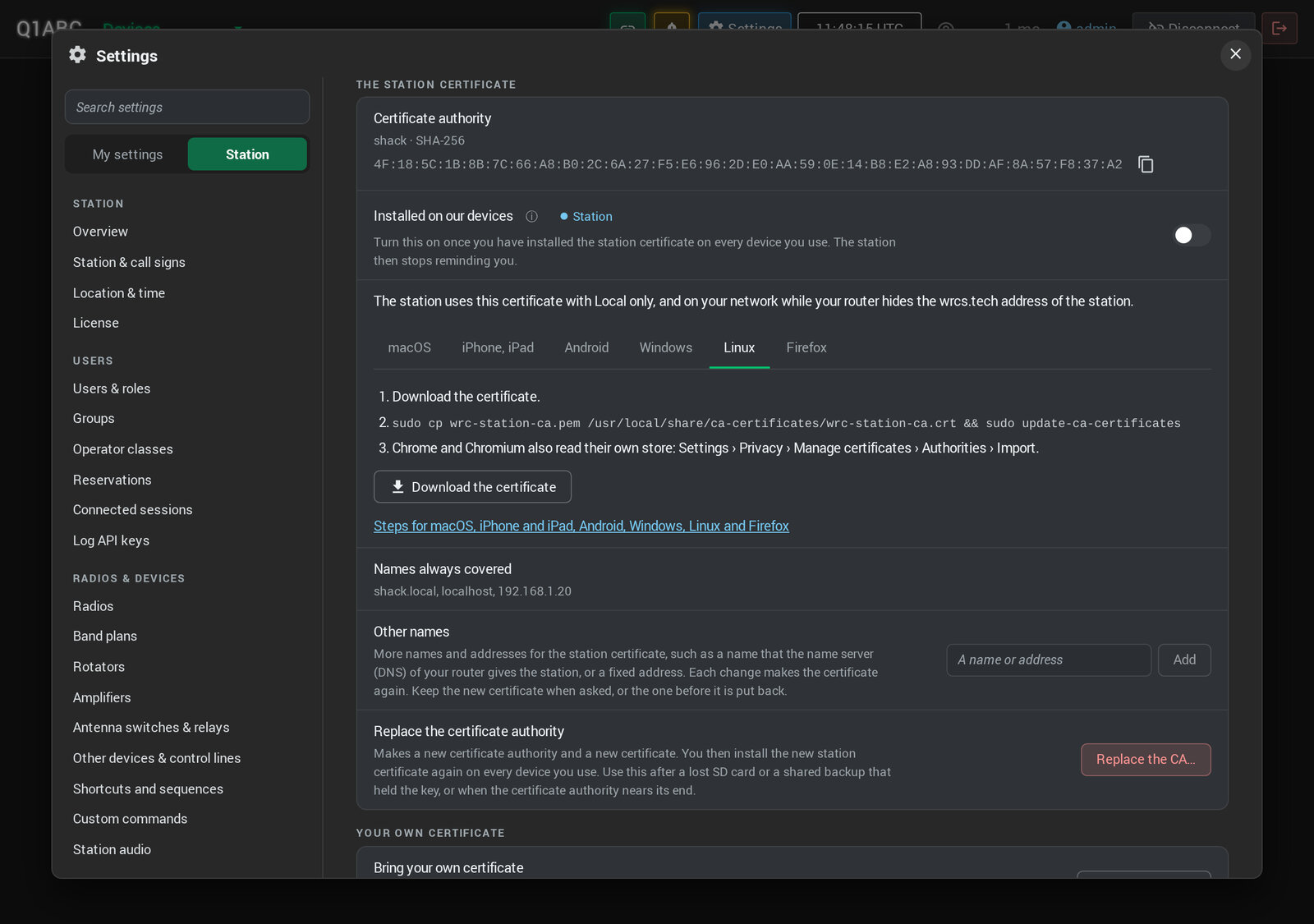
- In Settings, the section The station certificate shows the station certificate, called Certificate authority there, with its whole SHA-256 fingerprint and Copy the fingerprint, then the same tabs for each system.
Choose the system of your device in the tabs. Then choose Download the profile on a Mac, iPhone or iPad, or Download the certificate on the others. The profile installs the certificate in one go.
The files are named wrc-station-ca: wrc-station-ca.crt for Windows and Android, wrc-station-ca.pem for Linux and
Firefox, and the profile wrc-station-ca.mobileconfig for a Mac, iPhone or iPad.
Install it
- Open System Settings › Profiles.
- Install WRC station ‹station name›.
Compare the fingerprint
When you install the certificate, your system shows its SHA-256 fingerprint. Compare it with the fingerprint on the setup page or in Settings › Station › Certificates, which has a button to copy it. They must be the same. If they differ, don’t install the certificate.
Check it
Come back to the setup page and choose Check again.
https://‹name›.local, opens with no certificate warning.A new station certificate
The station gets a new station certificate when you choose Replace the CA… in Settings › Station › Certificates, when its settings are reset, and when the data of another station is imported. Install the new one on every device as above, and remove the old one from the devices that had it, in the same menus.
How the station certificate works
The station certificate is a certificate authority (CA) that the station made for itself. It signs the certificate the station uses on your local network, so a device that trusts it trusts the station at any of its local names. That is why Settings calls it Certificate authority, and why the button that makes a new one is Replace the CA….
It can vouch only for local names and private addresses. Current browsers enforce that, so it can’t vouch for other sites.
If something went wrong
- Check again still says Not installed. On Windows, restart the browser. In Firefox, import the certificate into the Firefox list. On an iPhone or iPad, turn the certificate on in Certificate Trust Settings.
- The fingerprints differ. Don’t install that file. Download it again from the setup page, on your local network.
- A program refuses the station certificate under any name. Programs built on OpenSSL older than 1.1.0, such as those of CentOS 7 and Ubuntu 16.04, can’t check the limits on the station certificate. Use a current system.
More on certificate warnings is in The browser warns that the connection isn’t private.